Which device runs ADB Shell, and which device receives the commands?+
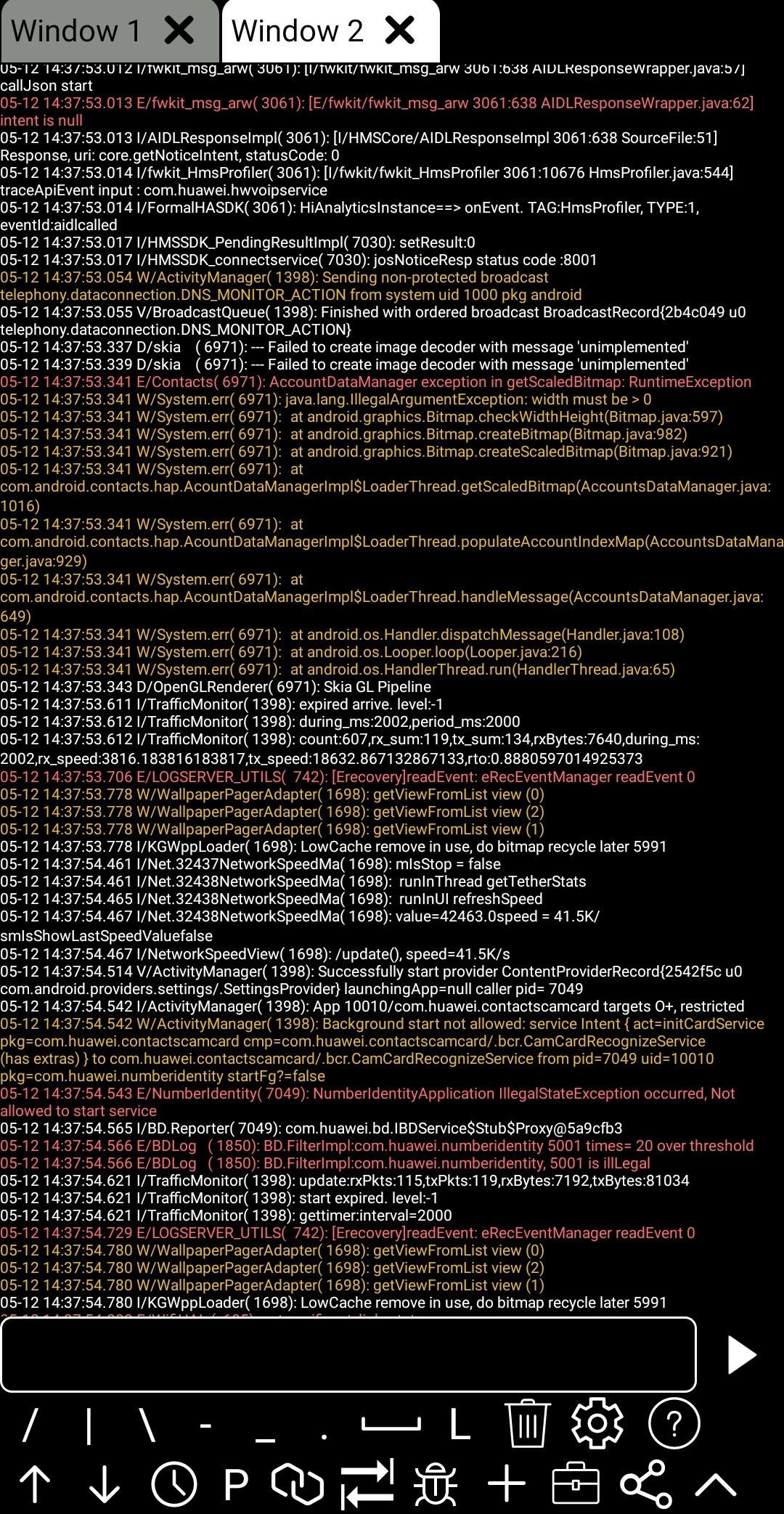
ADB Shell runs on the Android device you use as the client. A local shell runs on that device with the app’s permissions. For ADB tasks, select and connect an authorized target, which can be the same device through a supported local connection or another reachable device. Pairing establishes trust; a connected ADB session is still required.
What tasks can I do with ADB Shell?+
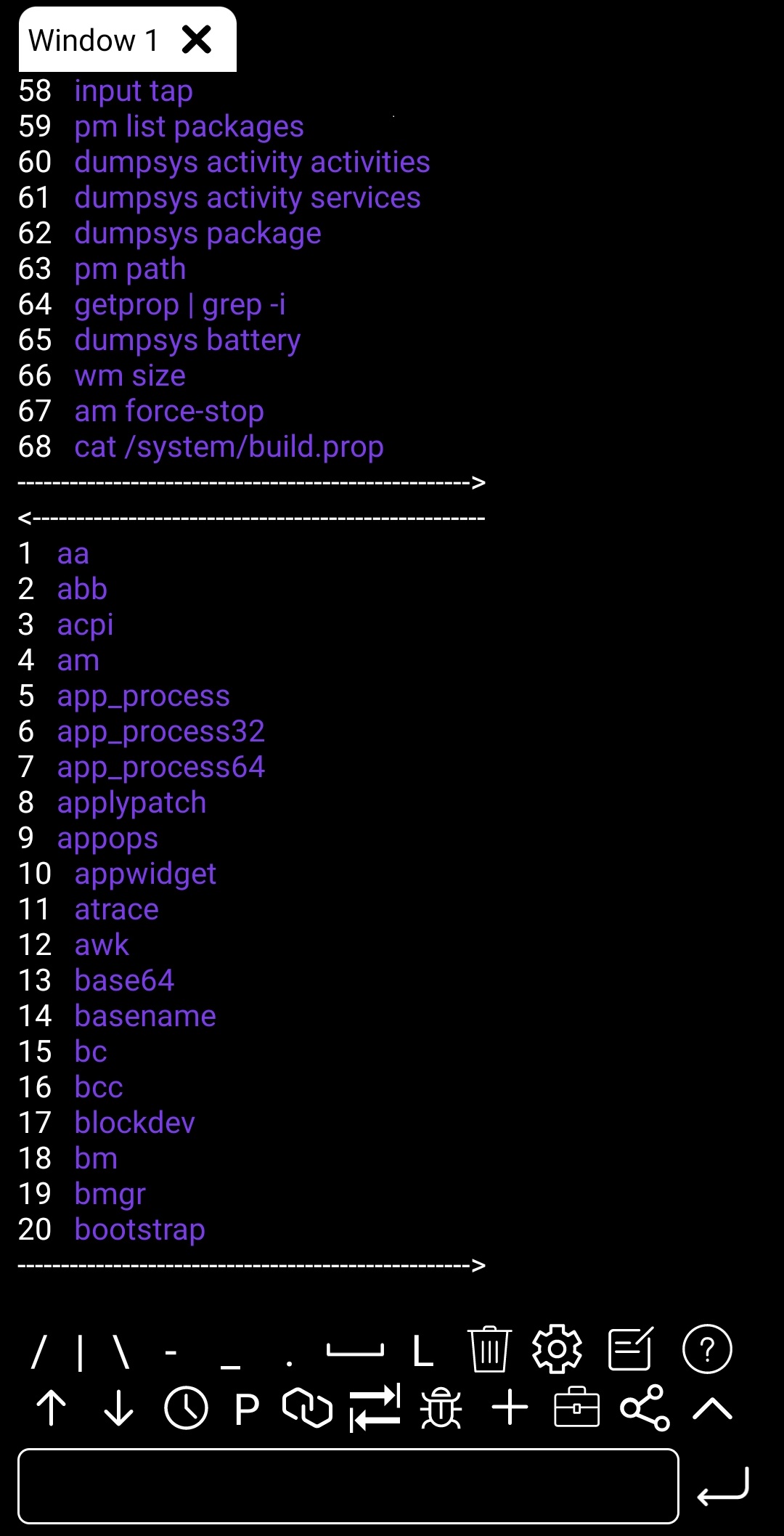
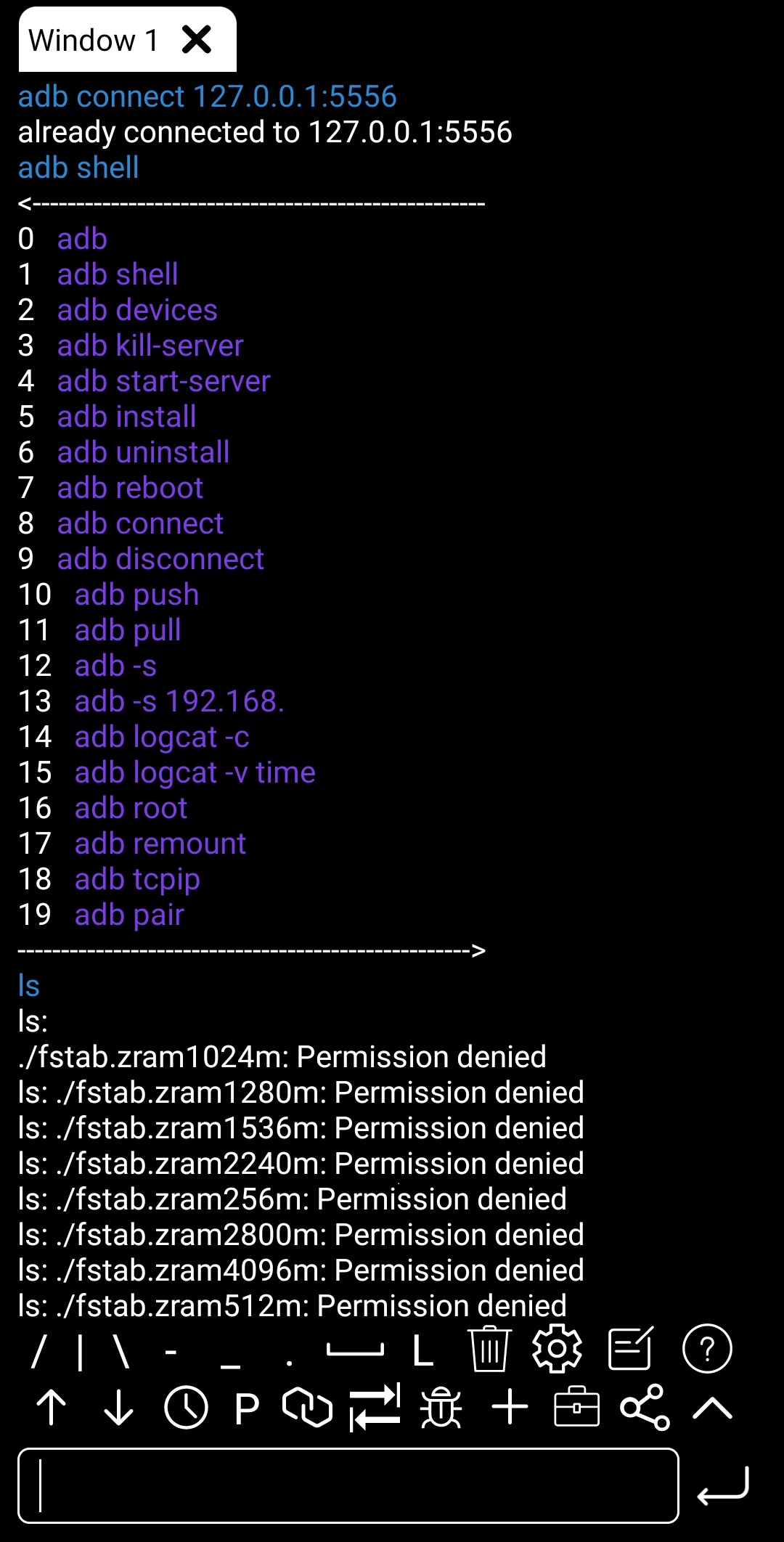
Run shell commands, inspect Logcat, manage apps and files, and work with supported device settings. Device-facing tasks require a reachable, authorized ADB connection. Available actions depend on Android, device permissions and the app configuration.
Do I need a computer?+
It depends on your connection method. Supported wireless pairing can be set up on Android. Older network ADB workflows can require an initial USB connection to a computer. A local shell and a connected ADB shell do not have the same permissions.
Why does pairing succeed but connection fail?+
Pairing establishes trust; the device must still be connected. For pairing-code setups, the pairing port and connection port can be different. Check the current connection address in Wireless debugging, keep debugging enabled, and confirm that the network allows the devices to communicate.
Which Android versions are supported?+
Check Google Play on your device for installation compatibility. Connection methods and permissions depend on the Android version and manufacturer. Wireless debugging with pairing is available on supported Android 11+ phones; not every device offers the same setup.
Does ADB Shell give me root access?+
No. Opening a shell does not grant root access. Commands run with the permissions of the selected connection, and protected files or operations can remain unavailable.
How do I get help with a connection?+
Email support@nextaix.com with your Android version, app version, connection method and the error shown. Remove personal information before sharing screenshots or logs.