Multiline commands
Compose commands across multiple lines when your workflow needs more than a short input.


Local & remote shell
Open local and remote shell sessions in ShellX. Switch between terminal tabs, reuse command history, enter multiline commands and follow Logcat output through an authorized connection.
Local shell and ADB sessions have different permissions. Remote work requires debugging and authorization on the target.
01 / LOCAL TERMINAL
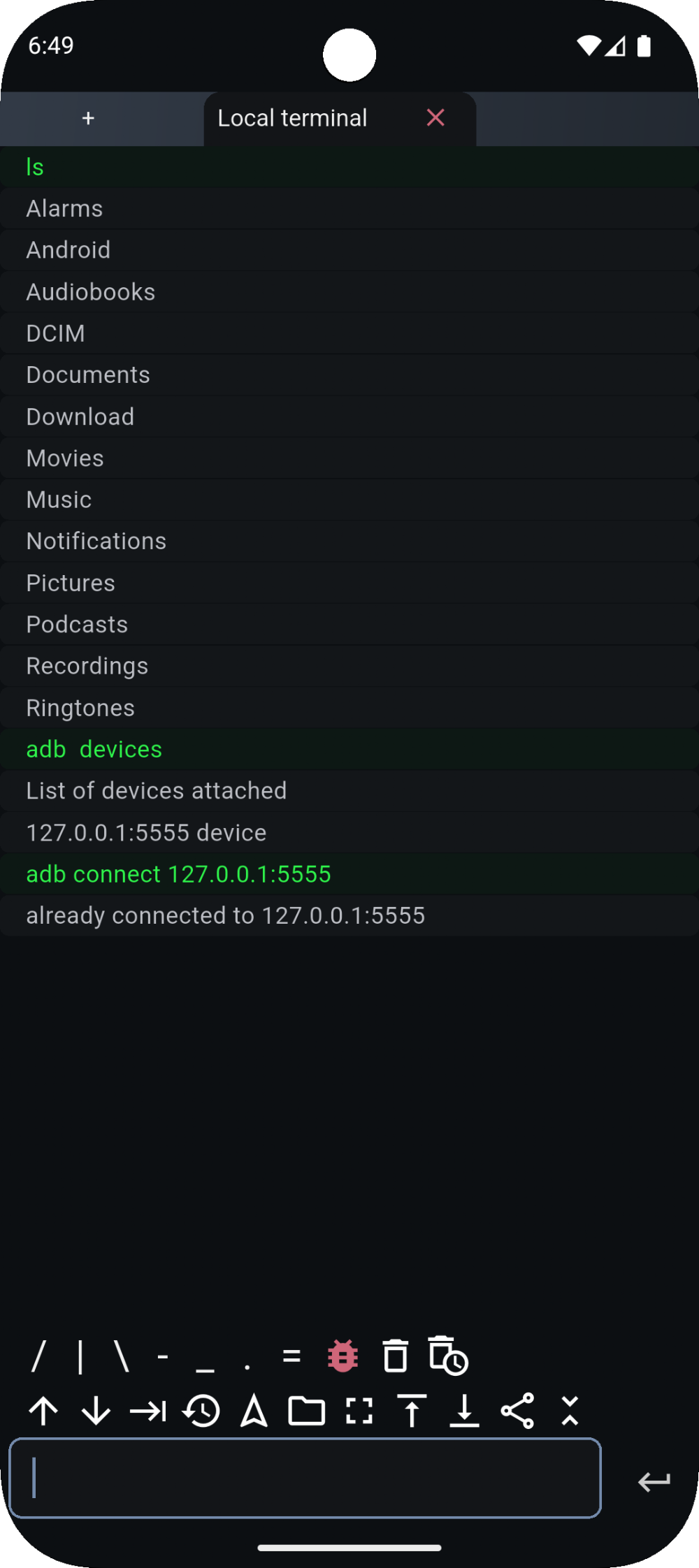
Remote ADB work requires debugging and authorization on the target device. Permissions determine access.
01 / Establish the connection
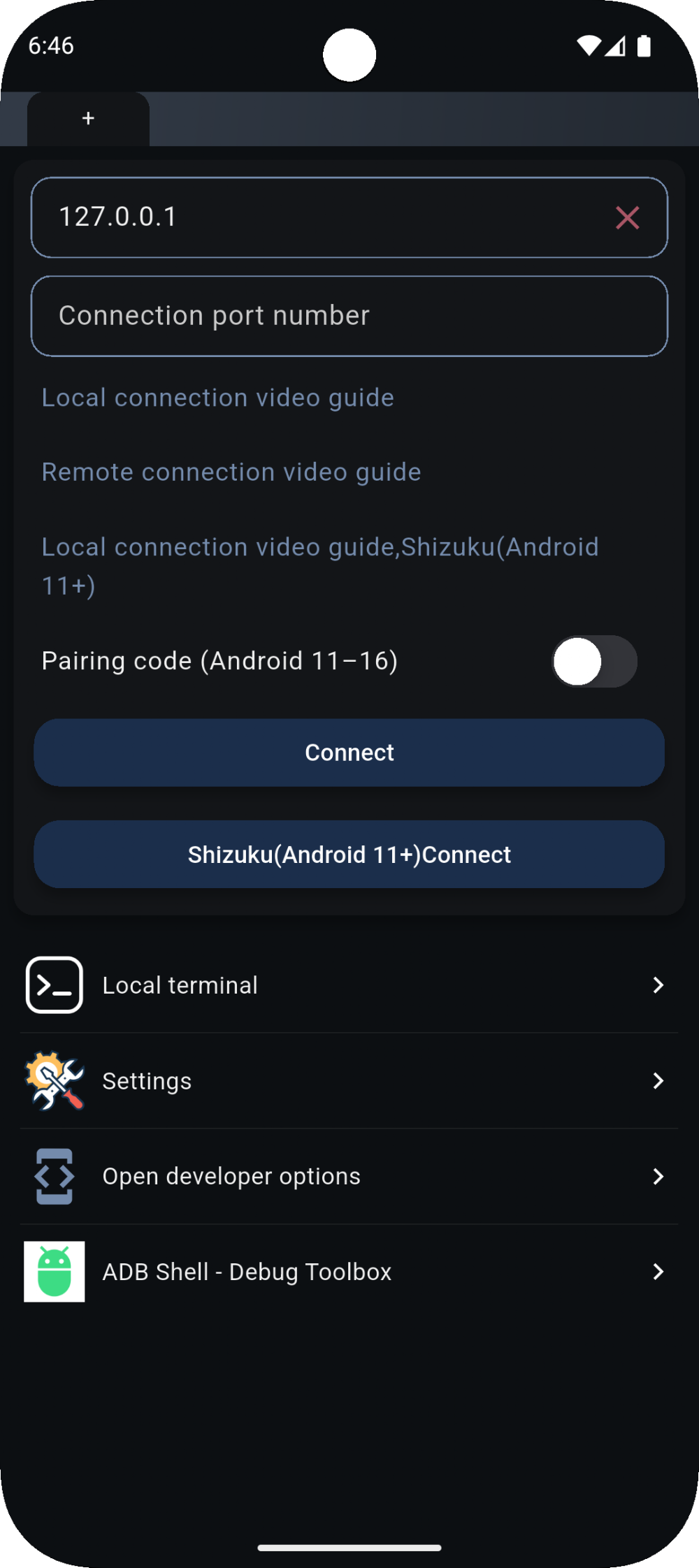
Choose a local session or an authorized remote device. Set the address and port, then pair when your connection method requires it.
Android wireless ADB reference ↗
02 / Keep your place
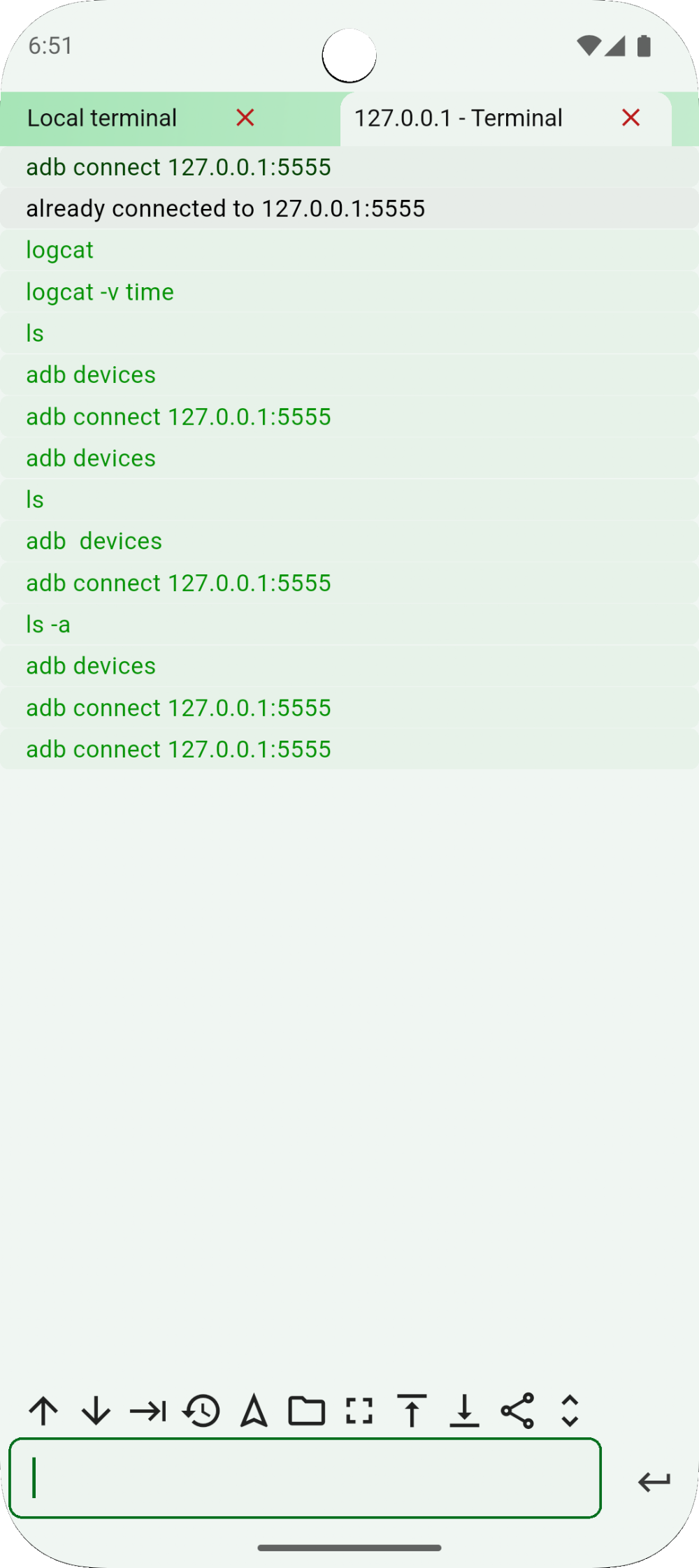
Keep multiple shell windows available and move between them with tabs. Local work and connected-device tasks each have their own place.
Command history helps you return to earlier work. Check which device and tab are active before reusing a command.
Meet the input tools ↓03 / Less retyping
Compose commands across multiple lines when your workflow needs more than a short input.
Find and reuse previous commands from the history control, with the target session in view.
Use command hints and completion to reduce repeated typing. Review the result before execution.
04 / Inspect the details
Open Logcat for diagnostic output, or use shell commands to inspect directories and files. Access follows the permissions of the current session.
lsLists entries in the current directory. The terminal screenshot above shows actual directory output from the store listing.
Before you get started
Use local or remote shell sessions, command history, multiline input and terminal tabs. Logcat and device-facing commands require the appropriate connection and permissions; opening a local shell does not automatically grant ADB access.
ShellX has a local terminal and local ADB connection options. A local terminal runs with its available permissions; it does not automatically grant ADB or root access. ADB tasks need a working, authorized connection.
No. Pairing authorizes the client on supported wireless-debugging setups. Connecting opens the session using the device’s connection address and port. The pairing port and connection port can differ.
The Google Play listing describes Android 4.x and above. Connection methods have different requirements: the app labels wireless pairing and its Shizuku connection option for Android 11+. Availability also depends on device settings and authorization.
Yes. ShellX supports multiple shell windows, with tabs for moving between sessions. Check the active tab and target before sending a command.
No. File visibility, log access and command results depend on the session’s permissions, the connected device and Android version. ShellX does not make protected data automatically accessible.

Local shell and ADB sessions have different permissions. Remote work requires debugging and authorization on the target.
Find your way to work