Connect a device
Start from the device list. DroidKit presents local and remote connection choices, then Terminal, Universal, and Shizuku methods with their stated Android-version requirements.
See connection options
ADB app manager & device workspace
 DroidKit
DroidKit is a visual ADB workspace. Manage installed apps, work with files, open a terminal and use TV remote controls after connecting an authorized device.
Device management requires an authorized target. Supported tools and actions vary by device and app configuration.
01 / FROM THE WORKSPACE TO YOUR APPS
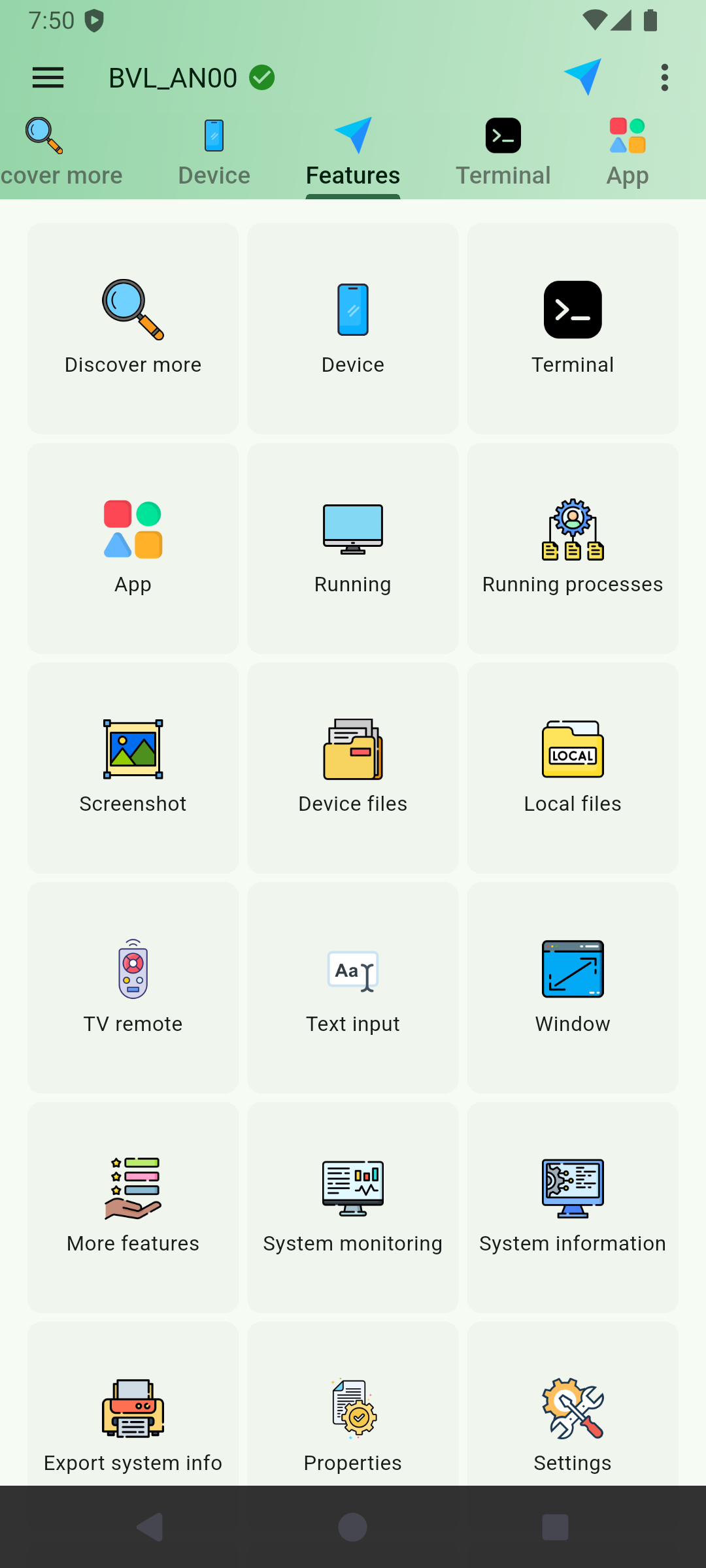
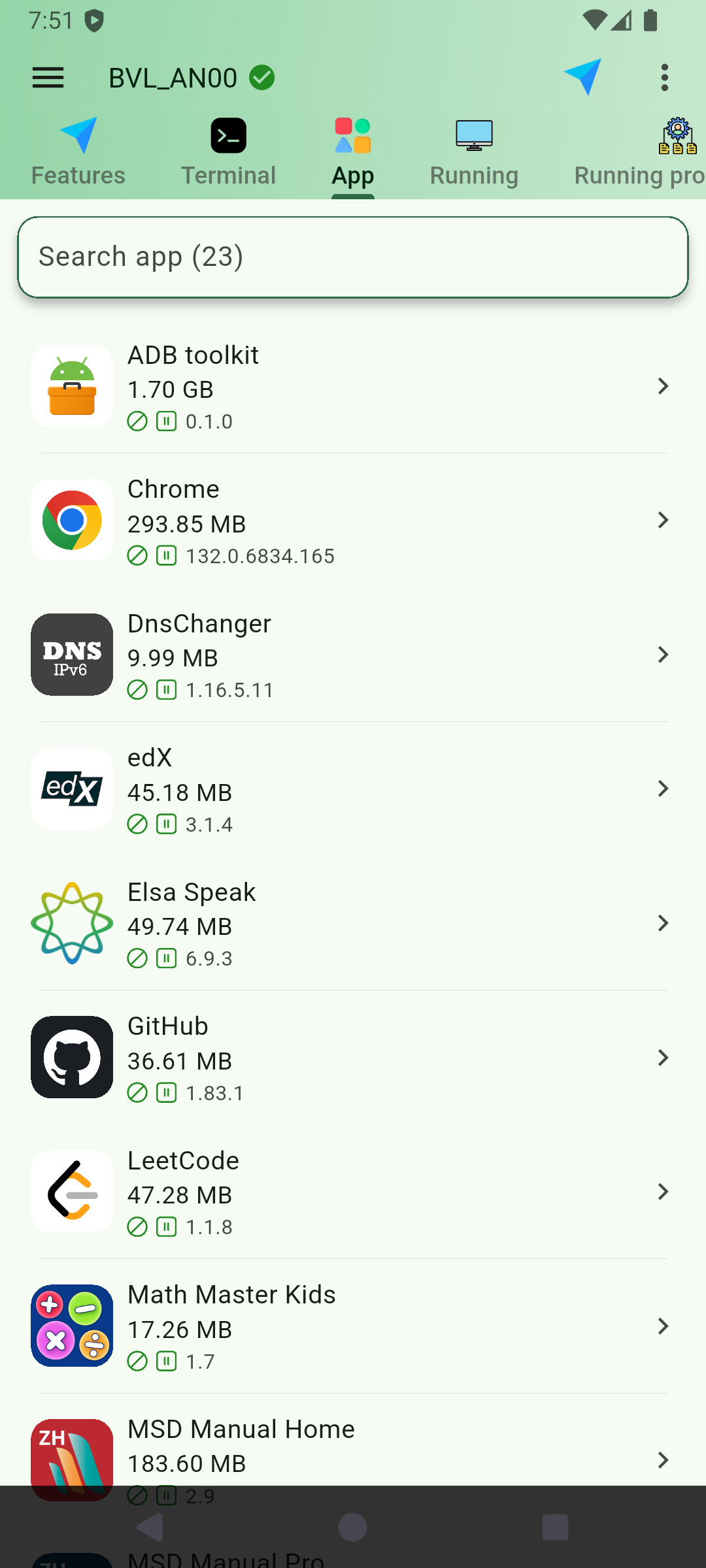
Device-facing tools require a reachable, authorized connection. Available actions depend on Android permissions.
An organized route through device tasks
Connection is the starting point. Device access, Android version, permissions, and plan can affect which tools are available.
Start from the device list. DroidKit presents local and remote connection choices, then Terminal, Universal, and Shizuku methods with their stated Android-version requirements.
See connection optionsUse the Apps, storage, terminal, and device areas to understand what is present before choosing a device-facing control.
See the Apps workspaceTabs group navigation, text input, TV remote, and other device controls. A visible control does not bypass Android authorization or confirm compatibility with every target.
See TV Remote controlsStart at the device list
Keep your devices in view and use the Add button to begin a new connection. Choose the device role and connection method before working with its apps, files, or controls. Wireless debugging pairing and connection are separate steps on supported Android versions.
See the workspace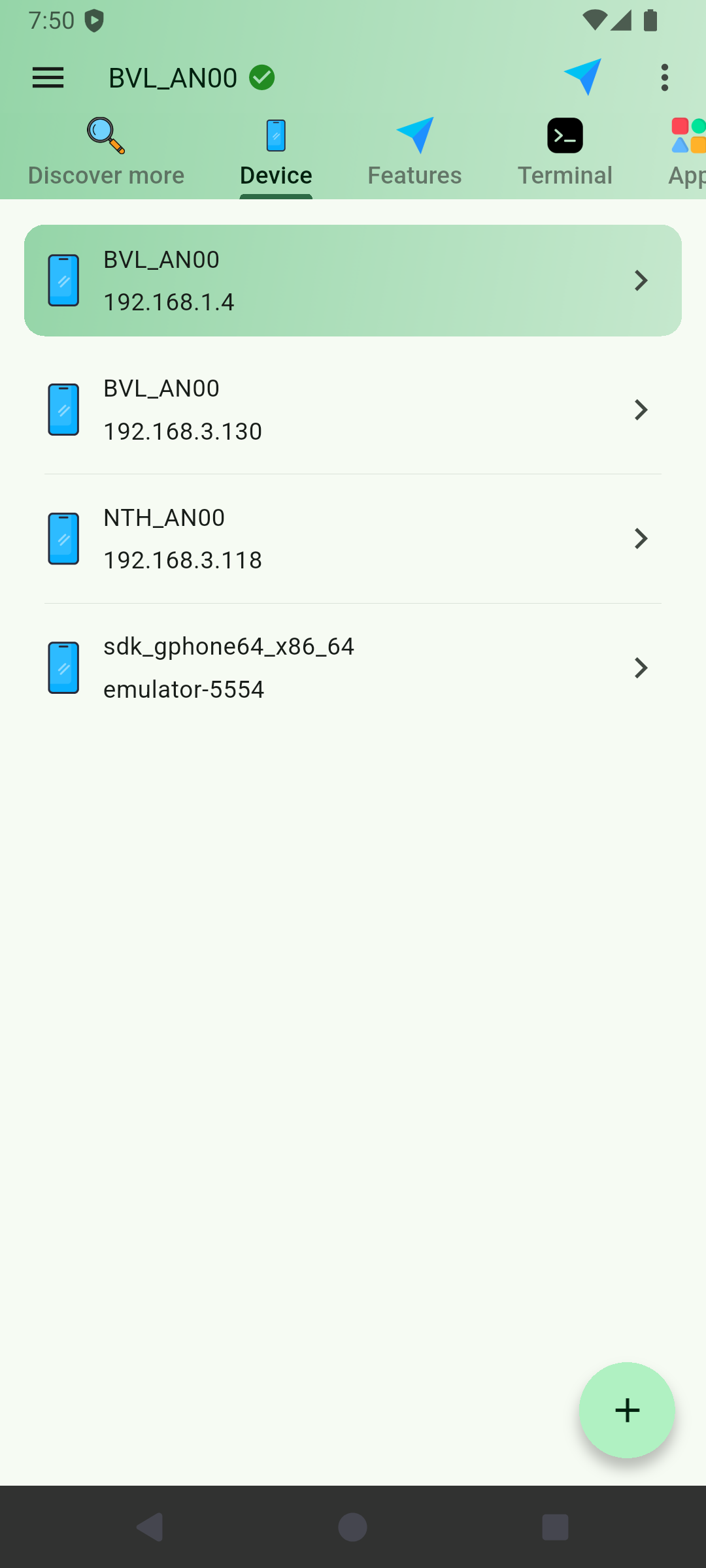
Apps & device tools
DroidKit shows Apps, Terminal, Running apps, storage, TV Remote, text input, and more in its navigation. A connected and authorized target is required before the device-facing areas can do their work.
Search the connected device’s app list and review app sizes and versions before choosing a management action. Availability depends on the target and its permissions.
Use the file workspace to browse and manage files available to the connected device. File access follows the target’s permissions; an authorized ADB connection does not grant unrestricted file access.
Return to connection options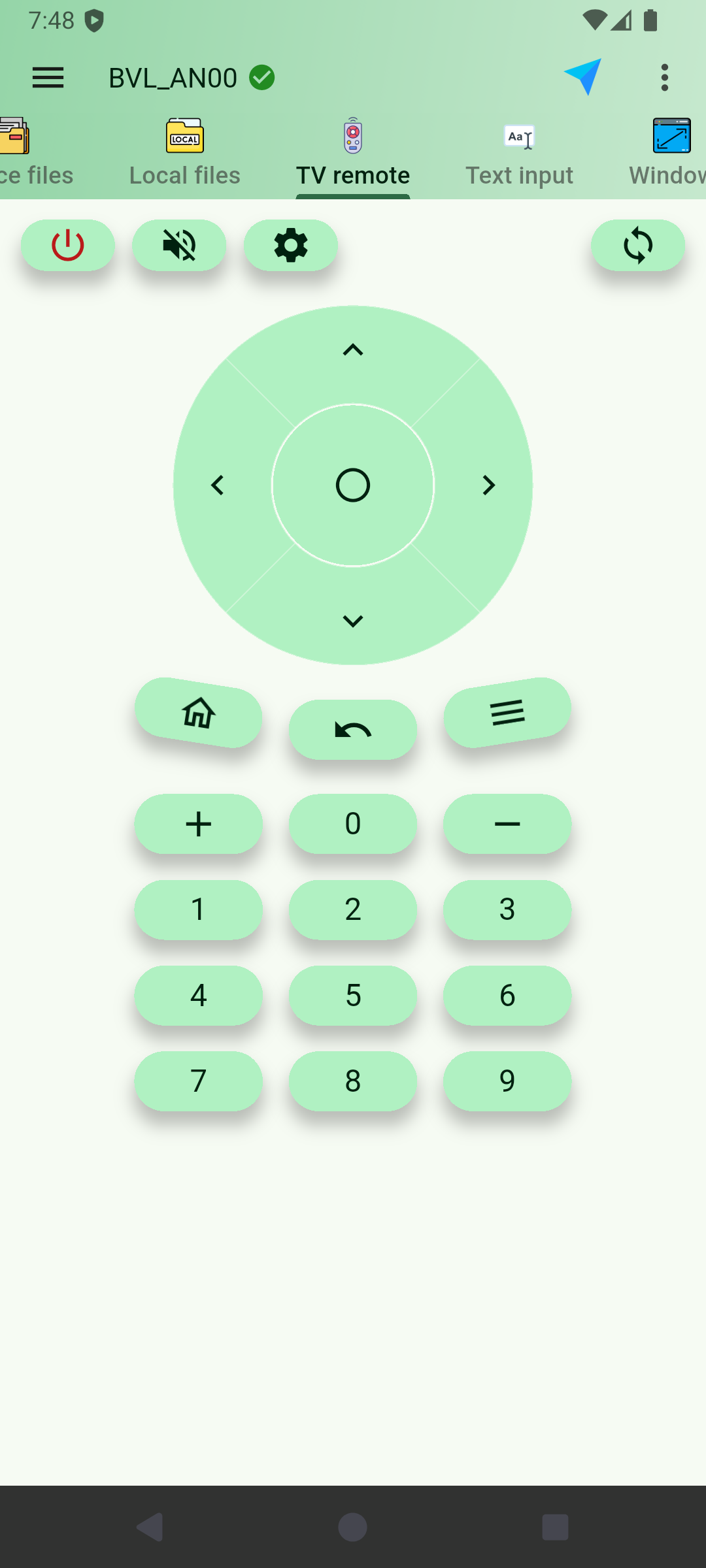
TV Remote interface overview
The interface contains direction, confirm, home, back, menu, volume, numeric, power, mute, settings, and refresh controls. Use it only with a reachable, authorized Android TV or device that supports the action.
Actions depend on the target device and authorization. Check that your Android TV supports the control you want to use.
Review connection optionsBefore you connect
DroidKit is an ADB workspace for connecting devices and working with their apps, files, terminal and controls. Install it on Android, then choose the device you want to work with.
Device-facing tools need a reachable, authorized target. Pairing establishes trust on supported wireless-debugging setups; a connection is still needed before using the target’s apps or files.
No. The active connection and Android permissions determine what you can access or change. Protected files, settings and actions may remain unavailable.
The installed-app workspace provides a visual starting point for finding apps and choosing available actions. Device-facing actions still need an authorized connection. Use the terminal when a task calls for a command; available tools depend on the device and app configuration.
Yes. This page describes DroidKit by Nextaix Studio, package com.nextaix.androidtoolbox, installed on Android. Its focus is ADB device, app and file management; other products with the same name may serve different purposes.
Use it with a reachable, authorized Android TV or device that supports the action. Available controls and results depend on the target device; a visible button does not guarantee compatibility.
Get DroidKit
Install from the official Google Play listing, then explore the workspace on your device.
Device management requires an authorized target. Supported tools and actions vary by device and app configuration.
Contact supportFind your way to work