
Gather suggestions
Let the app organize photo-cleanup candidates. Scanning alone does not move or delete your photos.

A little space for what matters
Find similar photos, screenshots and large images to review on Android. Swipe through photos and videos, keep the ones that matter and check your selected items in Trash before confirming permanent deletion.
Photo-library access is required. Scanning suggests items to review; permanent deletion needs your confirmation.
01 / REVIEW → 02 / CHECK TRASH
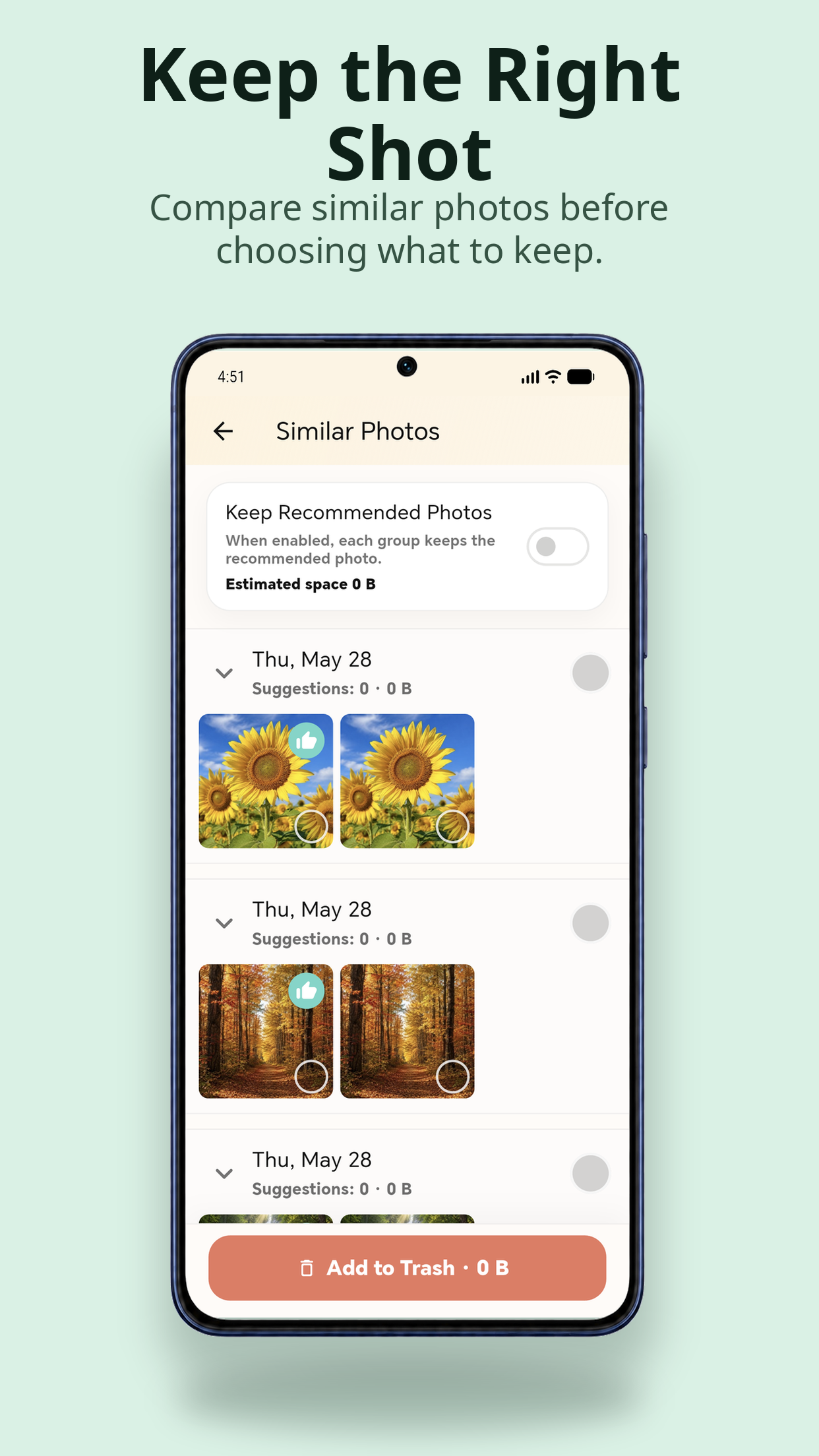
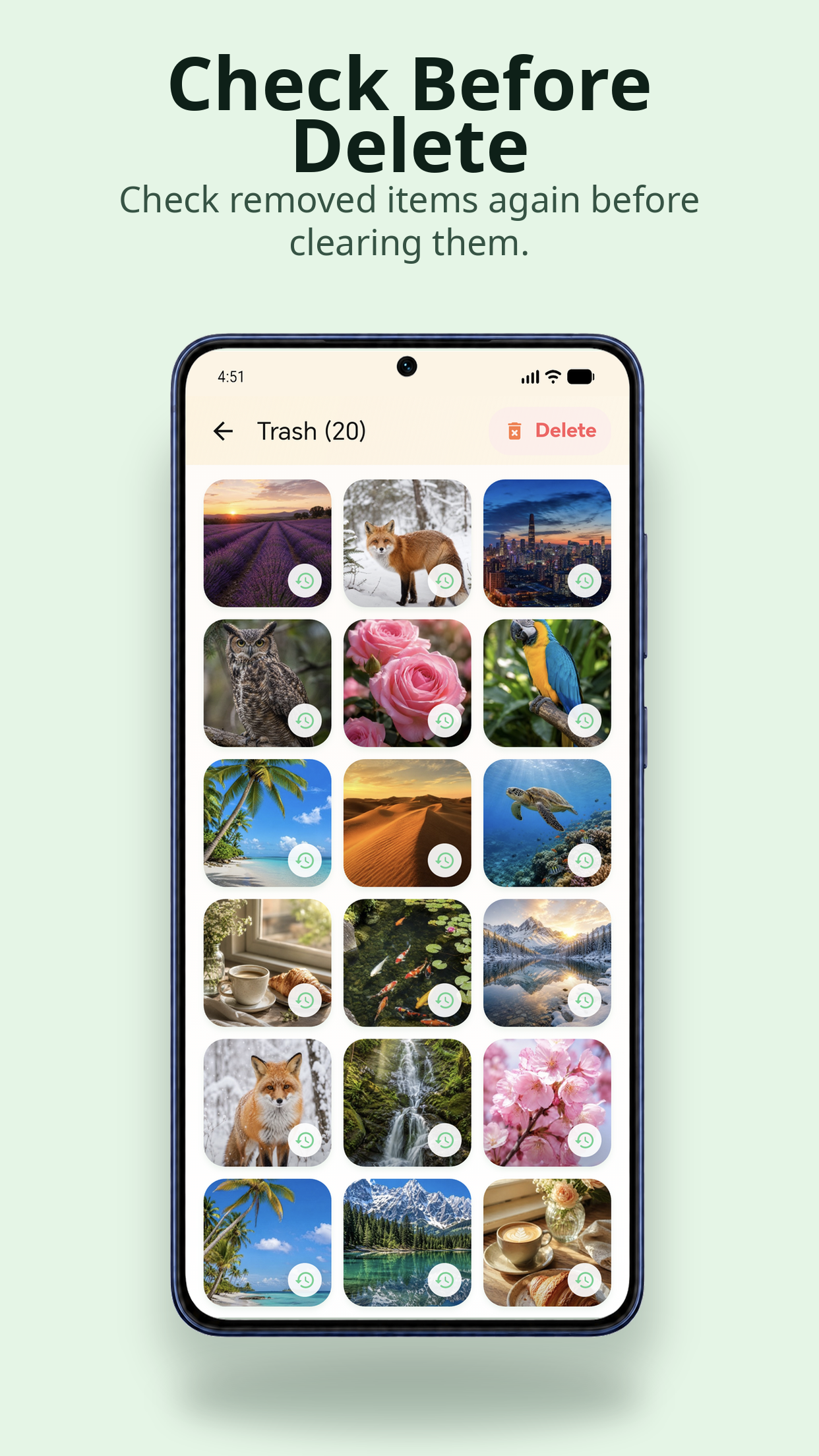
Official Google Play images. The app also uses the name PixAI. Review each selection before confirming deletion.
01 / Find a place to start
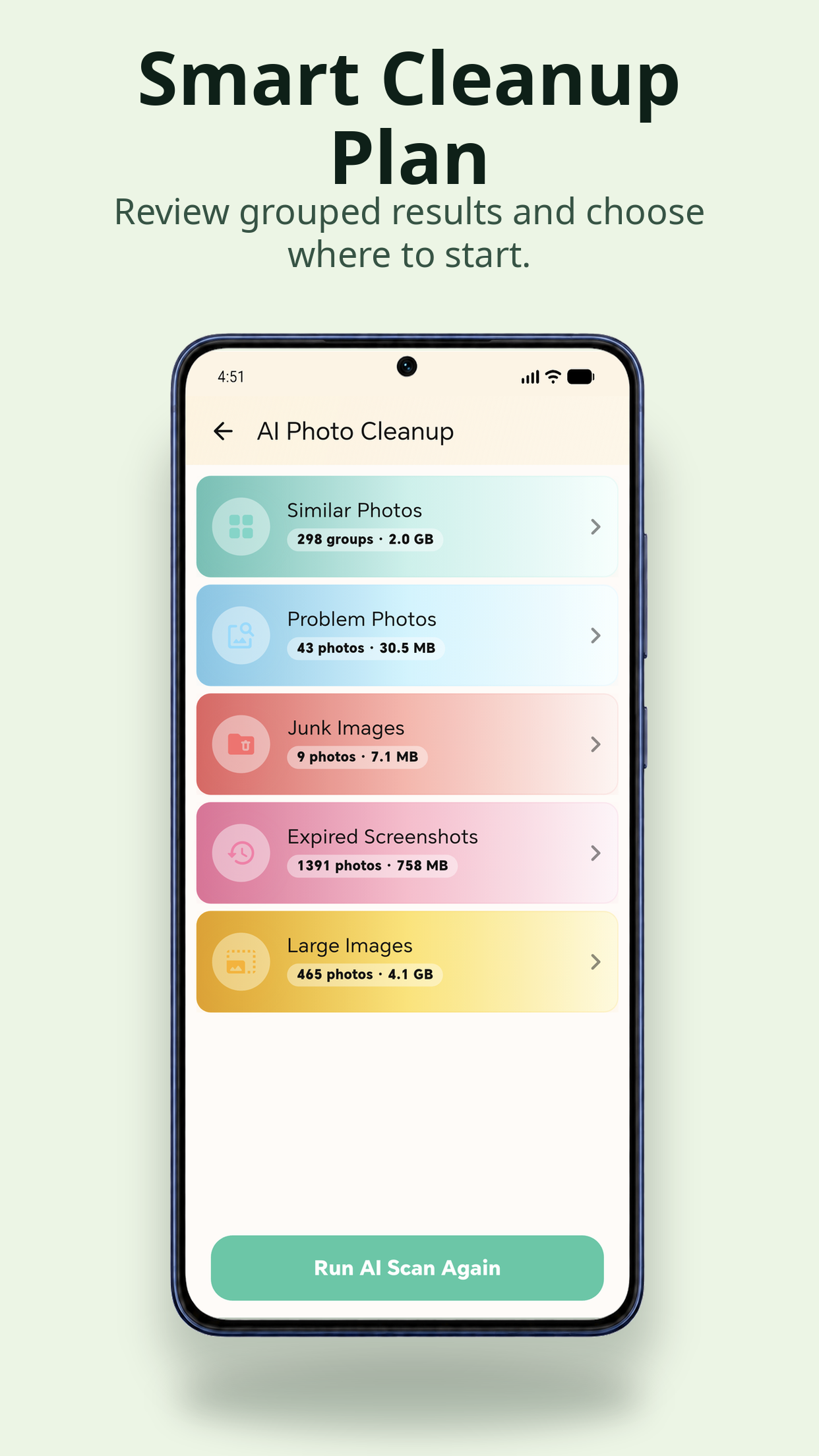
AI Photo Cleanup organizes suggestions into groups, so you can start with the kind of clutter you want to review.
Compare the images before making a decision. A similar shot or an older screenshot can still be worth keeping.
02 / Make room, at your pace
Let the app organize photo-cleanup candidates. Scanning alone does not move or delete your photos.
Compare similar groups, or swipe through photos and videos one by one. Keep favorites and reconsider recent choices.
Review the selected items in Trash, then confirm permanent deletion only when you are ready.
03 / Your photos. Your decision.
Sorting and permanent deletion are separate actions. Take your time at both.
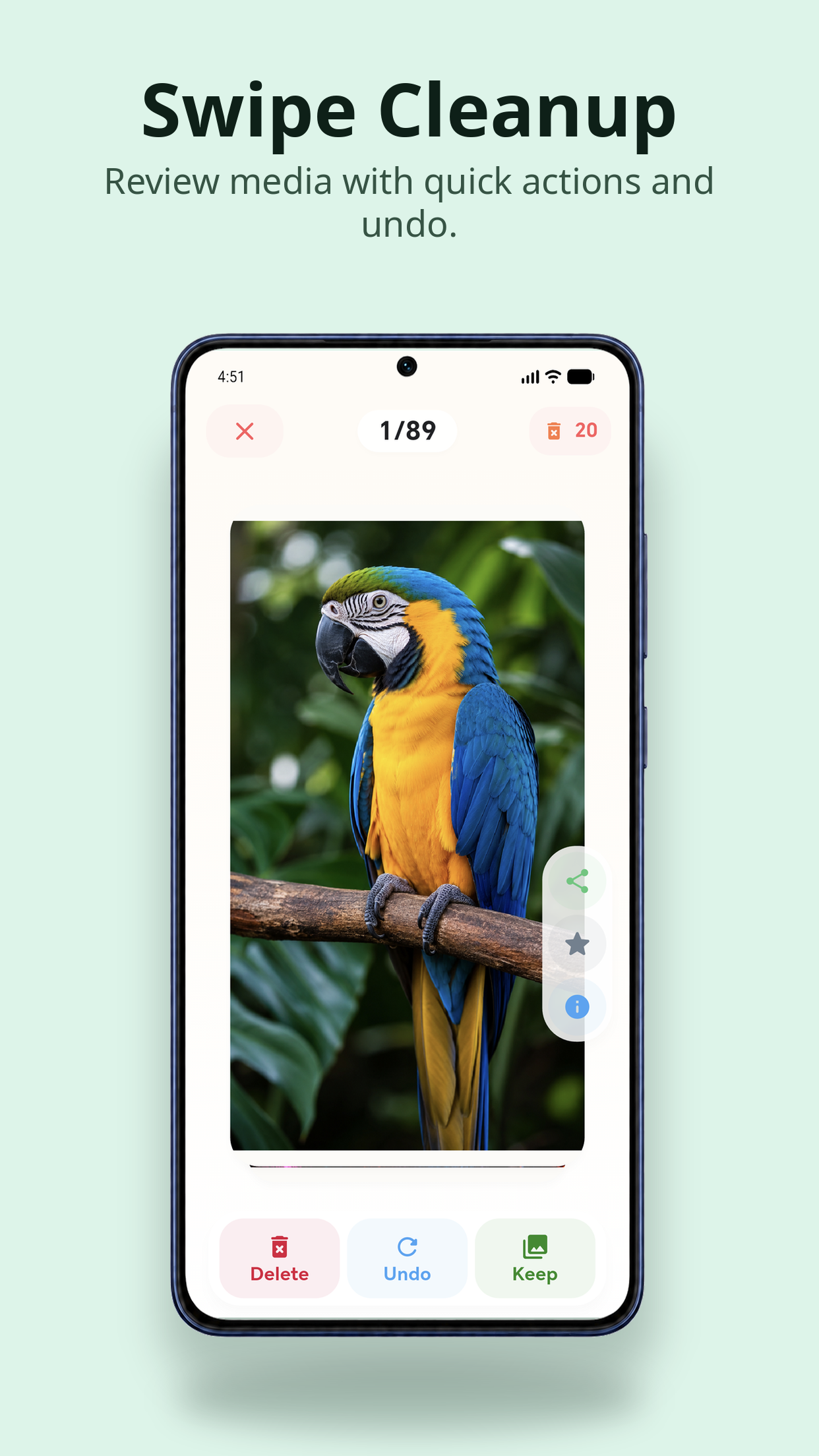
Use Undo while sorting, or keep and favorite an item you want to save.
Trash holds your pending choices. The final deletion confirmation warns that the action cannot be undone.
04 / Access & availability
The app needs photo-library access to show and review your media. Restricted or denied access can prevent the expected library from appearing.
Review the app’s privacy policy for information about how it handles data.
Read the app privacy policy ↗Review workflow
Scanning creates review suggestions. Select the images you want to remove, reconsider sorting choices with Undo and check pending items in Trash.
Review allowances and available actions are shown in the app. Permanent deletion is a separate confirmation and cannot be undone by sorting Undo.
Before you get started
The cleanup view groups similar photos, problem photos, junk images, expired screenshots and large images. You can also review photos and videos one at a time. Suggestions are a starting point; decide which files matter to you.
No. Scanning prepares cleanup suggestions. You choose items to keep or move to Trash, then review Trash before confirming permanent deletion.
Undo is for recent sorting choices, and pending items in the app’s Trash can be reviewed before deletion. This is different from recovering a permanently deleted file. The final deletion dialog warns that the action cannot be undone; the app does not promise recovery after that step.
Photo-library access is needed to load and review media. If access is denied or restricted, the app may show a permission prompt or be unable to review the expected library. Check Android’s app permission settings if items are missing.
Review works with media available through your device’s photo-library access. Denied or restricted access can hide items. Check Android permissions and the media available on your device; do not assume that every item in a cloud account is available locally.
AI Photo Cleaner is the Google Play product name. The app and its official store images also use PixAI. These are screenshots of the same package, com.nextaix.photo_cleaner.

Photo-library access is required. Scanning suggests items to review; permanent deletion needs your confirmation.