Move through tiles
Navigate the home screen with your remote’s directional controls.

Your apps. A bigger canvas.
Organize your TV apps, choose wallpaper and customize the home screen with TV Launcher. Move between app tiles with your remote and adjust available focus and layout settings.
For Android TV and TV boxes. Appearance options and default-home behavior depend on your device and app configuration.
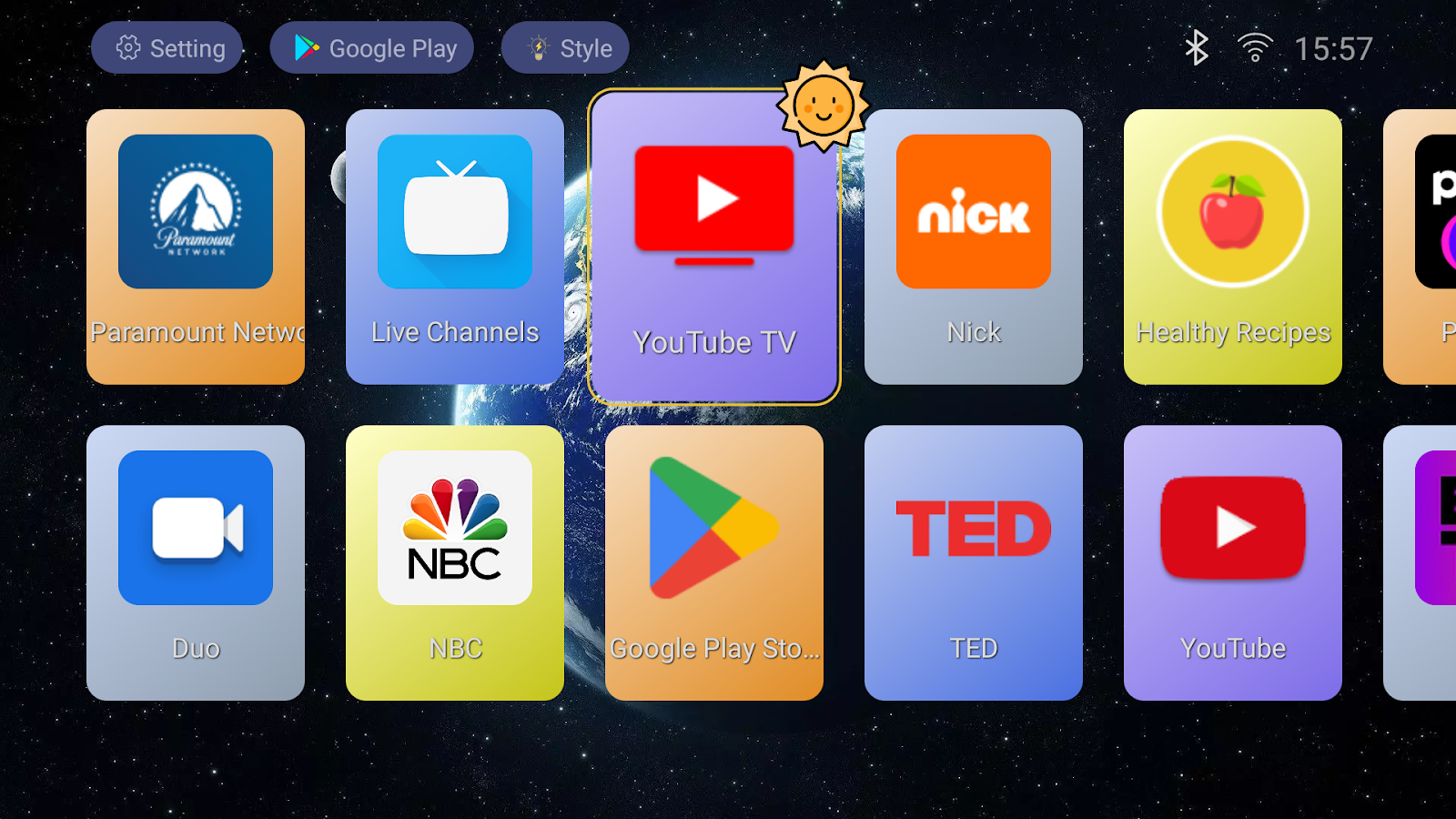
Find your apps at a glance. A visible focus marks the tile selected with your remote.
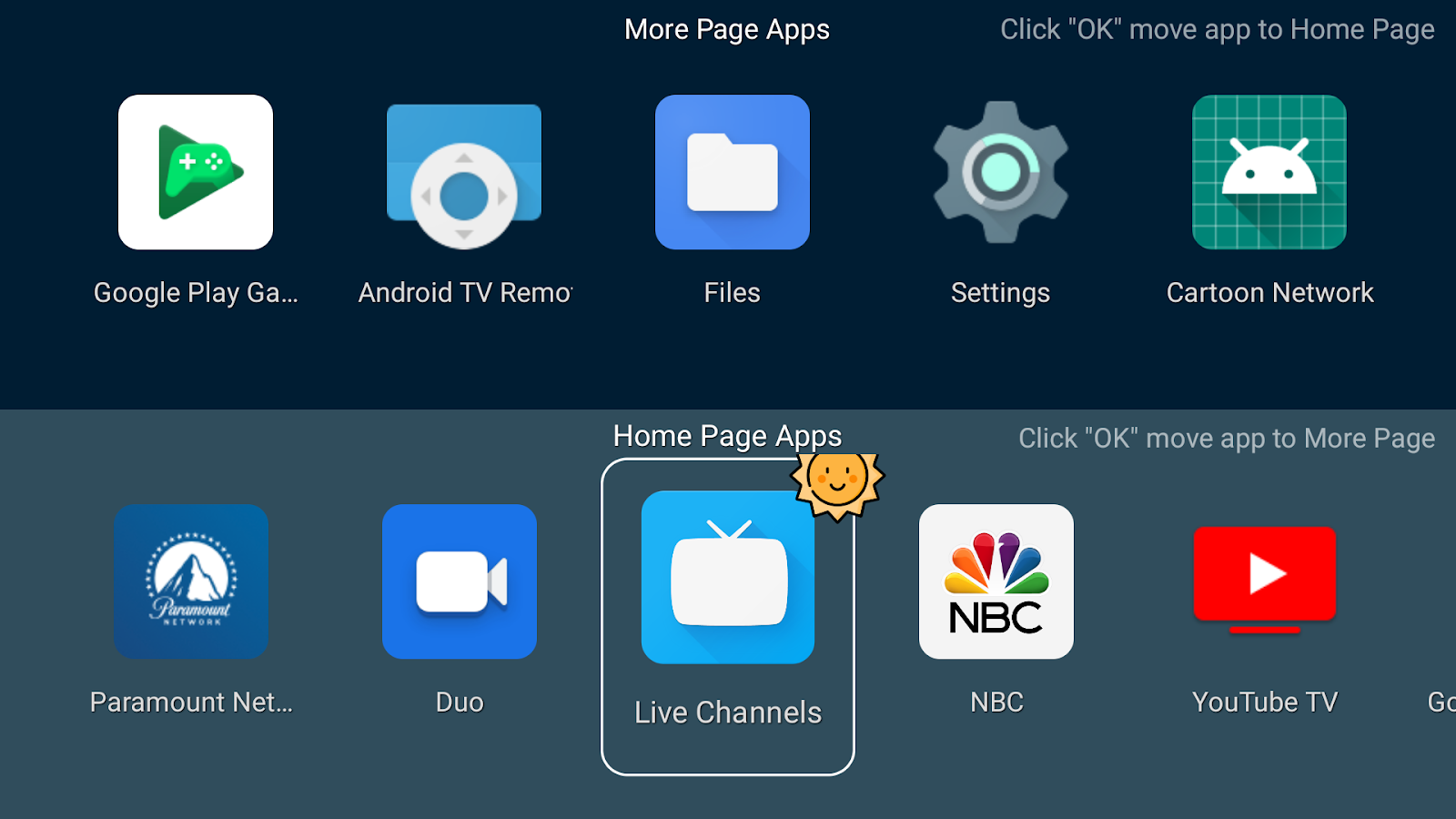
Choose what takes the front seat. Move shortcuts between Home Page Apps and More Page Apps.
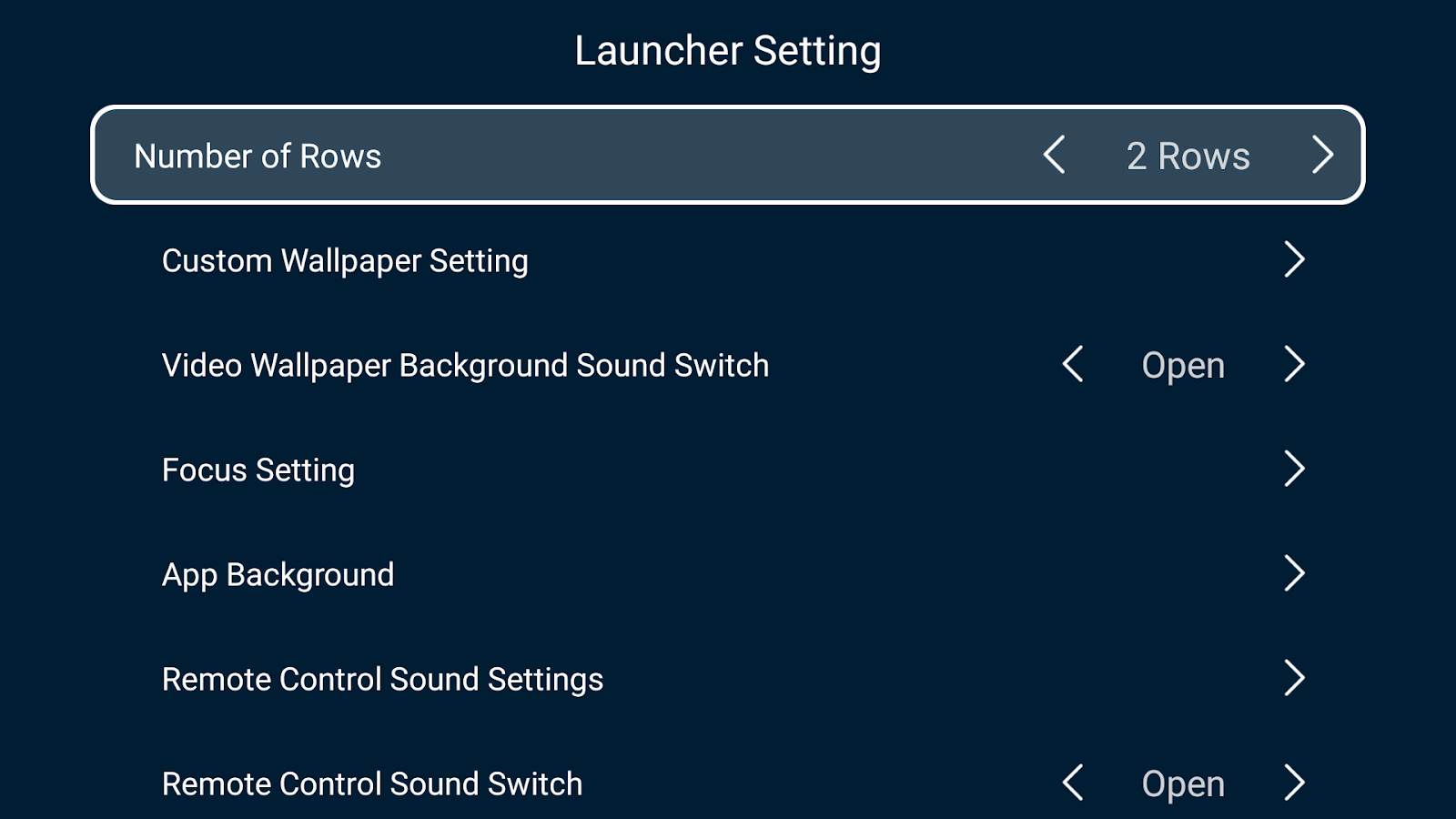
Set the mood with wallpaper, tile backgrounds and focus styles. Check the options available in your app configuration.
Official app views. Change these settings in TV Launcher on your device.
01 / Your apps, in view
The app organizer separates Home Page Apps from More Page Apps, so you can choose which shortcuts take the front seat.
03 / Set the mood
Explore wallpaper, app backgrounds, focus styling and remote-control sounds. Available customization options depend on the app configuration.
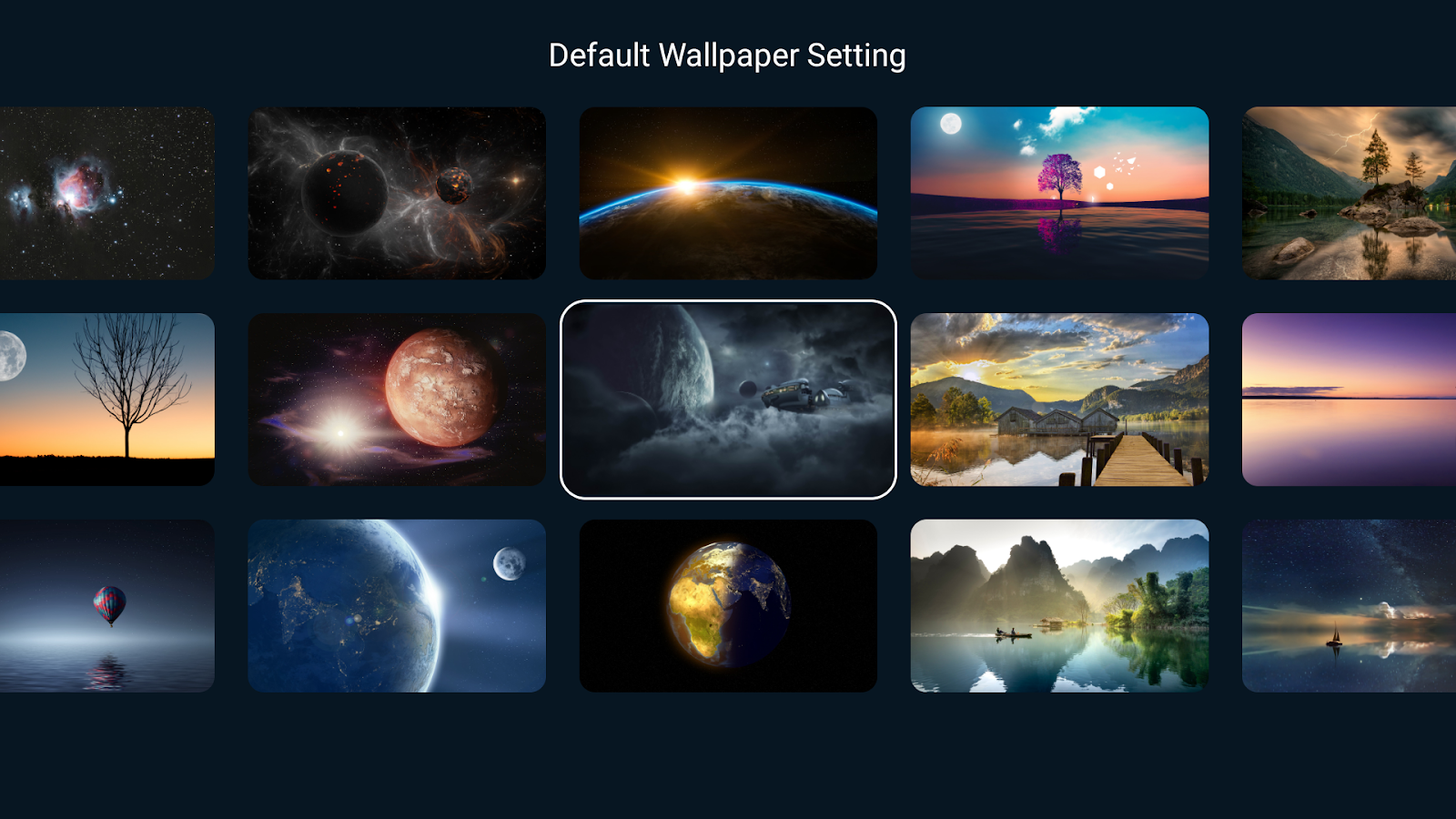
04 / Getting comfortable
Install the launcher, explore the layout, then decide how it fits your device. Default-home support varies by manufacturer.
Before you get started
No. It is a home-screen launcher for finding and opening apps on your device. It does not provide films or television channels. Third-party apps shown in screenshots remain separate services.
TV Launcher is designed for Android TV and TV boxes. Check Google Play on your target device for availability. Device software and manufacturer restrictions can affect installation and home-screen behavior.
Only where your device allows a different default launcher. Check your device’s Home app or default-app settings. Some manufacturers restrict this choice; installation does not guarantee that pressing Home will open TV Launcher.
If your device offers a Home app choice, select your original launcher there. The exact location depends on the device. Keep access to system settings and your original launcher while deciding which home screen to use.
Use your remote to move through app tiles, see the focused selection and open an app. Focus styles and sounds are available in settings; behavior depends on your TV and remote.
The launcher settings include wallpaper, app backgrounds, focus styles and remote-control sounds. Check the settings screen for the options available in your app configuration; support and appearance can vary by device.
For Android TV and TV boxes. Appearance options and default-home behavior depend on your device and app configuration.