
ADB Game Booster Setup Guide: Monitor FPS on Android
ADB Game Booster lets you choose a Boost Core configuration and view FPS and frame time in a floating panel while you play on Android. Start by pairing the app on your phone, add your games, then set up the Performance Monitor and launch a game from My Games.
Available controls and readings depend on your phone, Android version, and game. After playing, you can restore your settings or stop the monitor from the app.
Before you start
Have these ready:
- An Android phone running Android 11 or later for the wireless pairing method shown here.
- A Wi-Fi connection for initial Wireless debugging setup and pairing.
- ADB Game Booster installed on that phone, plus a game you want to launch. Get ADB Game Booster on Google Play.
- Access to your phone’s Settings to enable developer debugging and grant the permissions used below.
ADB (Android Debug Bridge) gives the app access to supported system controls and performance measurements on your phone. Pairing authorizes this connection. For this setup, enable both USB debugging and Wireless debugging, then enter the pairing code through the app’s notification on the same phone.
1. Open the connection screen and grant permissions
1.1 Open ADB Connection
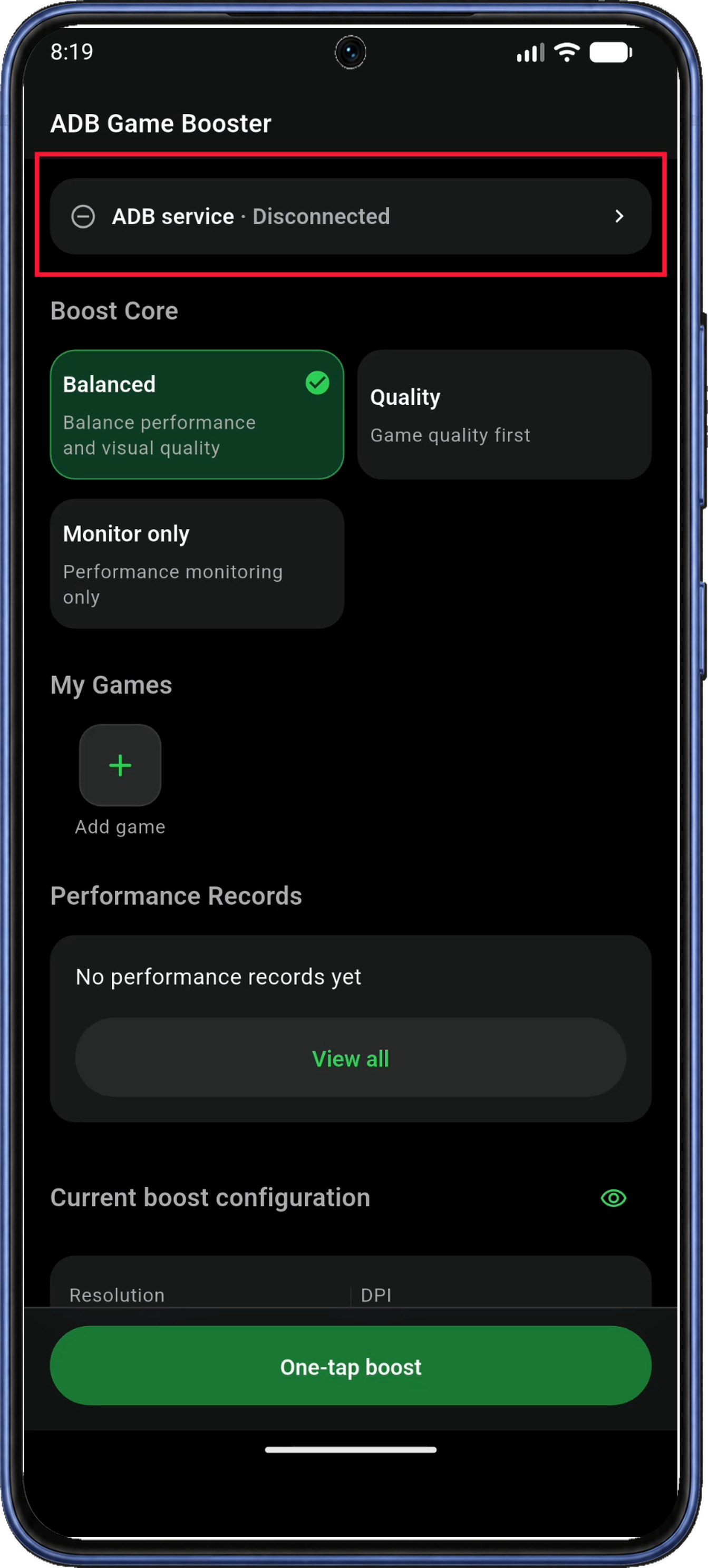
Open ADB Game Booster. On Home, tap the ADB service status card near the top to open ADB Connection.
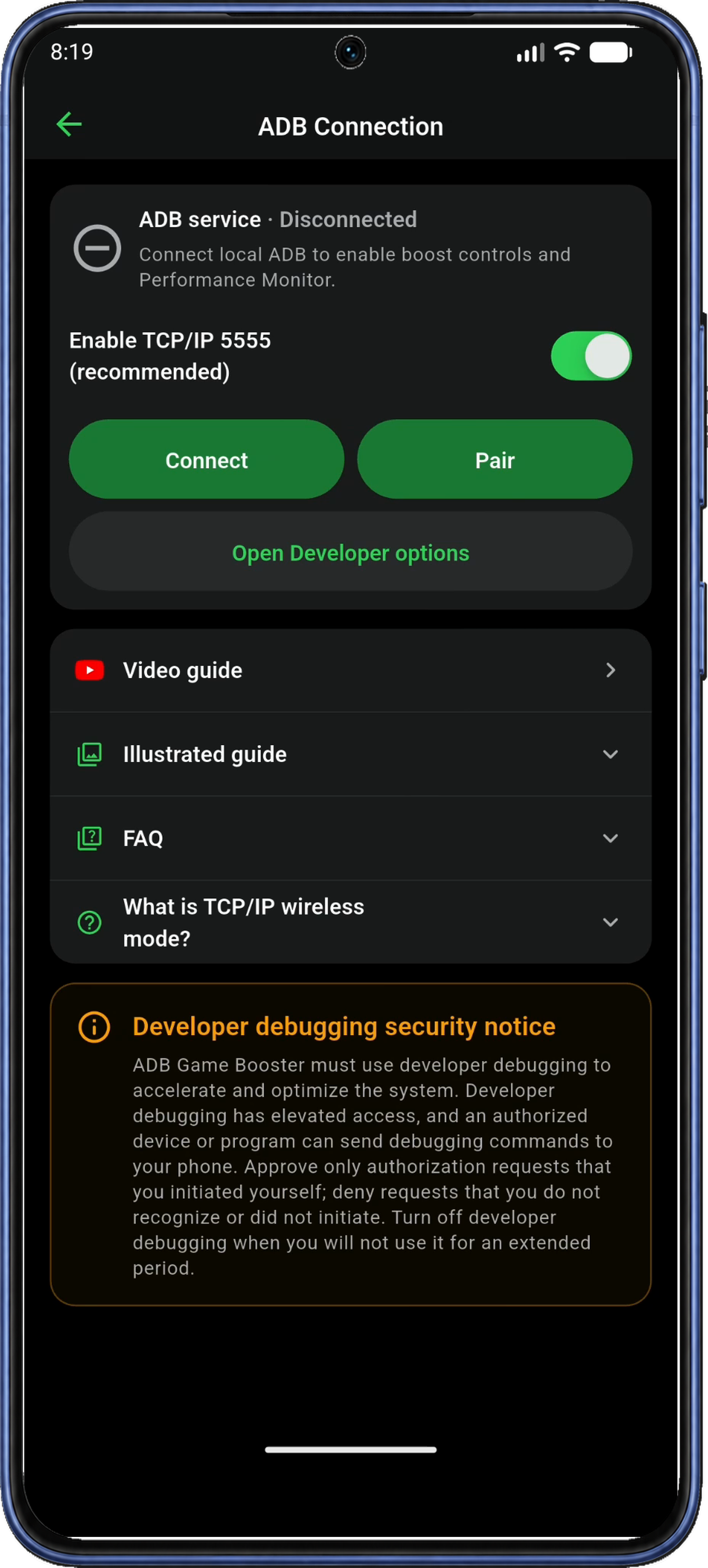
On ADB Connection, leave Enable TCP/IP 5555 (recommended) at its current setting, then tap Pair to begin setup. The TCP/IP 5555 FAQ explains this connection option.
1.2 Grant the setup permissions
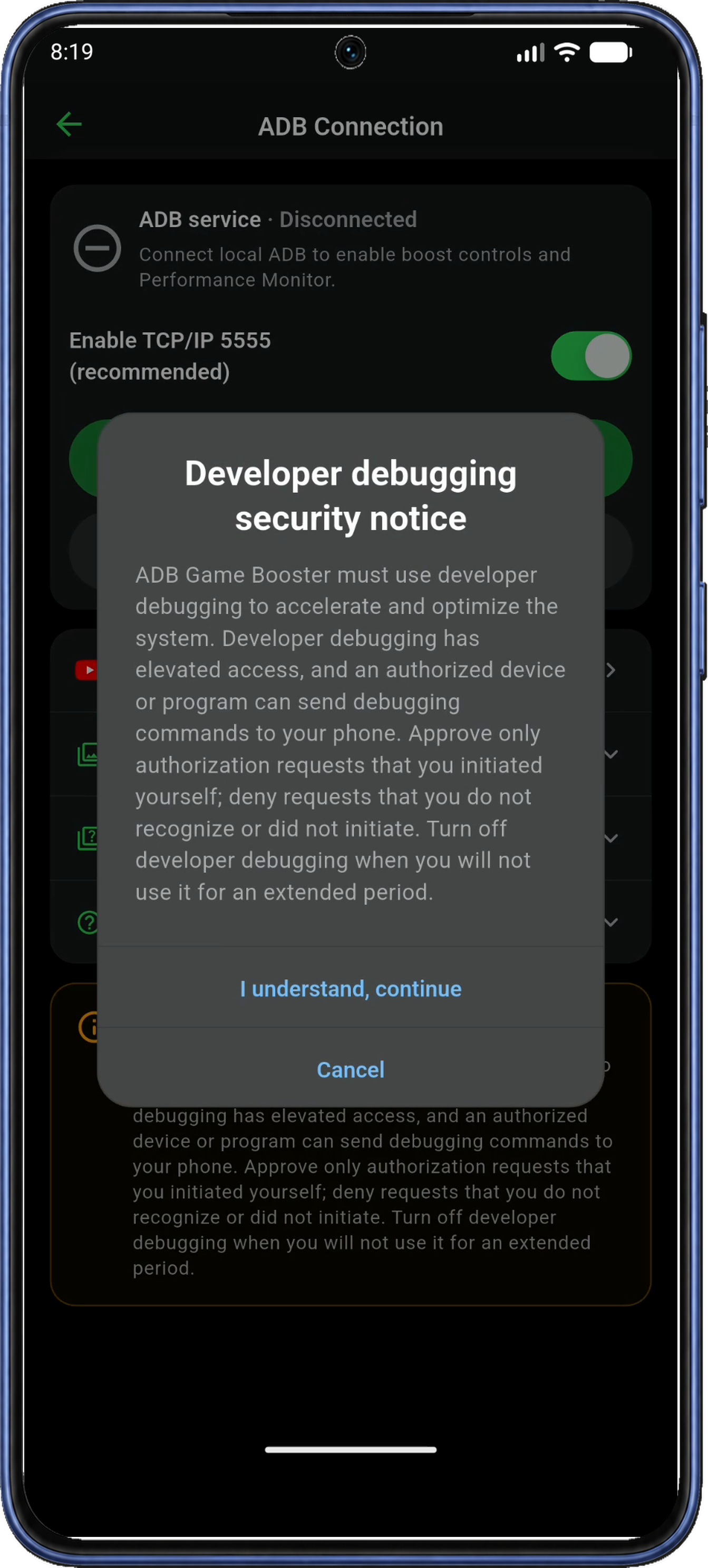
In the Developer debugging security notice dialog, read the explanation and tap I understand, continue. The app skips this notice if you have already acknowledged it. Approve debugging requests you initiated and recognize.
If Local network access appears, tap Continue, then grant access in Android’s permission dialog. This lets the app find and connect to the local ADB service.
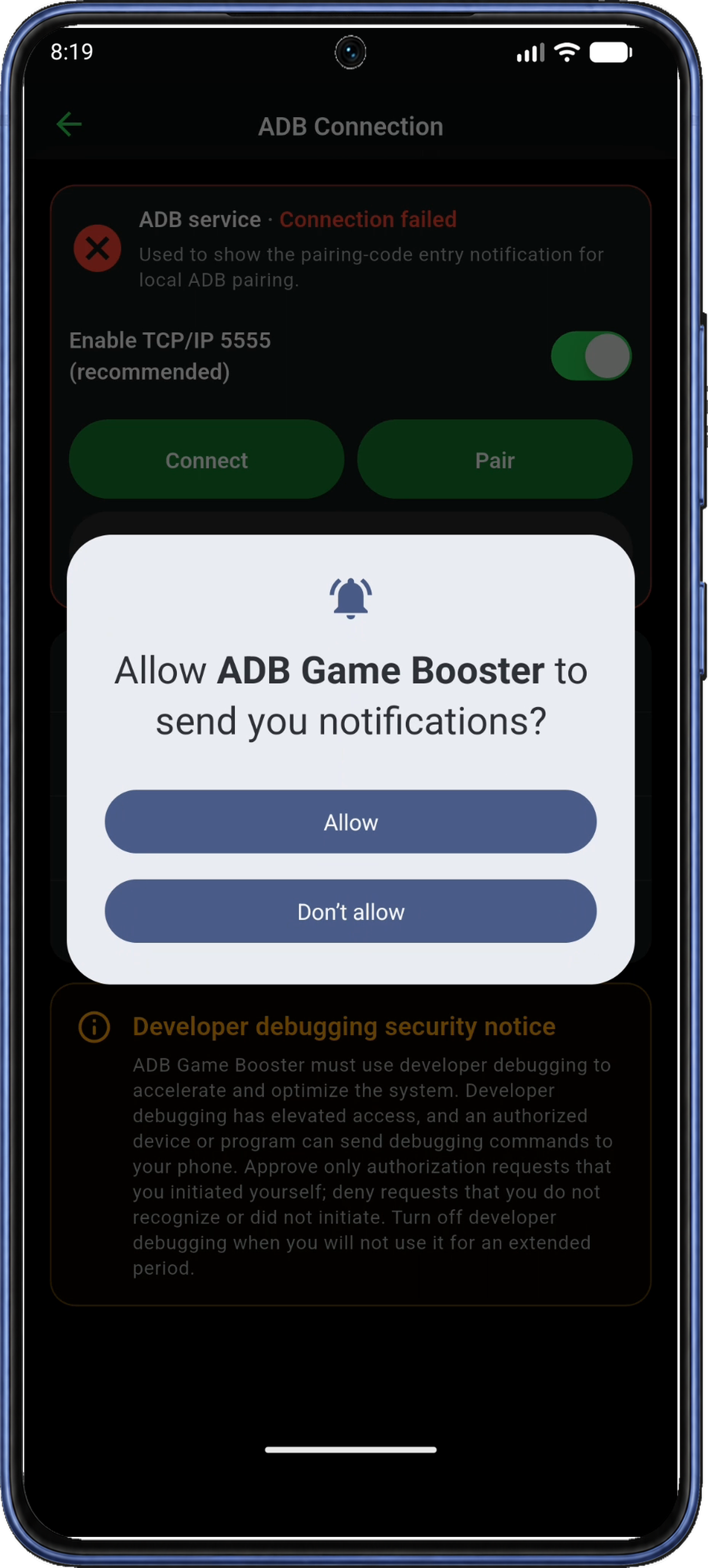
If the app’s Notifications explanation appears, tap Continue, then tap Allow in Android’s permission dialog. Notifications let you enter the code on the same phone while the pairing dialog stays open. The app skips permissions you have already granted.
Once the permission dialogs close, follow Step 2 if Enable Developer options appears. If Developer options is already enabled, go to Step 3. The ADB status may still be Disconnected or Connection failed before pairing; you’ll confirm the connection in Step 7.
2. Enable Developer options
Developer options is a hidden Android settings menu. Enable it first so that the USB and wireless debugging controls become available.
2.1 Open Android Settings from the app
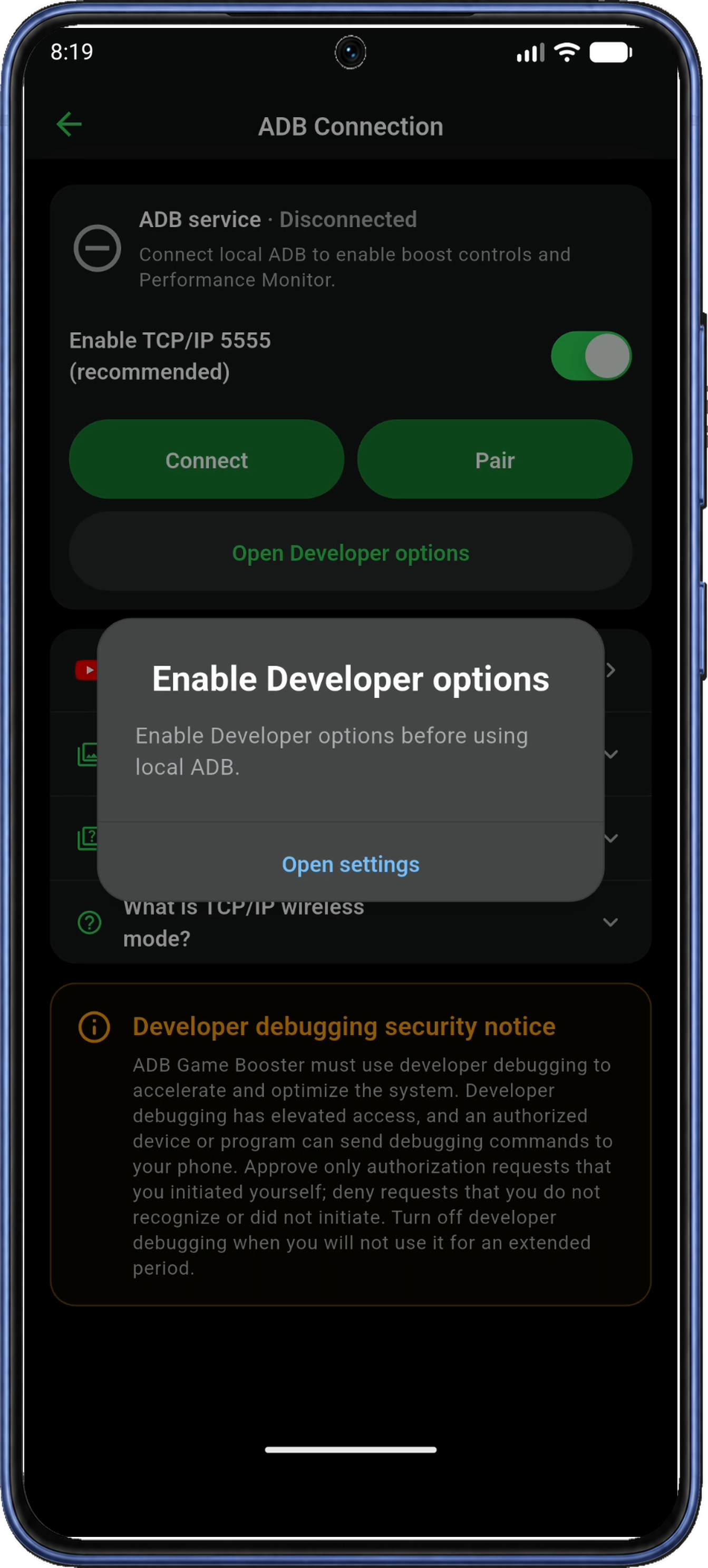
In the Enable Developer options prompt, tap Open settings to open Android Settings. If the prompt has closed, open your phone’s Settings app directly.
2.2 Open About phone and find Build number
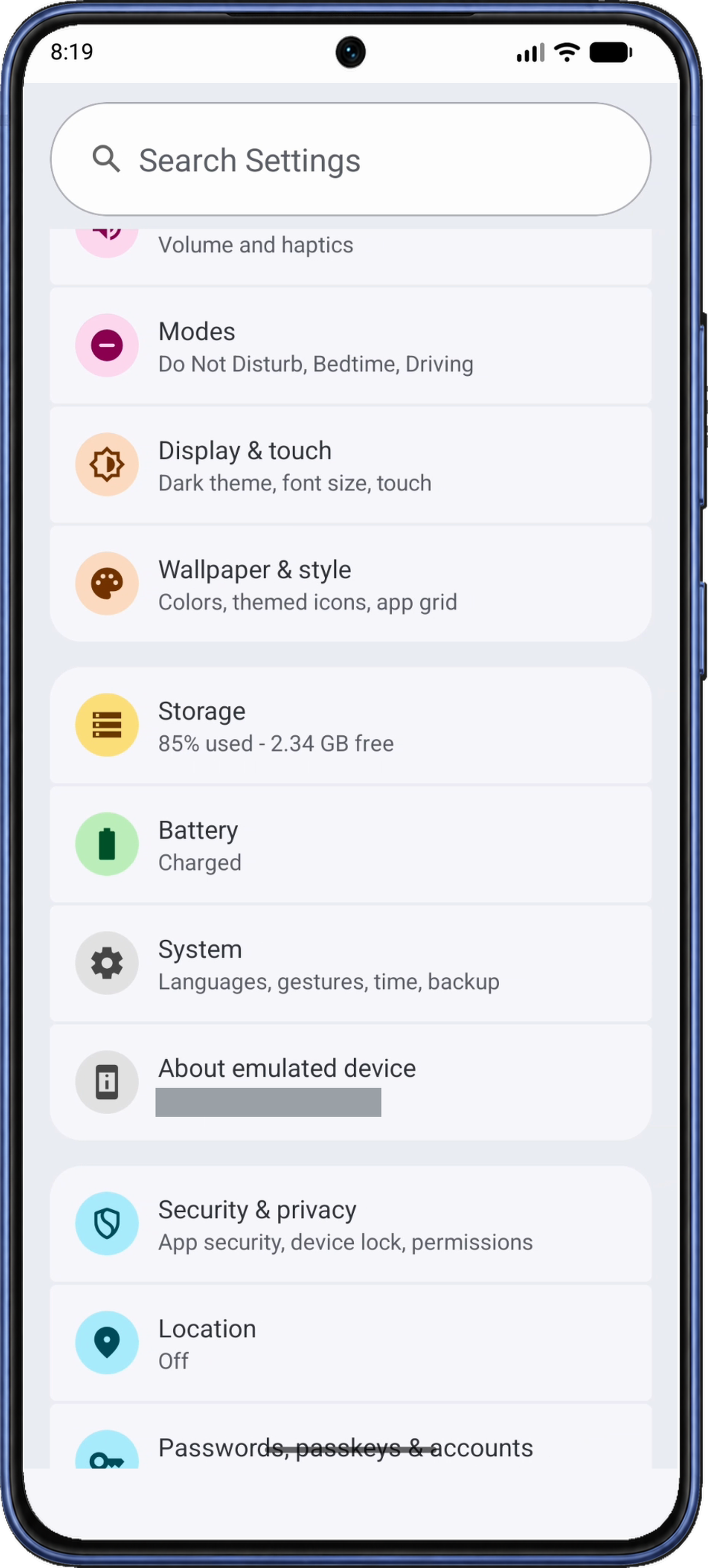
In Android Settings, scroll down and tap About phone. The device in these screenshots labels it About emulated device; your phone may call it About device.
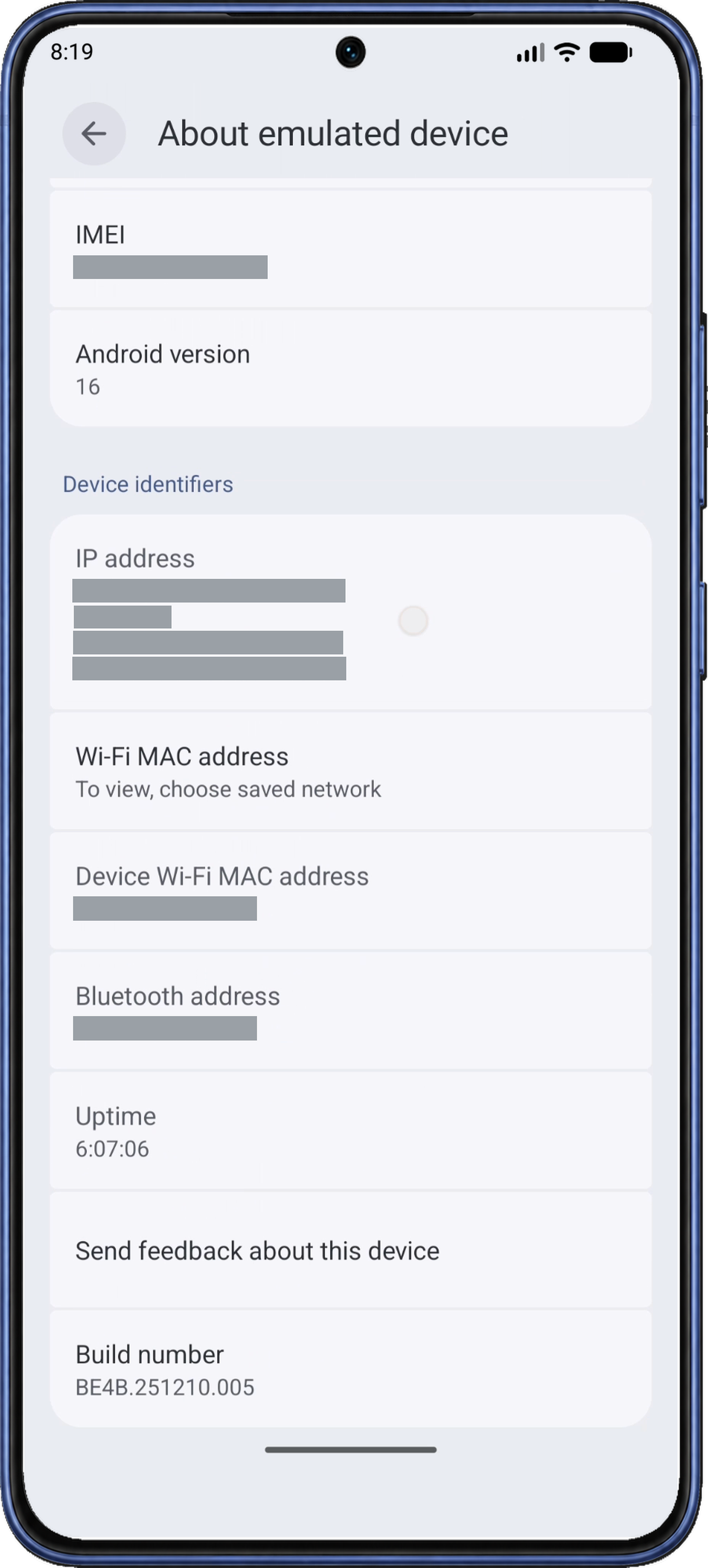
On the About page, scroll down to Build number, shown after Send feedback about this device in Figure 7. Some phones place it inside Software information. Find Build number, rather than the separate Android version entry.
2.3 Tap Build number seven times and check the confirmation
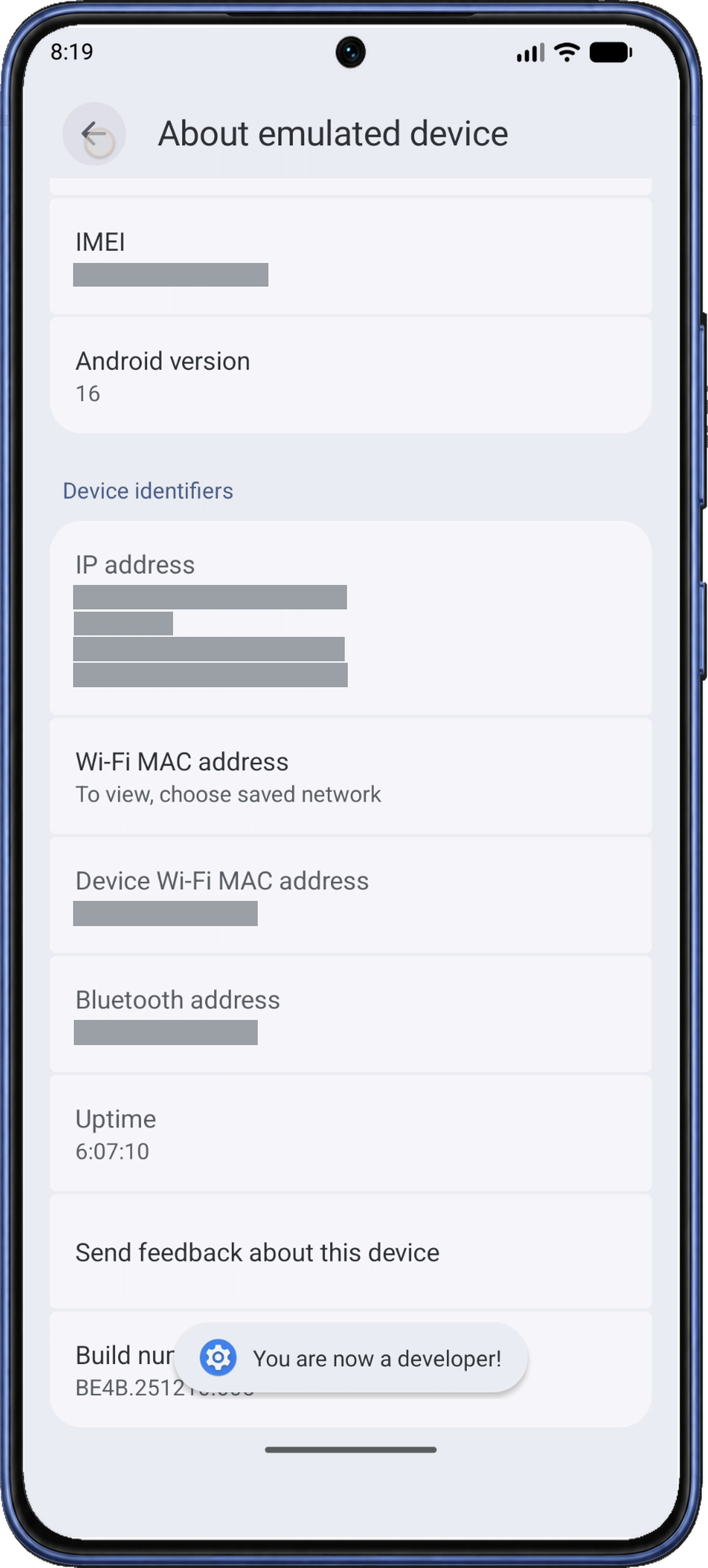
Tap Build number seven times. If Android asks you to confirm your identity, follow the prompt. Look for You are now a developer! or an equivalent message. If Android says you are already a developer, go to Step 2.4.
The seven-tap method and menu variations are described in Android's Developer options instructions.
2.4 Return to ADB Game Booster
Use Android’s Back button or gesture to leave the About page and return through Settings to ADB Game Booster. You can also switch back using Android’s recent apps screen. On ADB Connection, follow Step 3 to open the debugging controls.
3. Start pairing from the app
On ADB Connection, tap Pair if the pairing instructions are not already open.
If the app shows Pair to connect or a connection error, use the first-connection steps to return to pairing.
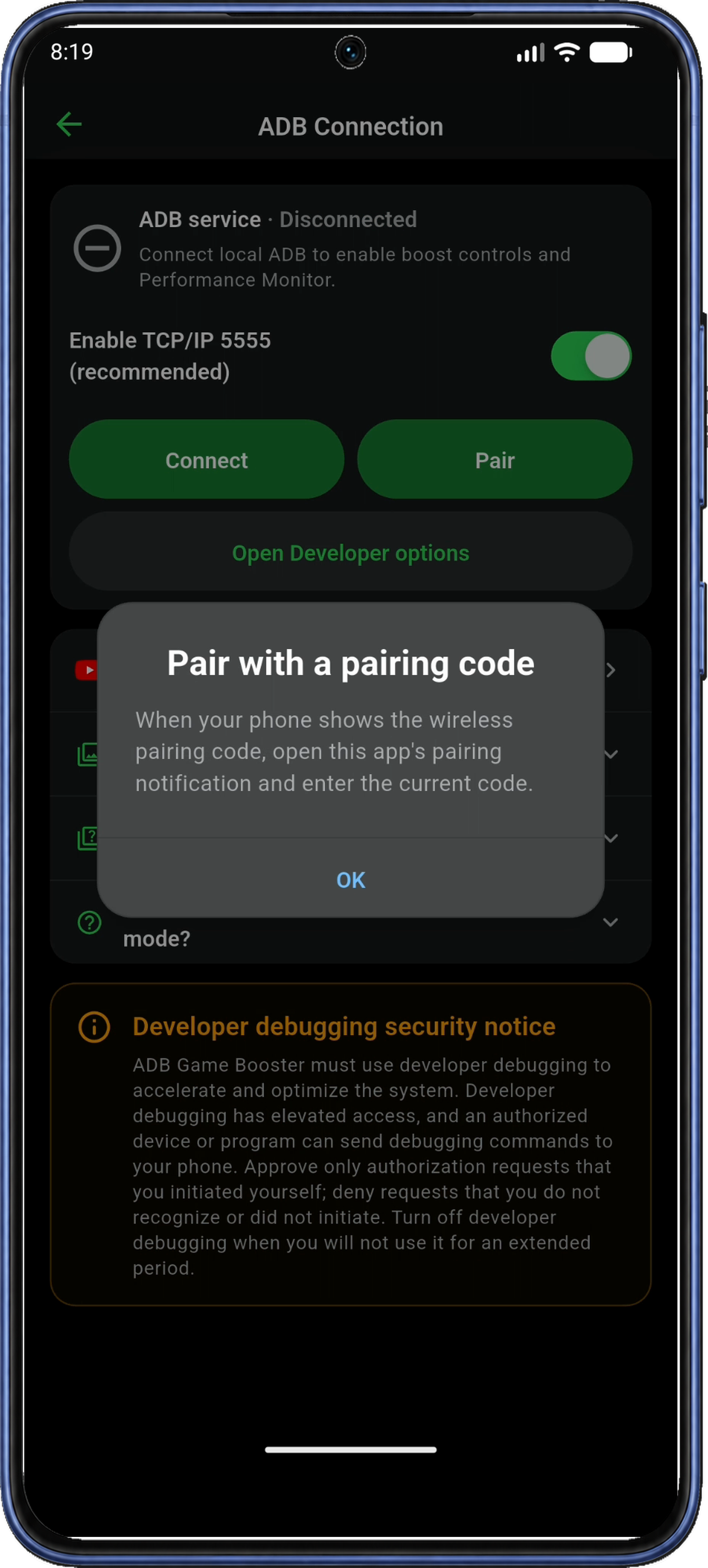
In Pair with a pairing code, read the instructions and tap OK. The app opens Android’s Developer options. If it does not, tap Open Developer options on ADB Connection.
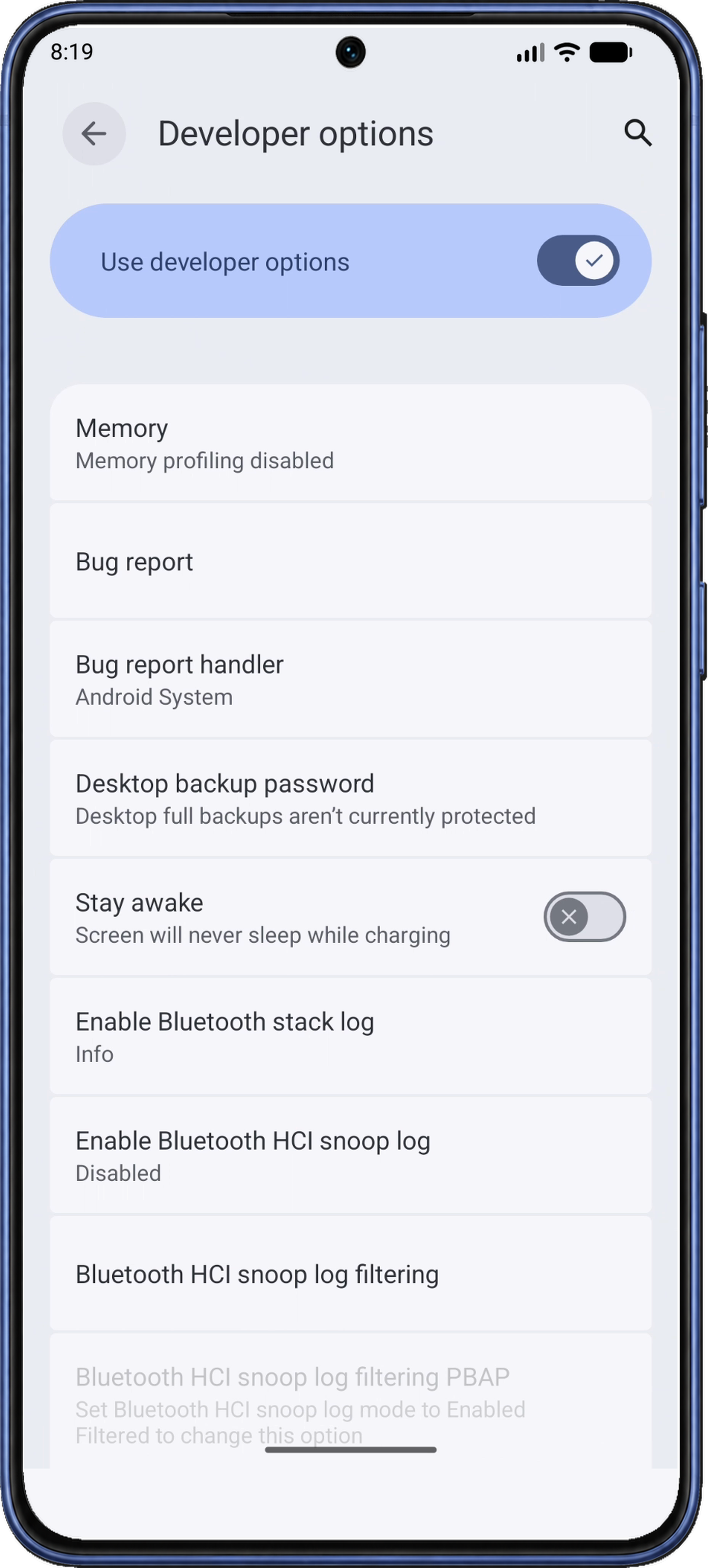
At the top of Android’s Developer options page, make sure Use developer options is on. The USB and wireless debugging switches are farther down this page.
4. Enable USB debugging, then Wireless debugging
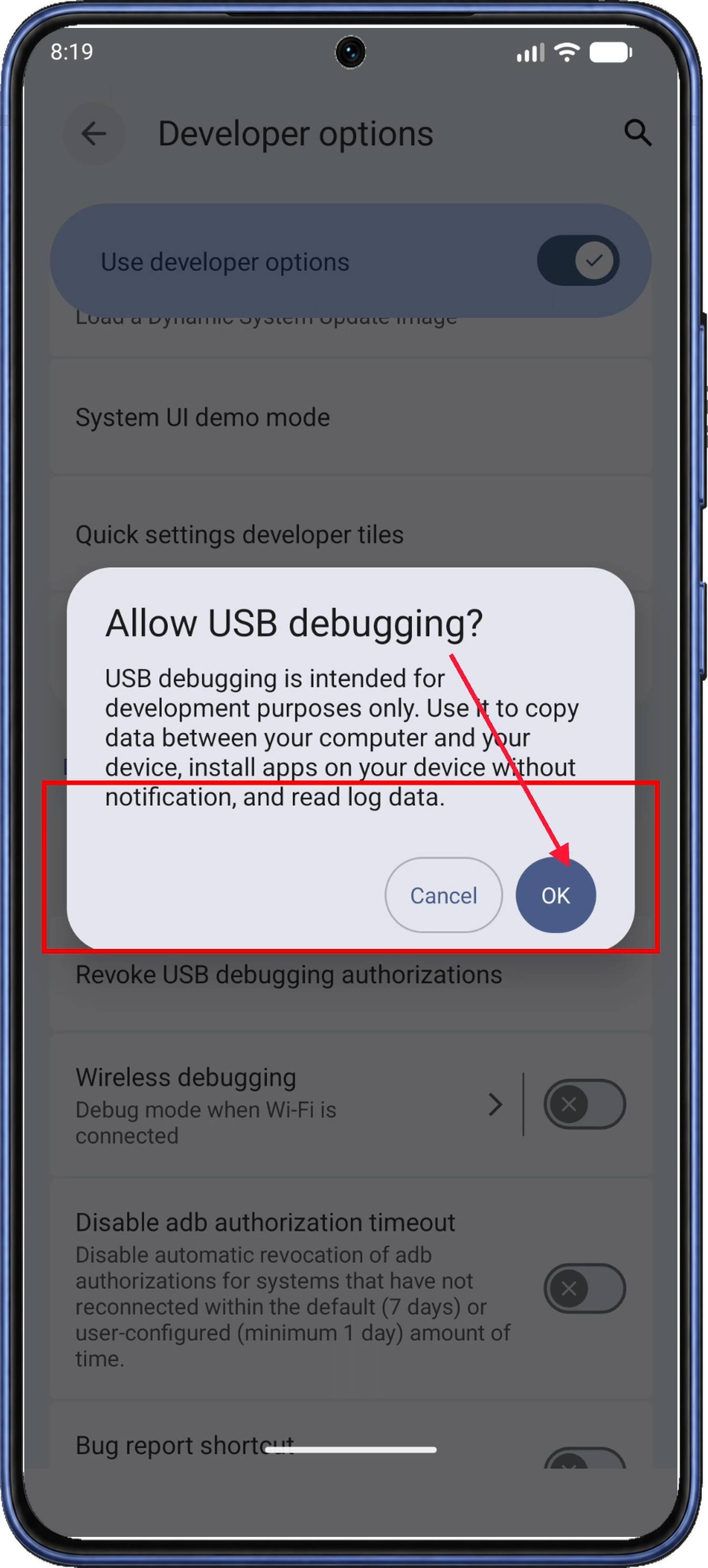
In Developer options, scroll down to Debugging and turn on USB debugging. In Allow USB debugging?, read the confirmation and tap OK.
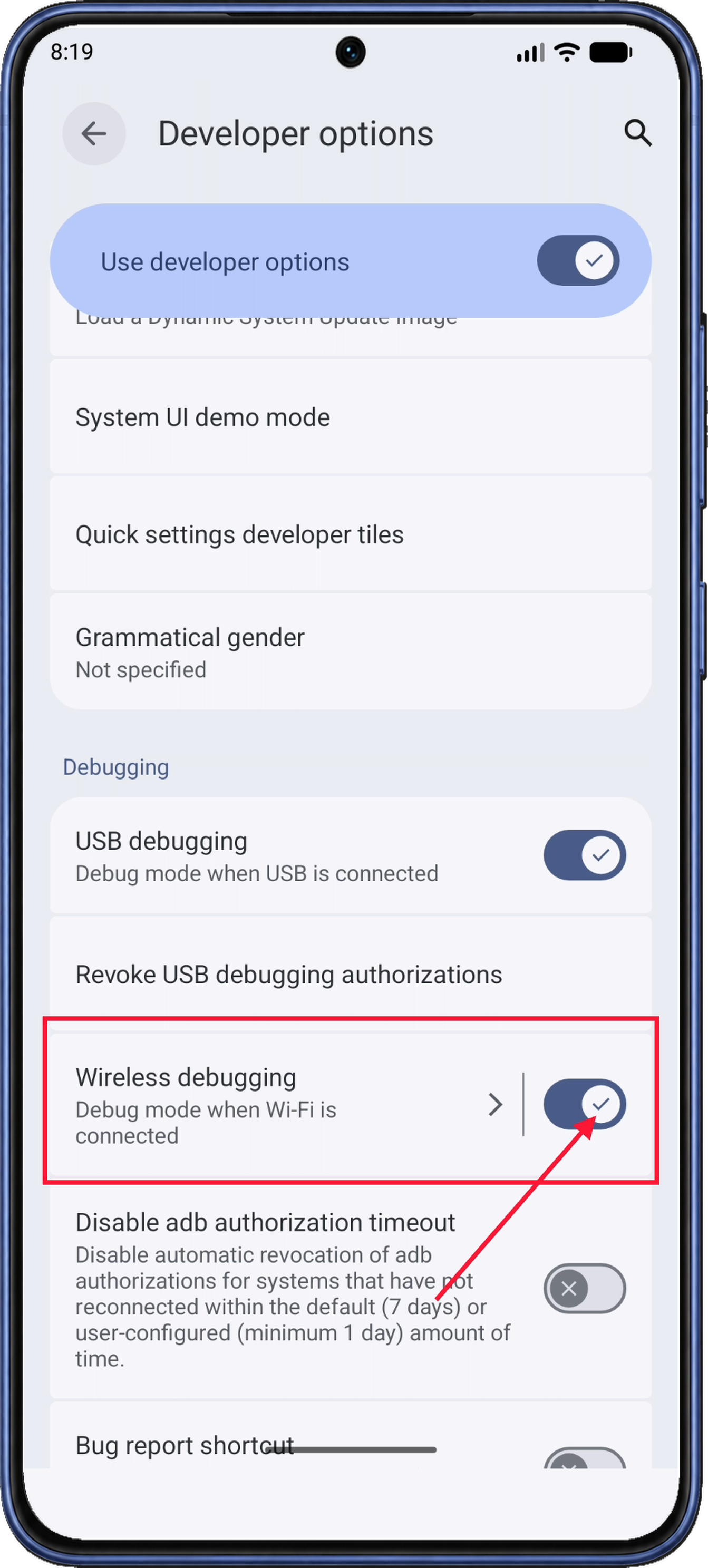
Once USB debugging is on, turn on Wireless debugging. If Android asks you to allow debugging on your current Wi-Fi network, approve the request for the network you are using for setup.
With both switches on, tap the Wireless debugging label or its arrow to open the details page. Keep Wi-Fi connected and leave Wireless debugging on while you complete pairing.
5. Get the current six-digit pairing code
On Wireless debugging, confirm Use wireless debugging is on. Tap Pair device with pairing code below the QR-code option.
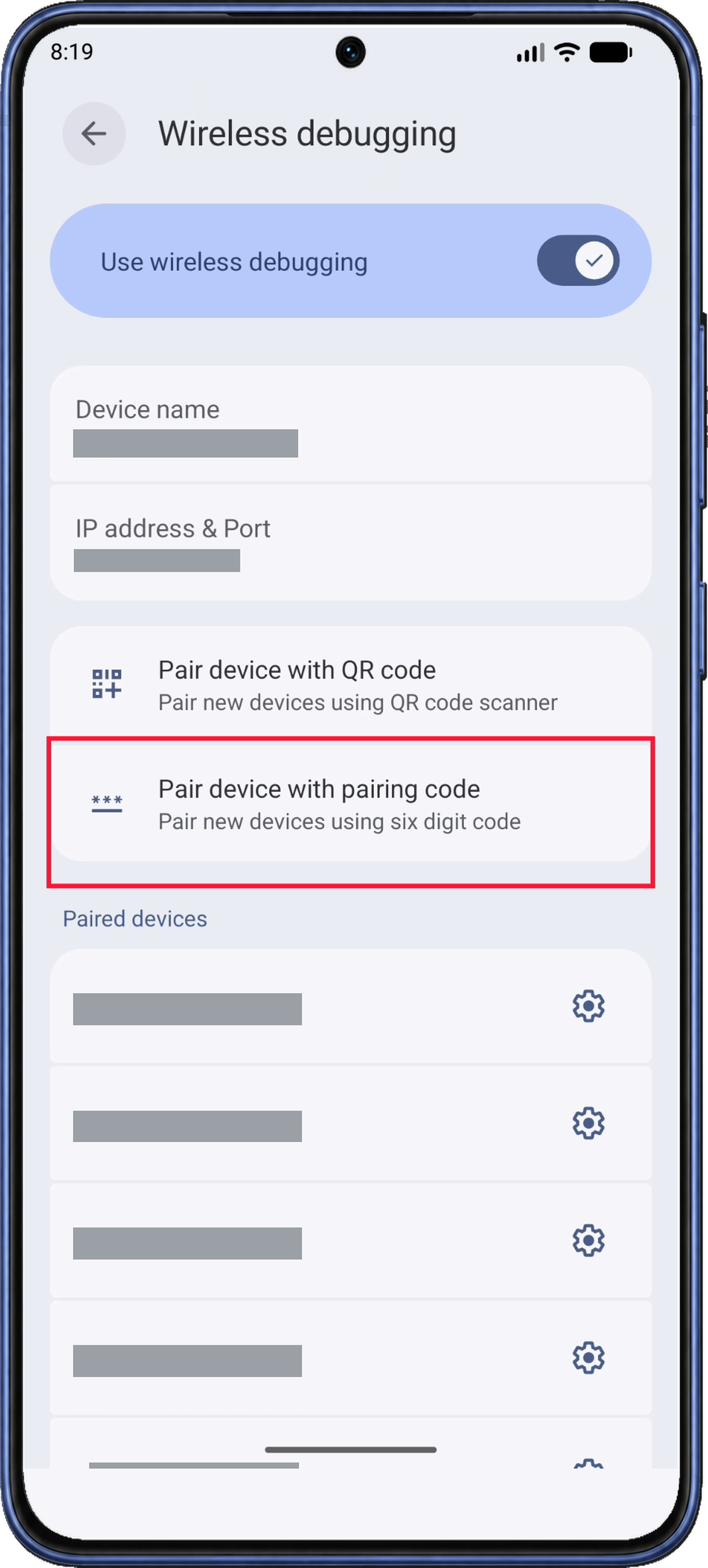
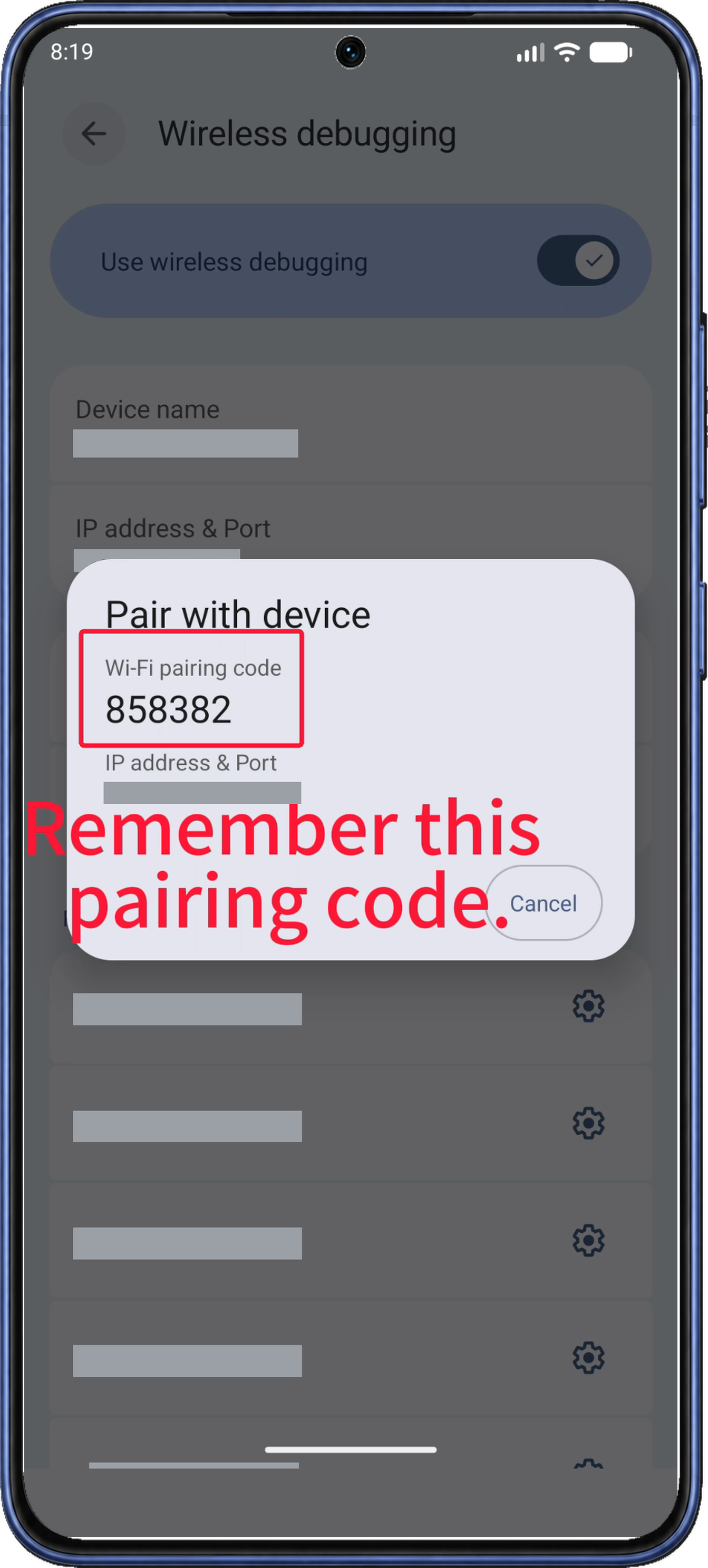
Android opens Pair with device and displays a six-digit Wi-Fi pairing code above the IP address and port. Keep this dialog open while you enter the code through notifications in Step 6.
If you reopen the dialog and Android generates a new code, use the new one.
6. Enter the code through the app's notification
6.1 Expand the pairing notification
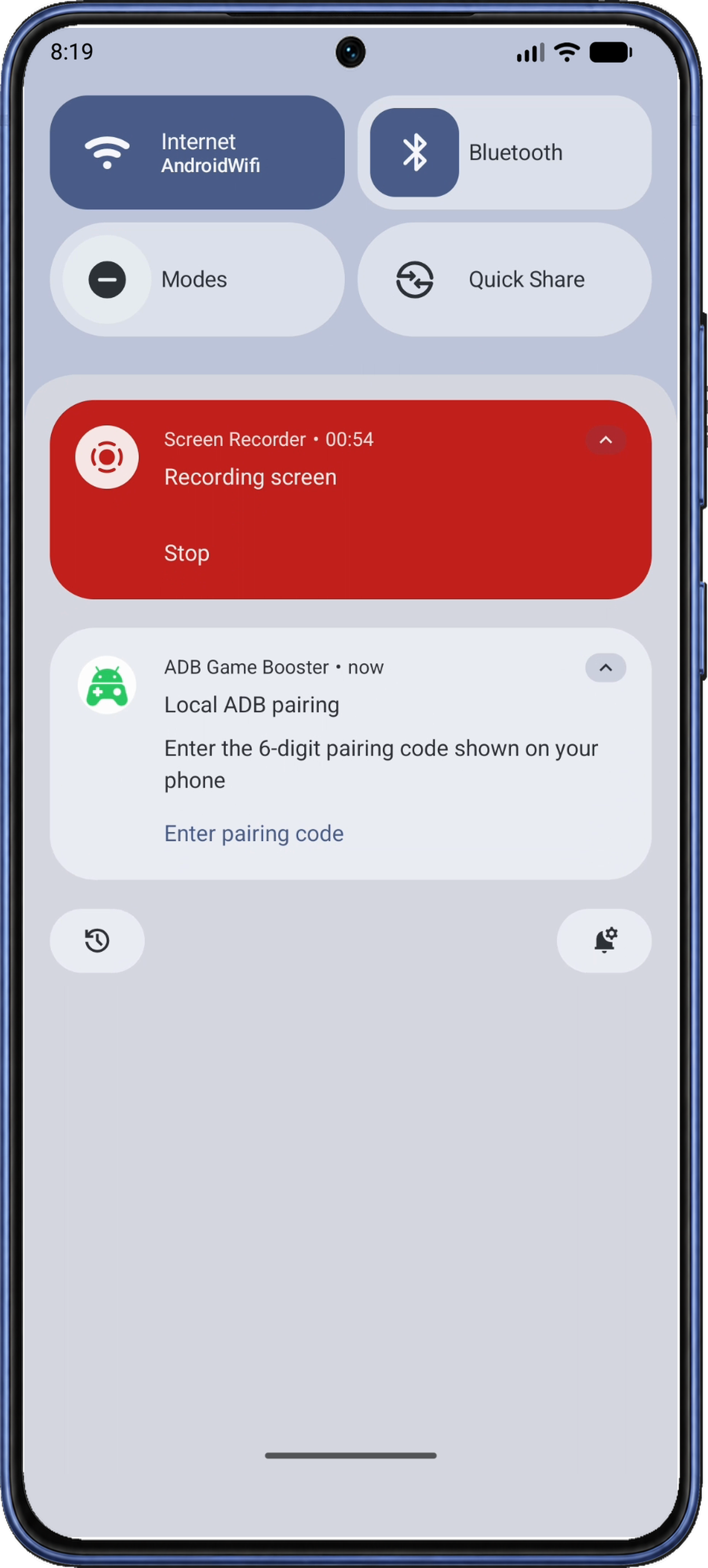
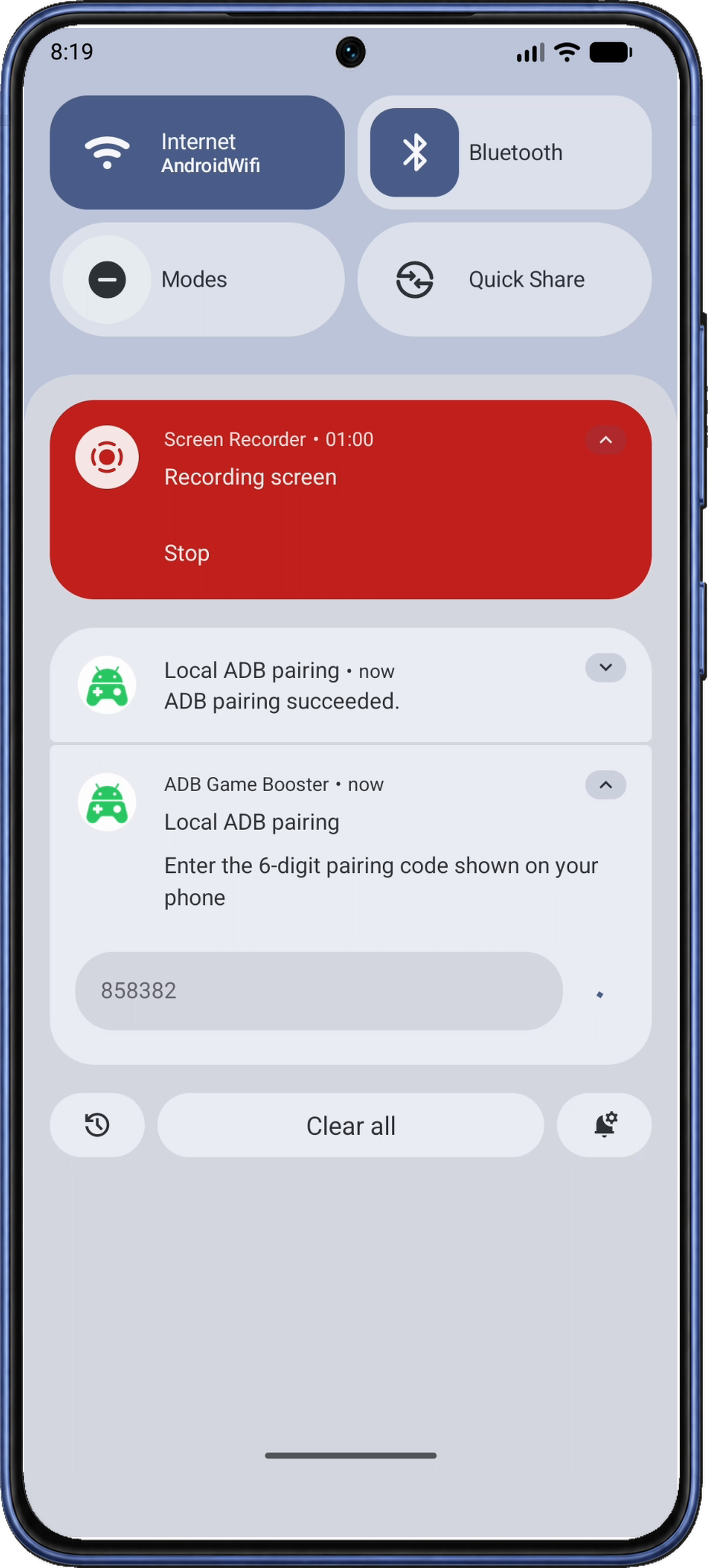
Swipe down from the top of the screen to open Android’s notification shade, leaving the pairing dialog open underneath. Find Local ADB pairing from ADB Game Booster. Expand it if needed, then tap Enter pairing code to show the input field.
6.2 Enter and send the code
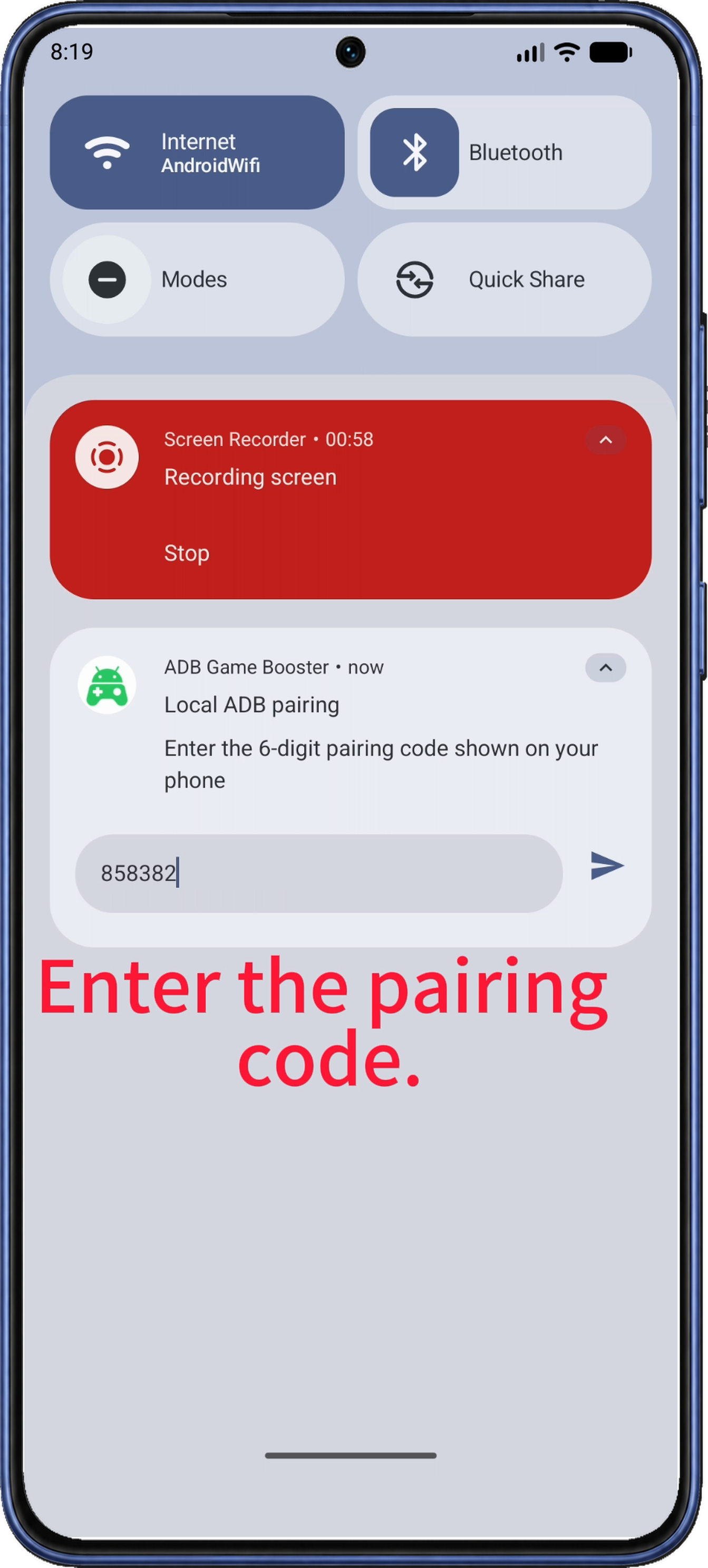
Enter the six digits from your phone’s pairing dialog in the 6-digit pairing code field, then tap the send arrow on the right. Choose the ADB Game Booster notification; the red Screen Recorder notification is unrelated to pairing.
6.3 Confirm pairing and return to the app
Wait for the notification ADB pairing succeeded. If it does not appear, follow the pairing-code recovery steps.
Swipe up to close the notification shade. After pairing, Android closes the code dialog and returns to Wireless debugging. Use Android Back to return through Developer options to ADB Connection, or switch back using recent apps.
7. Wait until the app shows Connected
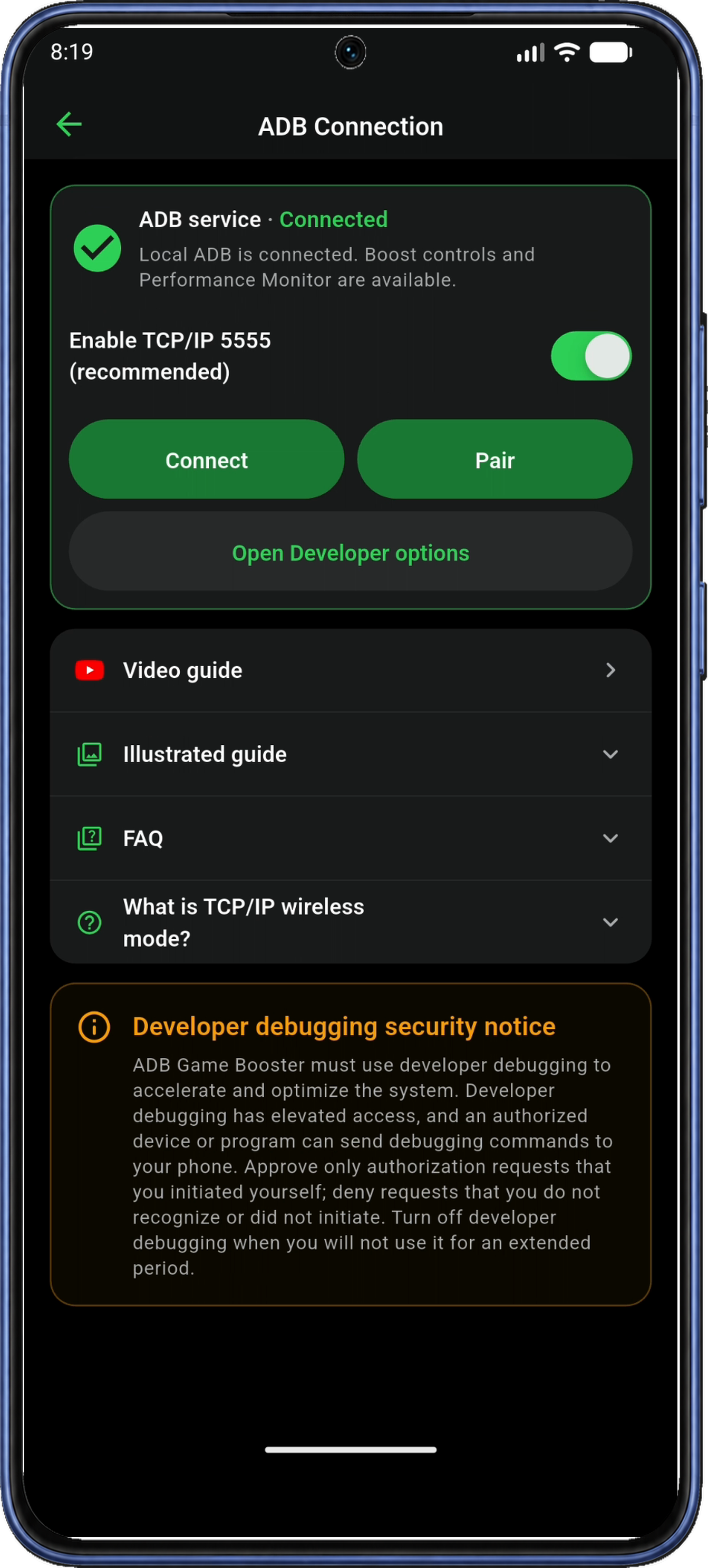
Back on ADB Connection, leave the page open while the app connects automatically. The status may read Connecting for several seconds before changing to Connected.
Connected and a green check confirm that the ADB service is ready. If connecting stalls, follow the reconnect steps. Tap the app’s back arrow at the upper left to return to Home, where the ADB service card should also show Connected.
8. Add your installed games
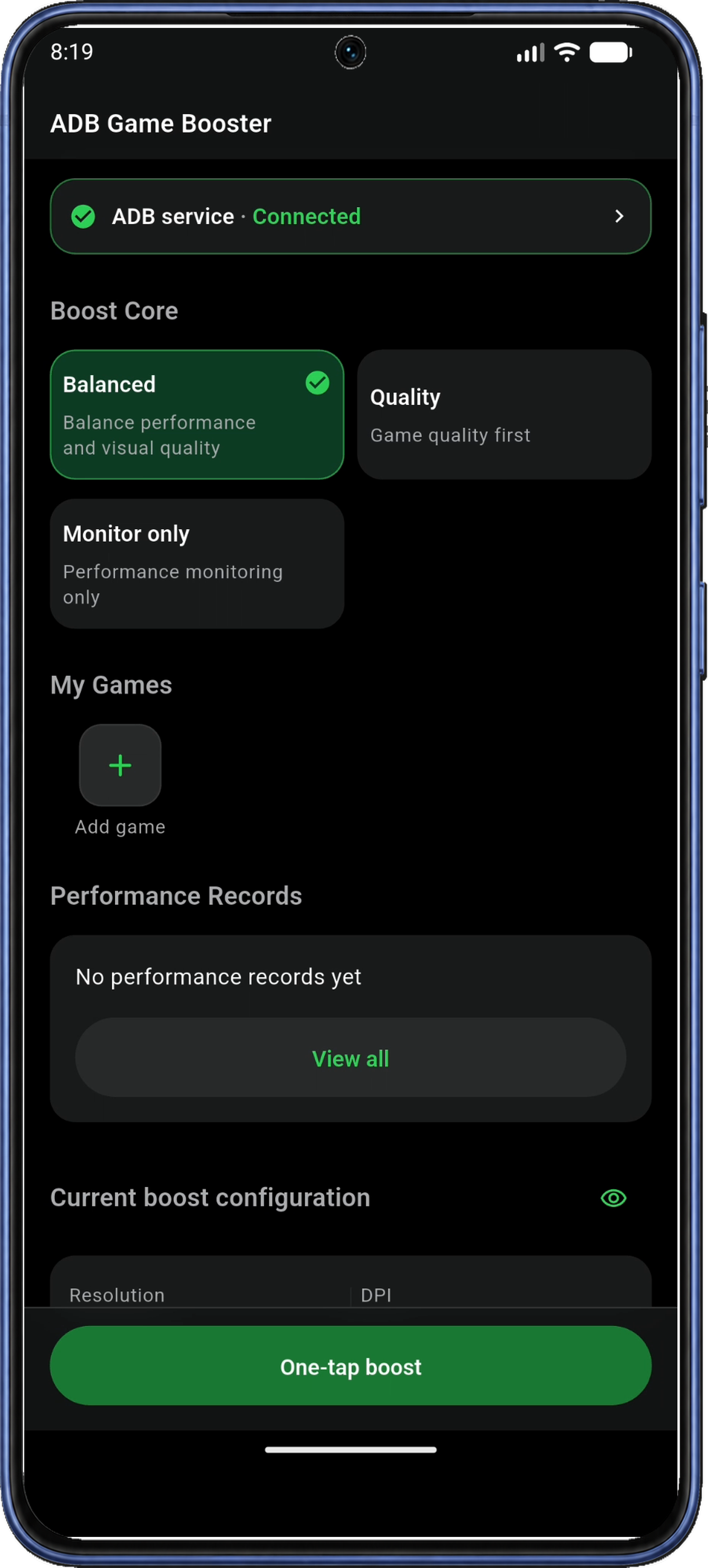
On the app's Home screen, find My Games. Tap the + / Add game tile to open Game Library.
The app uses your installed-app list to find games on your phone. If Read the installed app list appears, read the explanation and tap Agree. The app skips this prompt if you have already agreed.
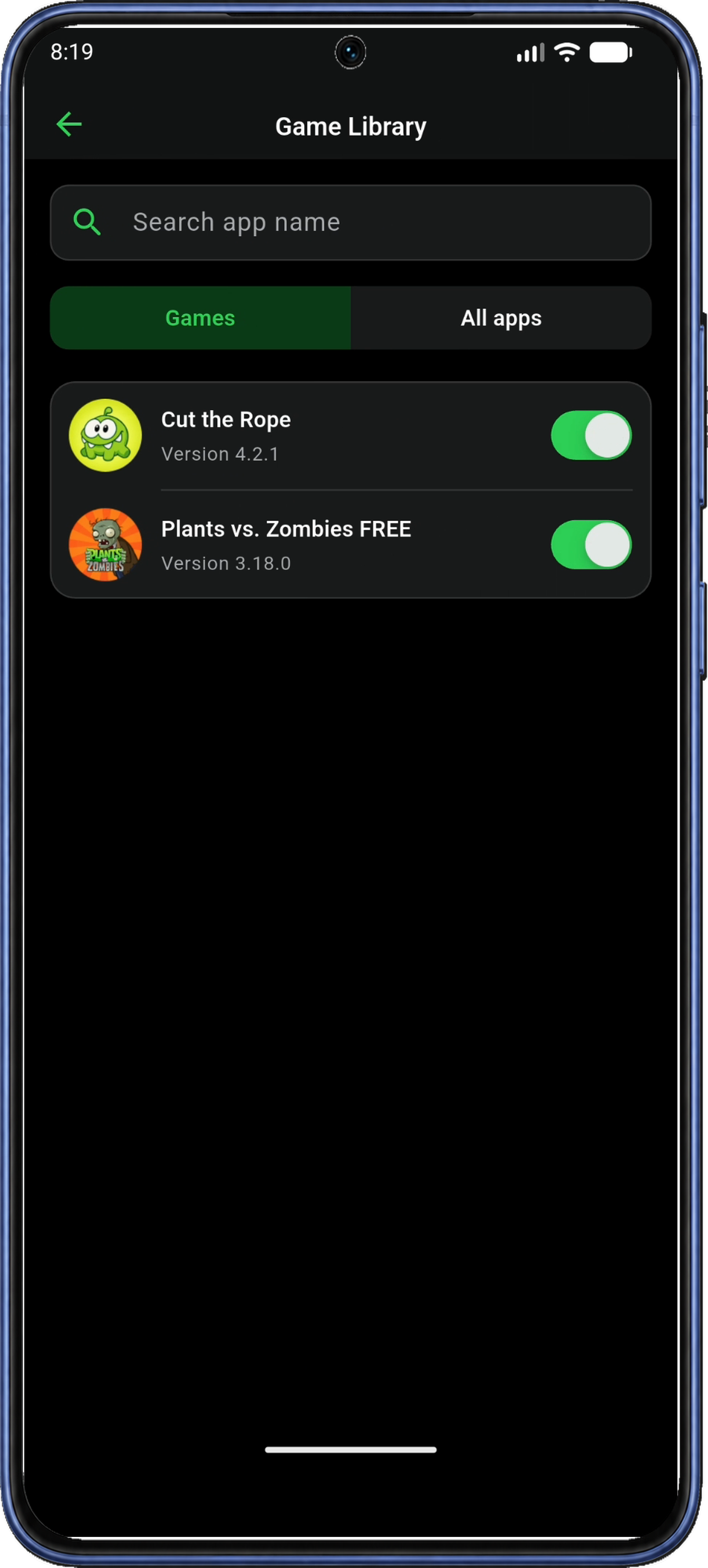
Use Search app name to find a game, then turn on the switch beside it. Games shows recognized games; try All apps if an installed game is missing from that filter. You can select up to 20 apps.
Tap the back arrow at the upper left to return to Home. Your selected games should now appear under My Games; you’ll use these icons to launch a game in Step 11.
9. Choose and review a Boost Core
If a boost is already active, tap Restore on Home and wait for it to finish before choosing a configuration. Changing the Boost Core during an active boost applies the new configuration immediately.
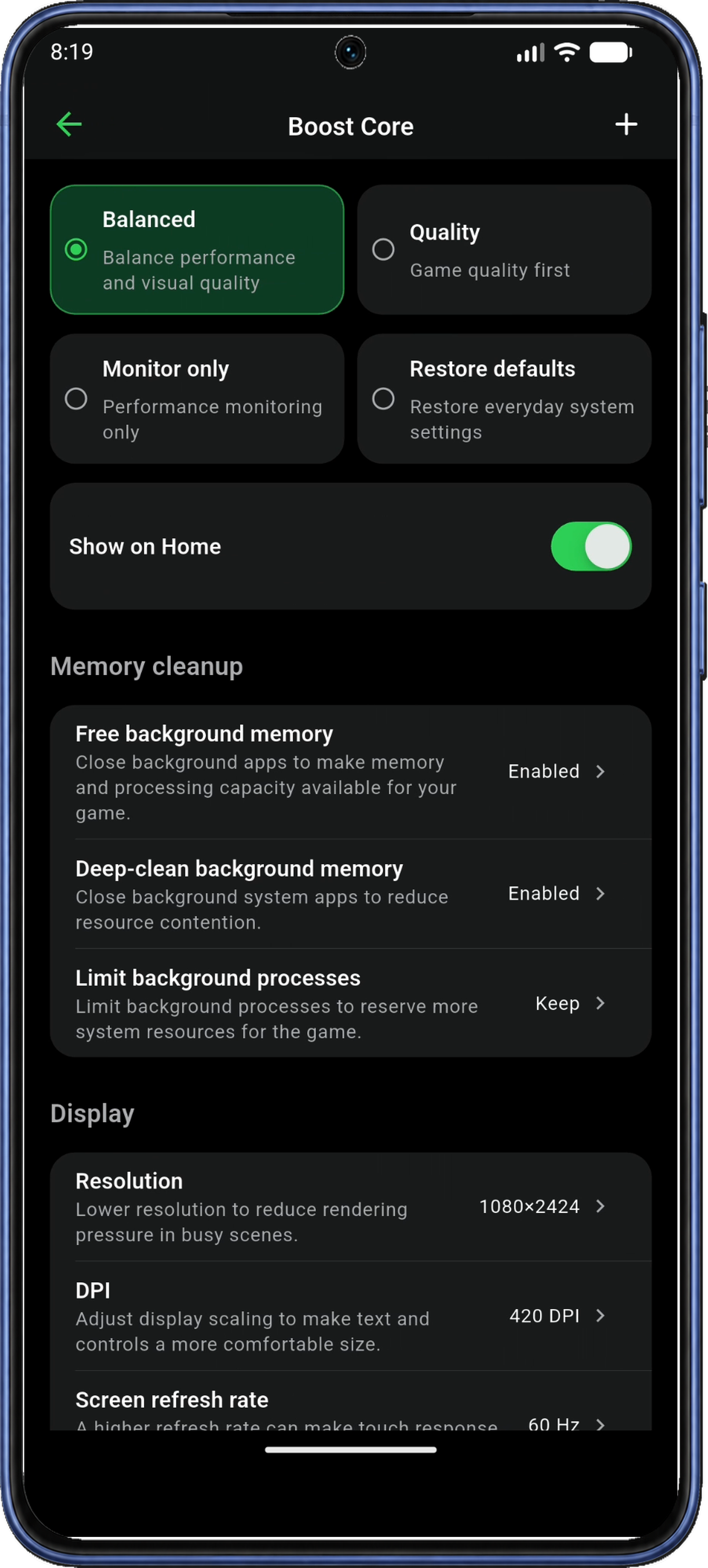
Near the top of Home, choose the Boost Core you want to use. The screenshots show Balanced selected.
| Choice | Purpose |
|---|---|
| Balanced | Balance performance and visual quality. |
| Quality | Prioritize visual quality. |
| Monitor only | Start a monitoring session without applying boost settings. |
Choose Balanced to follow the illustrated setup, or leave it selected if it already is. To view performance readings without applying boost settings, choose Monitor only and go to Step 10.
With Balanced selected, scroll to Current boost configuration on Home and tap Edit Boost Core.
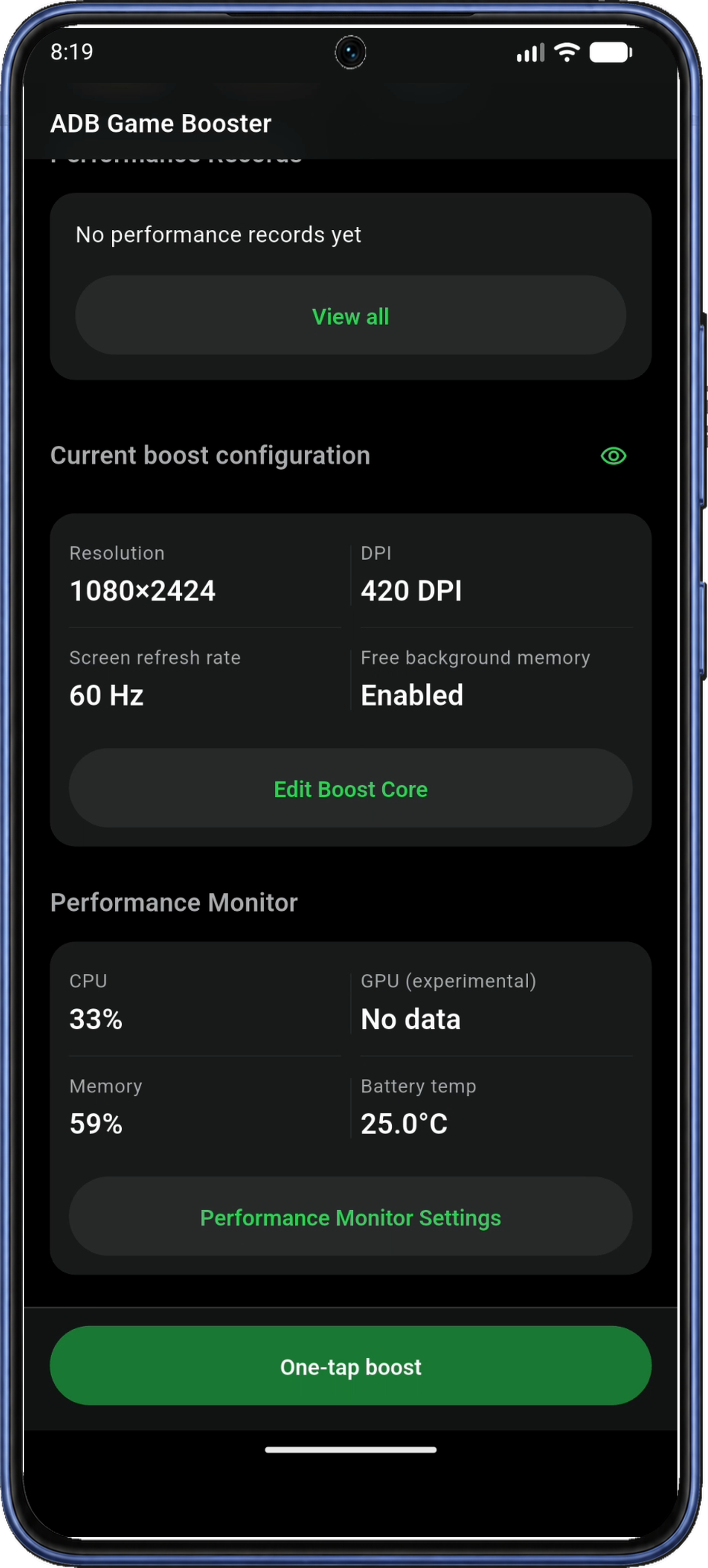
On Boost Core, review the settings for Balanced. Keep the current choices for your first session; you can adjust them later.
The settings include Free background memory, display settings, brightness, and notifications. Available controls depend on your device.
If you enable Game Do Not Disturb, it may silence notifications, alarms, and media audio and suppress vibration. The app may request separate permission for that setting. See After playing for the difference between Restore defaults and Restore.
Tap the app’s back arrow to return to Home. You’ll apply this configuration with One-tap boost in Step 11.
10. Enable the Performance Monitor
10.1 Open Performance Monitor Settings
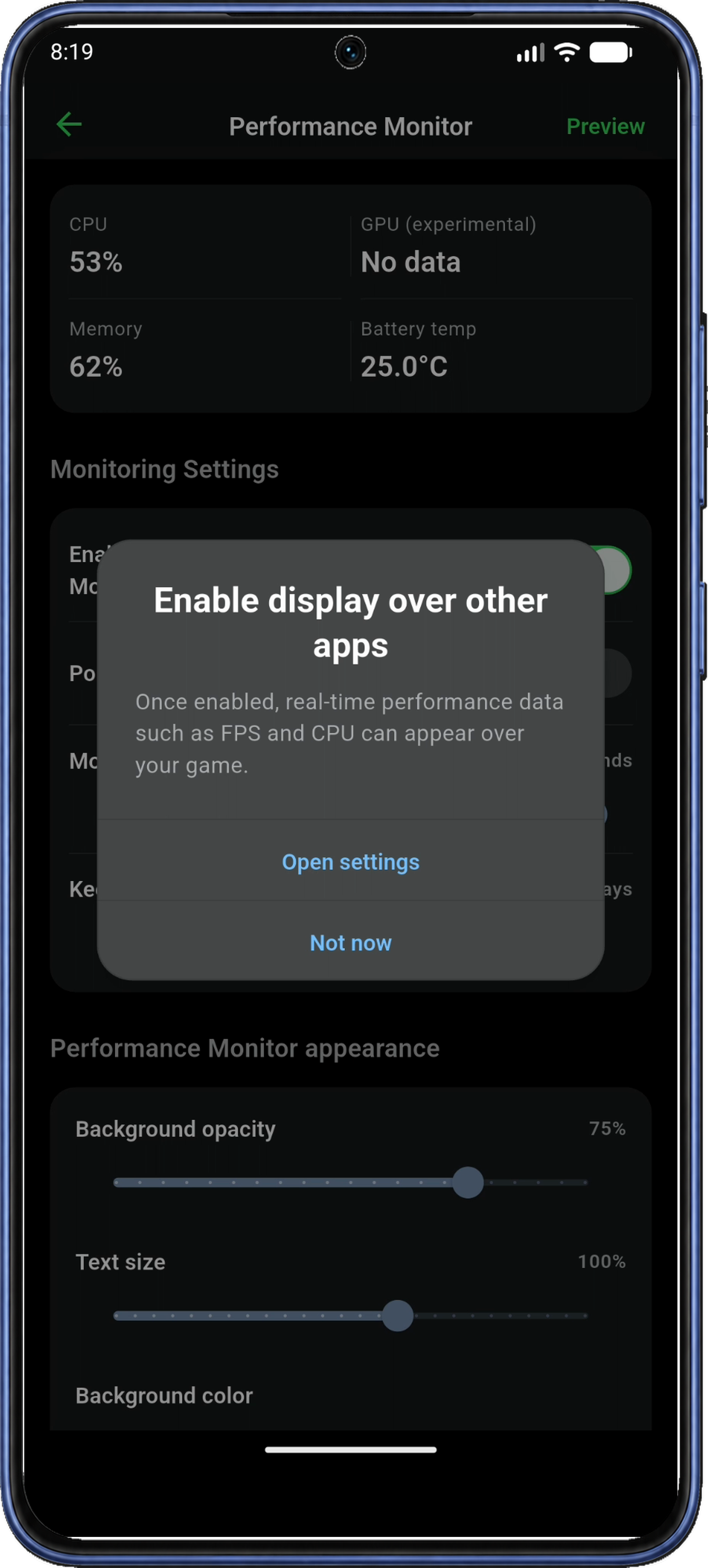
On Home, scroll to Performance Monitor and tap Performance Monitor Settings (Figure 21). If monitoring is already enabled, the app may ask for permission to display over other apps as soon as the settings page opens.
The display over other apps permission lets the monitor stay visible over your game. In the Enable display over other apps prompt, tap Open settings. If the prompt does not appear, turn on Enable Performance Monitor if needed, then tap Preview. This opens the preview or requests the missing permission.
10.2 Select the app in Android's permission list
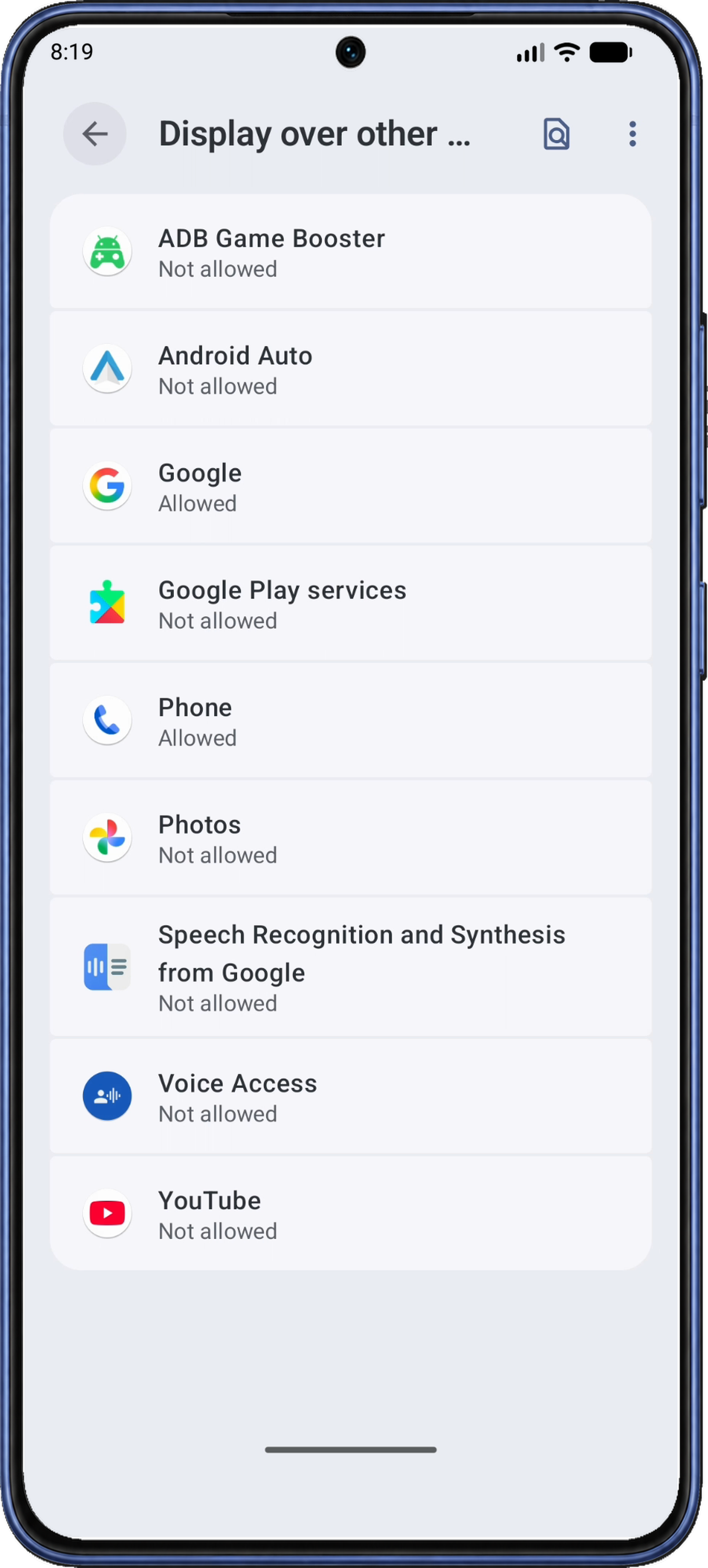
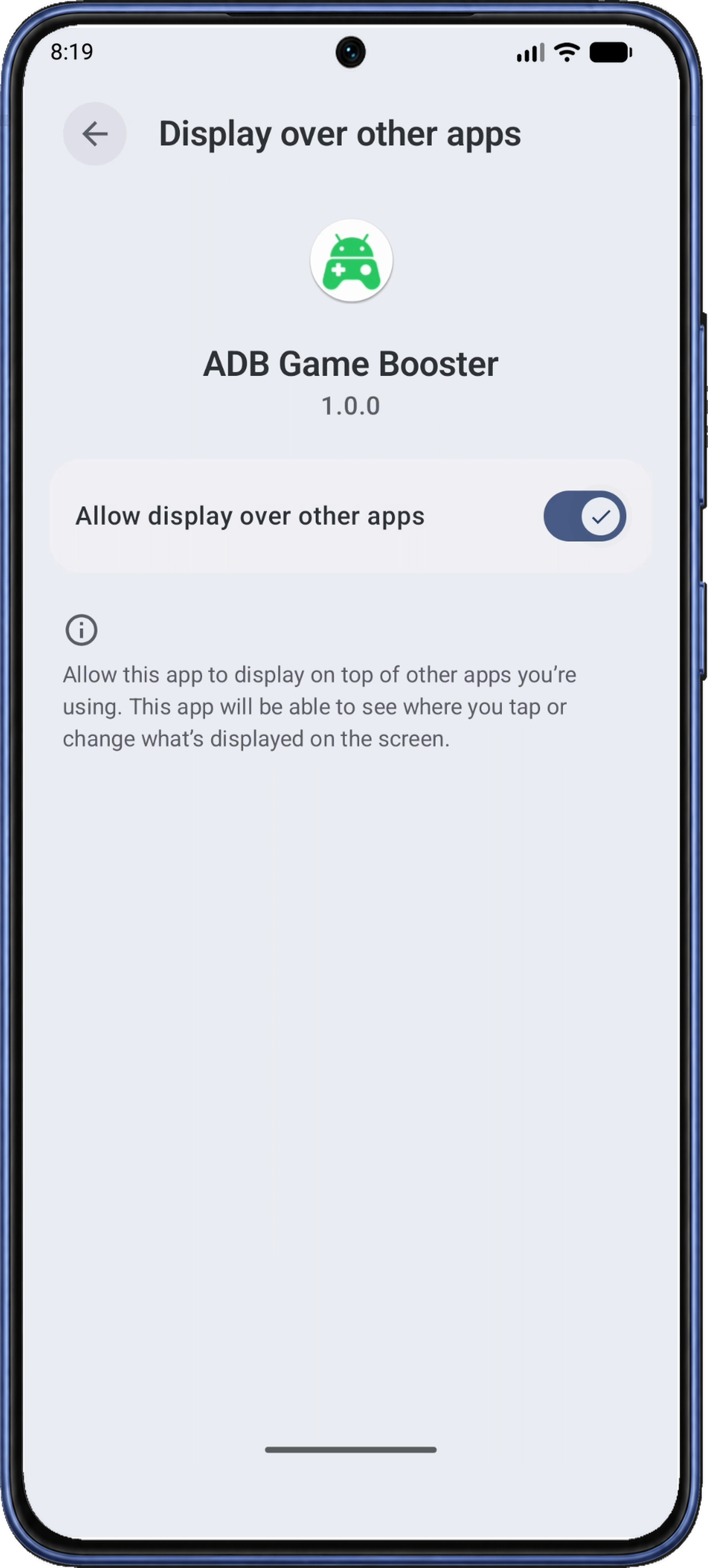
In Android’s Display over other apps list, tap ADB Game Booster. Its status will be Not allowed until you grant permission. Some phones open the app’s permission page directly; if so, go straight to Allow display over other apps.
On ADB Game Booster's permission page, turn on Allow display over other apps.
With Allow display over other apps on, use Android Back to leave the permission page. If the app list appears again, go back once more to reach Performance Monitor in ADB Game Booster.
10.3 Preview and adjust the monitor
Back in Performance Monitor, make sure Enable Performance Monitor is on. The floating preview may appear automatically after you grant permission; otherwise, tap Preview at the upper right. If it still doesn’t appear, follow the preview checks.
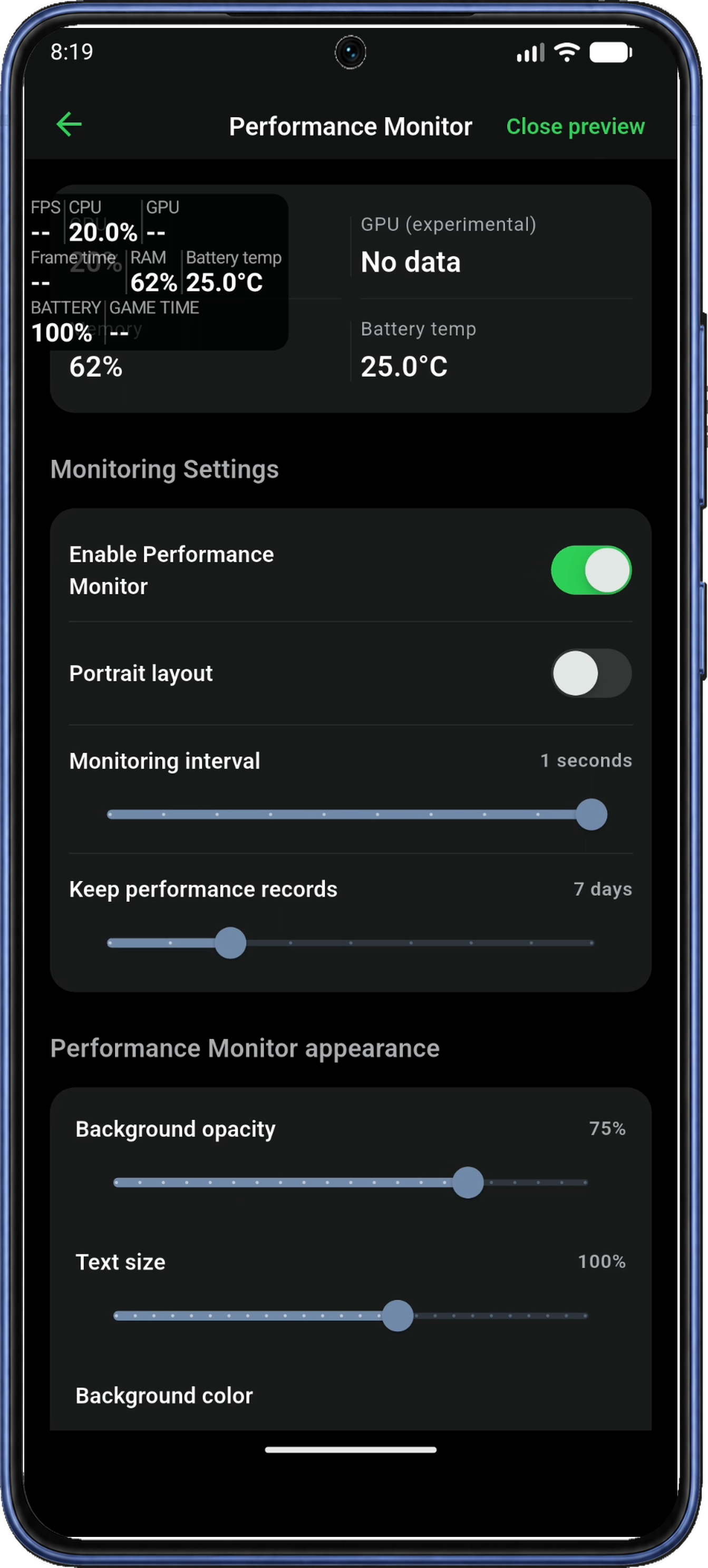
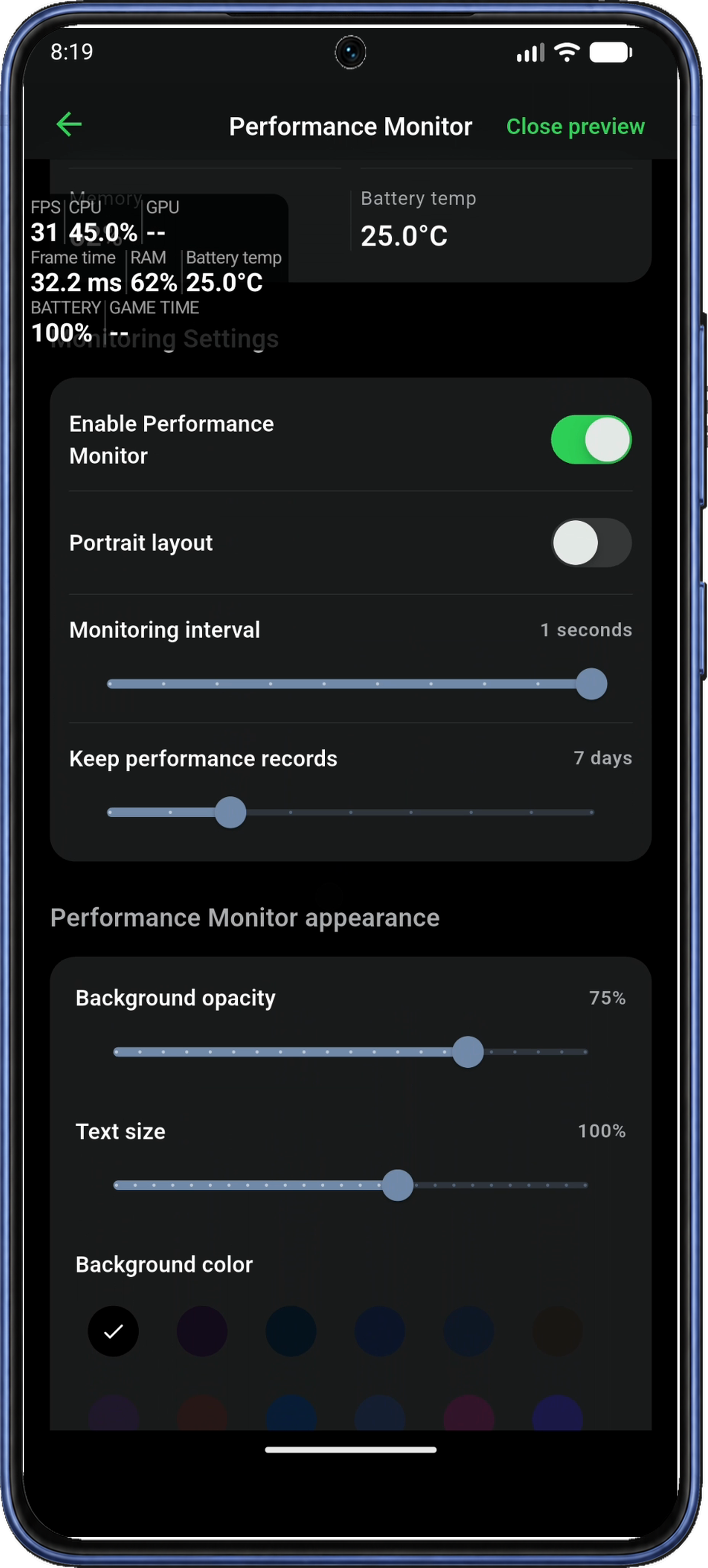
Use the preview to find a layout that is easy to read over your game. This page also contains the monitoring interval, record retention, and appearance controls.
Optional: Adjust the Text size and Background opacity sliders to make the panel easier to read. Scroll down to choose background and text colors, then check the preview.
Keep the default monitoring interval for your first session. You can adjust it later; the screenshot shows one example configuration.
Once the floating panel appears, watch for available readings to update. No data or -- means a reading is unavailable, rather than zero.
Leave Enable Performance Monitor on and tap the back arrow to return to Home. Leaving this page closes the preview; you can also hide it with Close preview. The monitoring setting stays on for your game session.
11. Apply the configuration and open your game
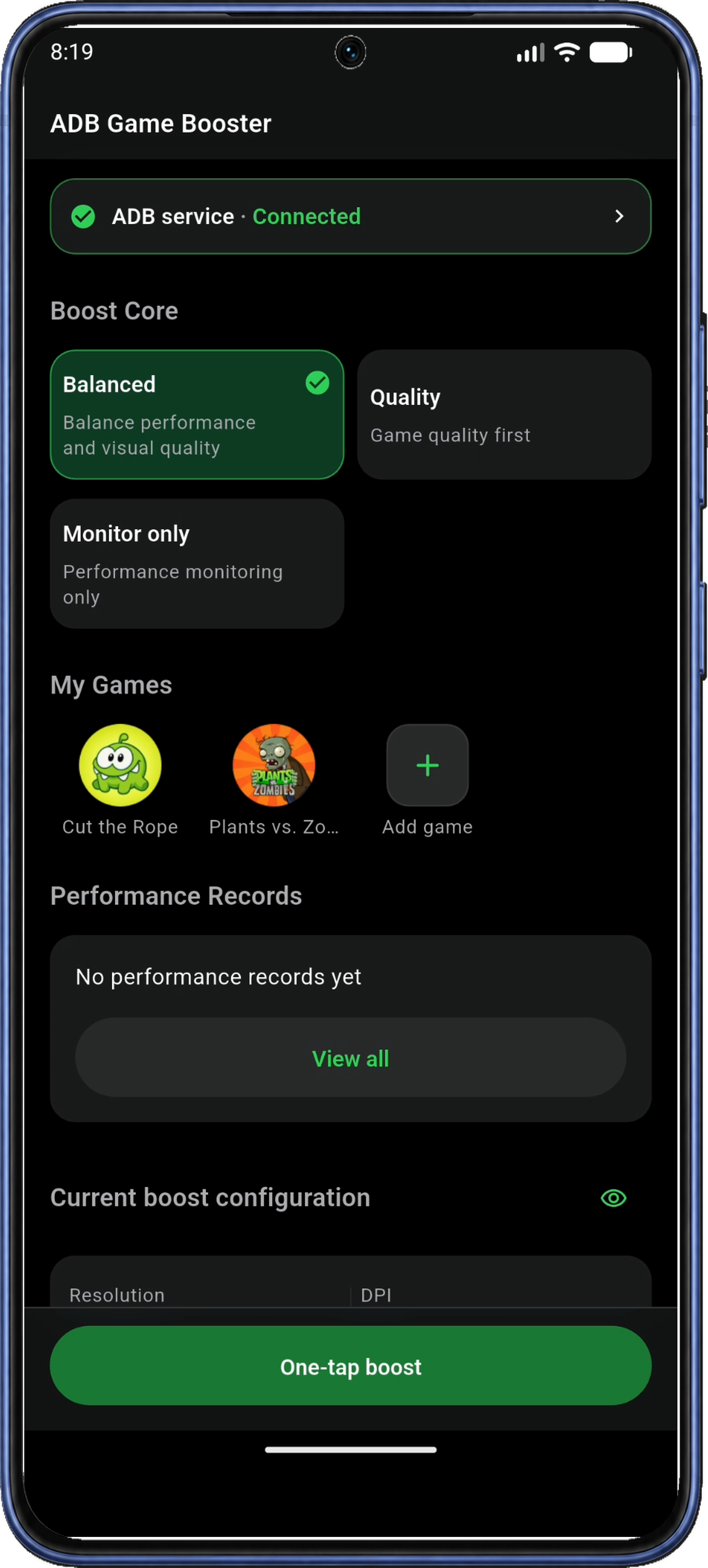
On Home, confirm Connected, your chosen Boost Core, and your games under My Games. Scroll toward the top if these are out of view.
If you chose Monitor only: tap Start monitoring and wait for Performance monitoring started. Go to Step 11.2 to open your game.
11.1 Start One-tap boost and wait for the result
With Balanced selected, tap One-tap boost at the bottom of Home.
The app opens a progress page while it applies the configuration. Leave it open until the completion screen appears.
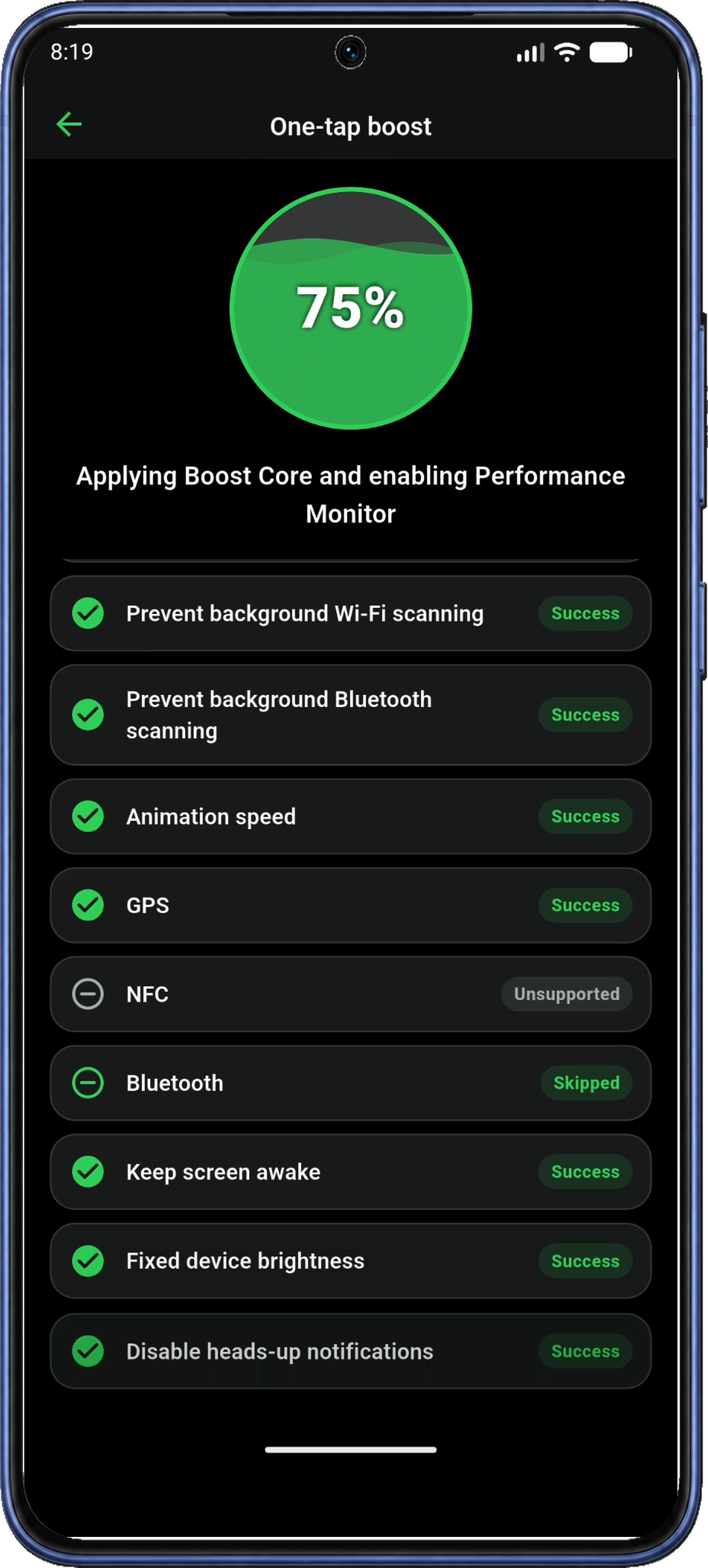
When processing finishes, review the status beside each setting. Scroll through the list to see the other results.
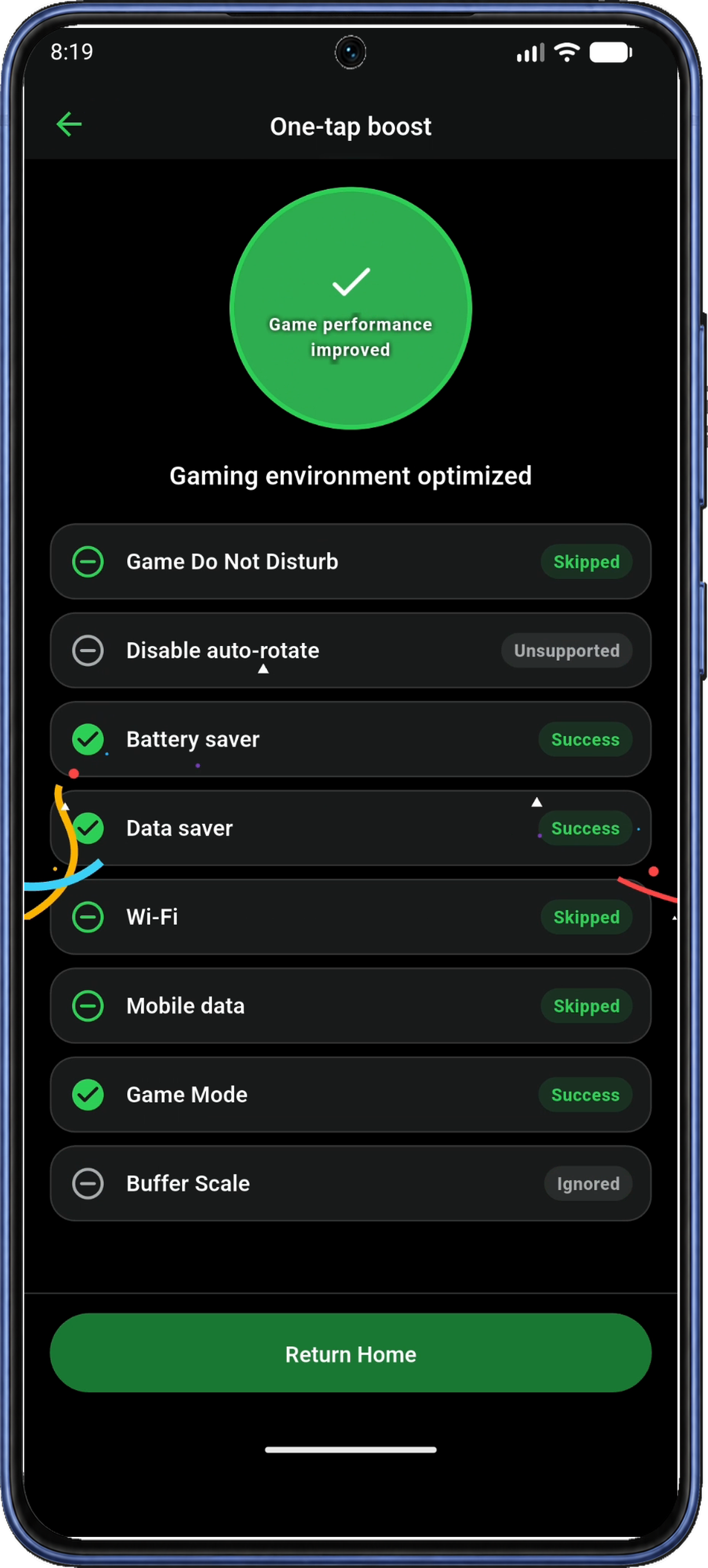
Common result labels include:
| Label | Meaning |
|---|---|
| Success | The operation succeeded, or the setting already matched the selected value. |
| Skipped | The setting was left at Keep, so no change was requested. |
| No apps selected | No system apps were selected for the cleanup operation. |
| Unsupported | The requested setting is not supported on this device or system. |
| Ignored | The operation did not complete successfully. This can include permission, connection, or other execution failures. |
Use the labels to see which settings were applied or left unchanged. For an unexpected result, follow the boost-result checks before retrying.
11.2 Return to Home and tap the game icon
On the completion screen, tap Return Home. After a Balanced boost, Home shows Boost enabled · Tap a game to launch, with Boost again and Restore. For an active Monitor only session, Home shows Stop monitoring.
Under My Games, tap the game you want to open, such as Cut the Rope below. In a boost session, Boost again reapplies the configuration.
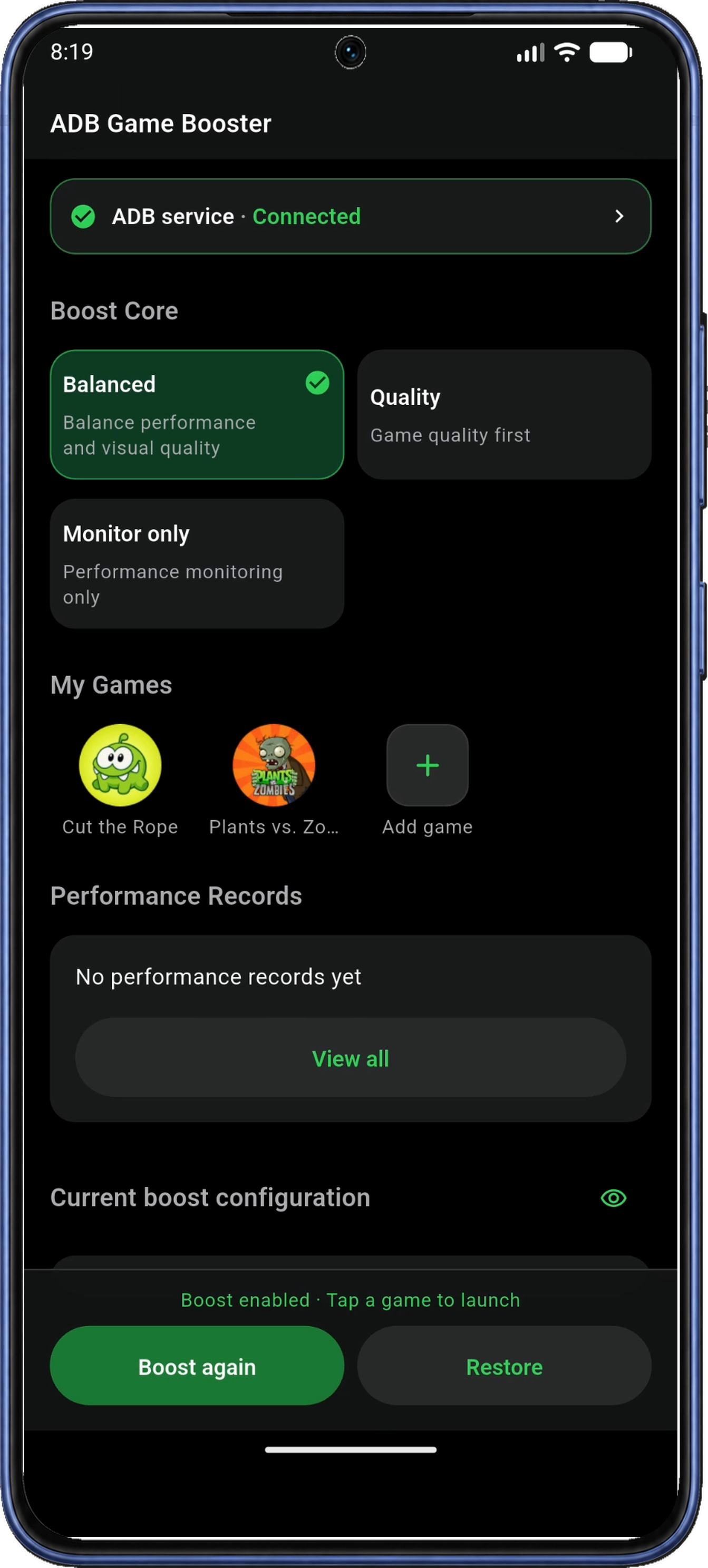
If you began by tapping a game icon on Home, the completion button may say Launch game. Tap it to open that game directly.
Wait for the game to load. The monitor may appear during loading and should remain visible when the game is ready.
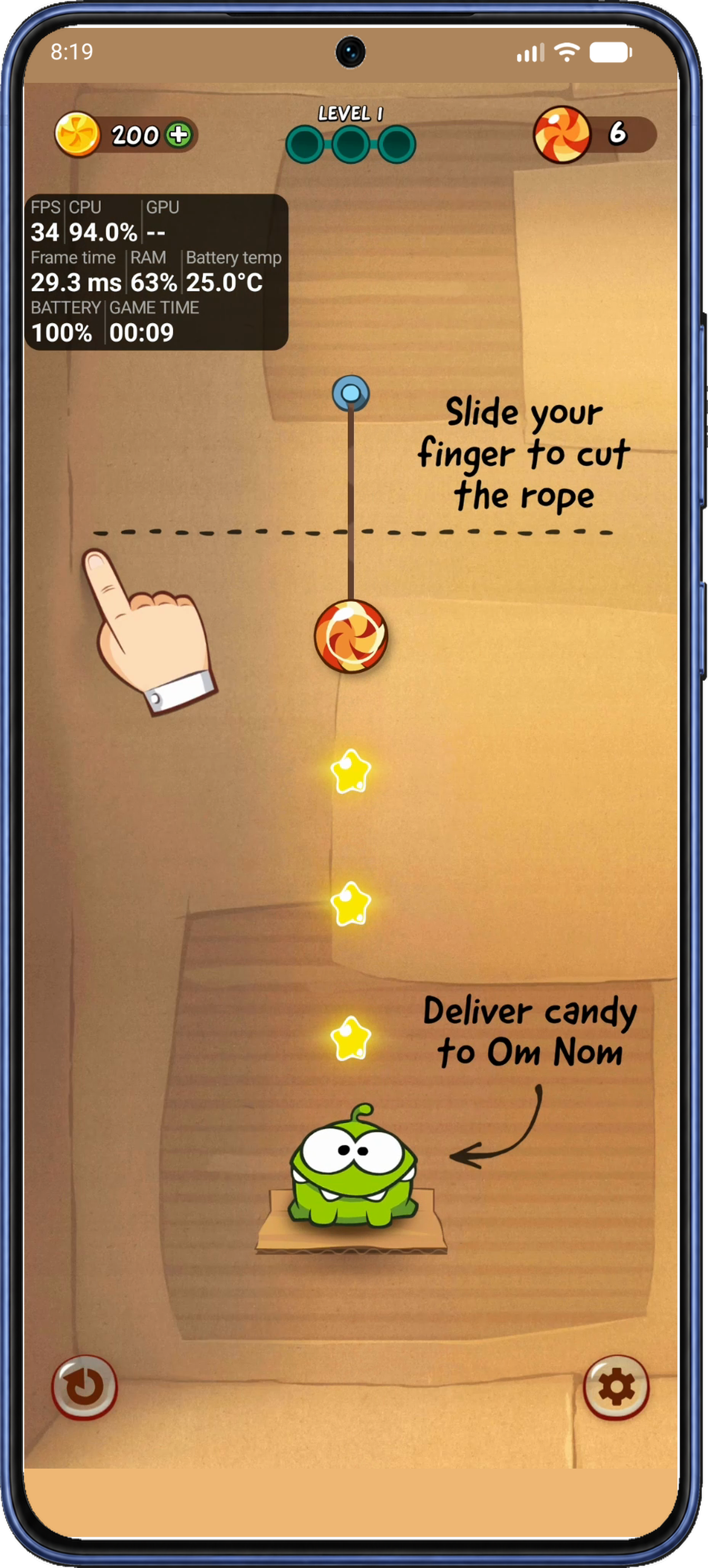
Read the overlay
With the game open and the monitor visible, you can follow the readings as you play. The fields depend on your selected metrics and what the phone can report.
| Reading | Meaning |
|---|---|
| FPS | Frames per second, based on the game or display frame data available on your phone. The value can change during loading and gameplay. |
| Frame time | Time between frames, in milliseconds. Spikes or large fluctuations can indicate uneven frame delivery. |
| CPU / GPU | Overall system load. These values include activity outside the game. GPU availability depends on the device. |
| RAM (memory) | Overall device memory use. The screenshot labels it RAM; the app’s settings use Memory. |
| Battery temp | Battery temperature, rather than CPU or GPU temperature. |
| BATTERY | Remaining battery charge. |
| GAME TIME | Elapsed time for the game session the app is tracking. |
To compare sessions, use similar scenes with the same game settings and watch both FPS and frame time. The overlay shows performance during play, while the boost results tell you which system settings were applied.
After playing: restore settings and stop monitoring
When you finish playing, return to the app to restore your saved settings or stop monitoring.
- After a boost session: return to Home and tap Restore to restore the saved settings from before the boost. Keep ADB connected, wait for restoration to finish, and review the results for any settings that could not be restored.
- After a Monitor only session: tap Stop monitoring on Home.
- To stop the floating monitor: use the stop action in the app’s monitoring notification. Boost settings remain applied until you use Restore on Home.
On the Boost Core page, Restore everyday settings applies the app’s defaults for everyday use. It is labeled Restore defaults in Figure 22. To return to the settings saved before your current boost, use Restore on Home. Apps closed during cleanup remain closed.
If you will not use the app for an extended period, restore any active boost first, then turn off developer debugging in Android Settings.
Troubleshooting
The first Connect attempt fails before pairing
Complete pairing first. If Pair to connect appears, tap Pair. In Pair with a pairing code, read the instructions and tap OK. Follow Steps 3–6, keeping Wi-Fi on and enabling USB and Wireless debugging as described above. Then return to the app and confirm Connected in Step 7.
If you have already paired ADB Game Booster on this phone, use the reconnect steps.
I cannot find Developer options or Wireless debugging
Menu names and locations vary by manufacturer. Follow Step 2 to enable Developer options through Settings → About phone → Build number, then return to ADB Game Booster and tap Open Developer options.
This pairing method requires Android 11 or later. If Wireless debugging is present but cannot be turned on, check Wi-Fi and both debugging switches in Step 4. Some phones also require an option allowing ADB debugging in Charge only mode. Turn on Wireless debugging, then go to Step 5.
If the Wireless debugging menu is missing, check your phone manufacturer’s instructions for your model.
The pairing notification is missing
Allow notifications for ADB Game Booster in Android app settings so the pairing-code entry can appear. Return to the app, tap Pair, and grant local network access if requested.
Reopen Wireless debugging → Pair device with pairing code and keep the code dialog open. In notifications, expand Local ADB pairing and tap Enter pairing code. Continue with Step 6.
The code is rejected or pairing does not finish
Reopen Pair device with pairing code to get a current six-digit code. Keep that dialog open and submit the new code through the app’s notification as shown in Step 6. Enter the Wi-Fi pairing code above the IP address and port; the port is a separate number.
Pairing succeeded, but the app is still connecting or has disconnected
Pairing allows the app to connect; Connected confirms that the ADB connection is ready to use. To reconnect:
- Turn Wireless debugging off and on again.
- Return to ADB Game Booster and tap Connect.
- If it still does not connect, tap Pair and repeat Steps 3–6 with the current code.
- If repeated attempts still fail, restart your phone and complete setup again.
Use the same sequence if the app cannot find the local connection port. Once Connected appears, return to Step 7.
What does Enable TCP/IP 5555 change?
Enable TCP/IP 5555 uses a fixed port for the local ADB connection. After setup, this mode can keep the connection working without Wi-Fi or Wireless debugging. With the switch off, keep both enabled while connected. Initial pairing still uses Wi-Fi; the app’s What is TCP/IP wireless mode? section has more detail.
My game is not listed
In Game Library, choose All apps and search for the game by name. Make sure it is installed and you have agreed to Read the installed app list. If you installed the game after opening Game Library, leave the page and reopen it to refresh the list. Select the game, then check its icon on Home in Step 8. If an added game will not open, check that it is still installed.
The floating monitor does not appear
The floating panel needs an ADB connection, monitoring enabled, and permission to display over other apps. On Home, open Performance Monitor Settings and confirm Enable Performance Monitor is on. Check Connected and Android’s Allow display over other apps permission, following Step 10.
Tap Preview to test the panel. If the button says Close preview but no panel is visible, tap it, then tap Preview again. Once the panel appears, return to Home and start your session in Step 11.
FPS, GPU, or another metric is missing or shows No data
Launch the game and allow time for readings to arrive. Check the enabled metrics in Performance Monitor Settings and confirm the ADB status is Connected. No data or -- marks an unavailable reading; availability depends on the phone, system, and game.
Some boost settings did not apply, or gameplay did not improve
Start with the result labels in Step 11.1. Skipped leaves a setting unchanged; Ignored can include an execution failure. Check device support and any connection or permission messages for the affected setting before retrying. Use Restore to return to the saved pre-boost settings. For gameplay comparisons, follow the overlay-reading guidance.
Get ADB Game Booster
Get ADB Game Booster on Google Play and set up your first game session.