
Connect an Android car display
If your Android car display supports network debugging, you can connect it to adb toolbox through your phone’s hotspot. Park before starting. After you connect and select the display, run pwd in Terminal. If it prints a folder path, the display is responding.
Before you start
- Check the manufacturer’s instructions for network debugging. If the display only has a USB debugging switch, ask the manufacturer whether it supports ADB over the network.
- After connecting the car display to the hotspot, turn on debugging on the display.
- If the display shows a pairing code, use its address, ports, and code and follow the manual pairing steps on your phone. If the manufacturer supports a direct connection by IP address and port, follow the steps below.
Settings can look different depending on your Android version. Use the IP address, ports, and pairing code shown on the device you’re connecting to.
Connect the car display to your phone’s hotspot
Turn on your phone’s Wi-Fi hotspot.
In the car display’s network settings, select the hotspot, enter the password, and connect.
Turn on debugging and connect
Follow the manufacturer’s instructions to turn on network debugging for a direct connection.
Once the car display is on your hotspot, find its IP address in its network settings. Use the port in the display’s settings or the manufacturer’s instructions. Port 5555 is common.
In adb toolbox, open Devices and tap Add new device. Choose Remote connection and Universal method, then tap Continue.
In adb toolbox, turn off Pairing code.
Enter the car display’s IP address and connection port.
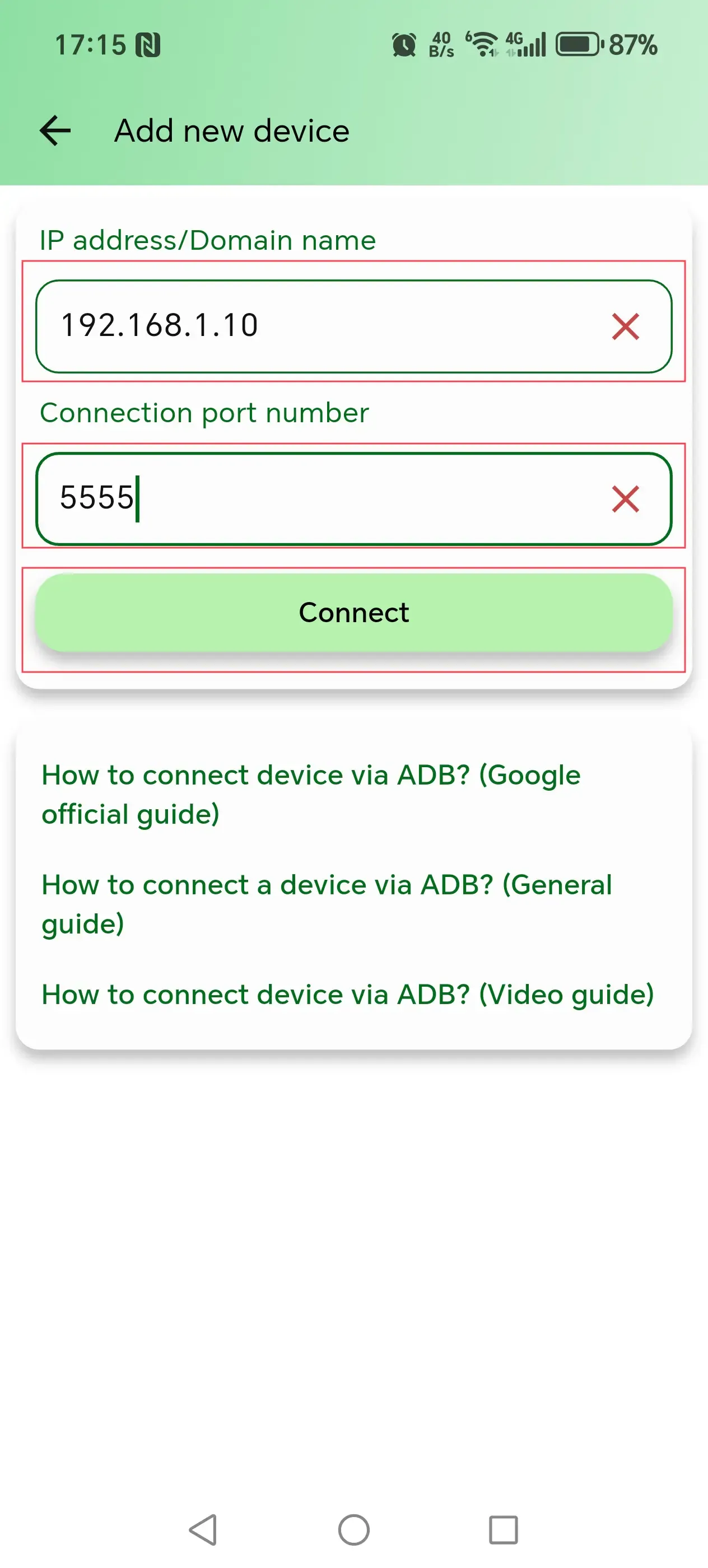
Use the address and port from your own car display. Tap Connect.
If the car display asks for permission to debug, choose Allow on the display.
If it still won’t connect, check that the display is still on your hotspot. Verify its current IP address and the port given by the manufacturer. If access is denied, ask the manufacturer or your administrator whether debugging is available for this vehicle.
Developer options are still missing after tapping the build number
Some vehicles running Android Automotive OS require the manufacturer to authorize access to Developer options.
- Check the manufacturer’s instructions to see whether Developer options or ADB is restricted on your model.
- If only authorized personnel can enable it, ask the manufacturer or an authorized service center for help.
Confirm the connection
- In adb toolbox, go back to Devices and confirm the car display shows Connected.
- Tap the gear next to the car display and choose Select this device. Wait for Device selected.
- Open Terminal. Under Device list, tap the device’s name, or switch to its tab if it’s already open. Run
pwd. If it prints a folder path, even just/, the device is responding. - If the command returns nothing, see what to do when ADB commands won’t run.