
Enable USB debugging on Android
To run ADB commands from a computer, turn on USB debugging on your Android phone and allow that computer to connect.
Before you start
- A USB cable that supports data transfer.
- An Android phone and a computer you trust.
Enable Developer options
Open Settings → About phone and find Build number. On Samsung Galaxy, go to About phone → Software information → Build number. If the menu looks different, search Settings for Build number.
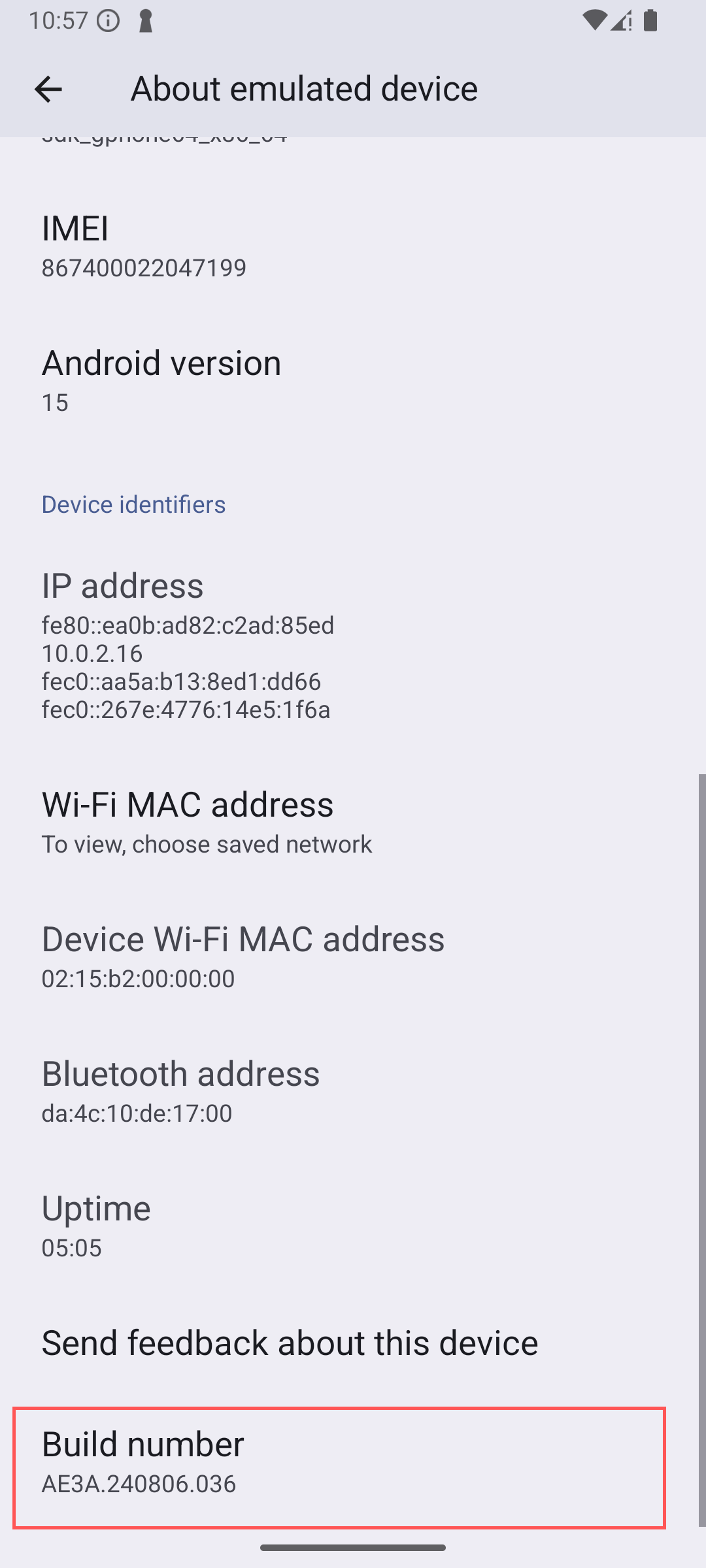
Build number is near the bottom of About phone. Tap Build number seven times. Enter your screen lock PIN or password if prompted. When Android confirms you’re a developer, return to Settings.
- Android’s guide to Developer options lists the Build number location on more devices.
Turn on USB debugging
Go back to Settings and open Developer options, usually under System. If you don’t see it there, search Settings for Developer options.
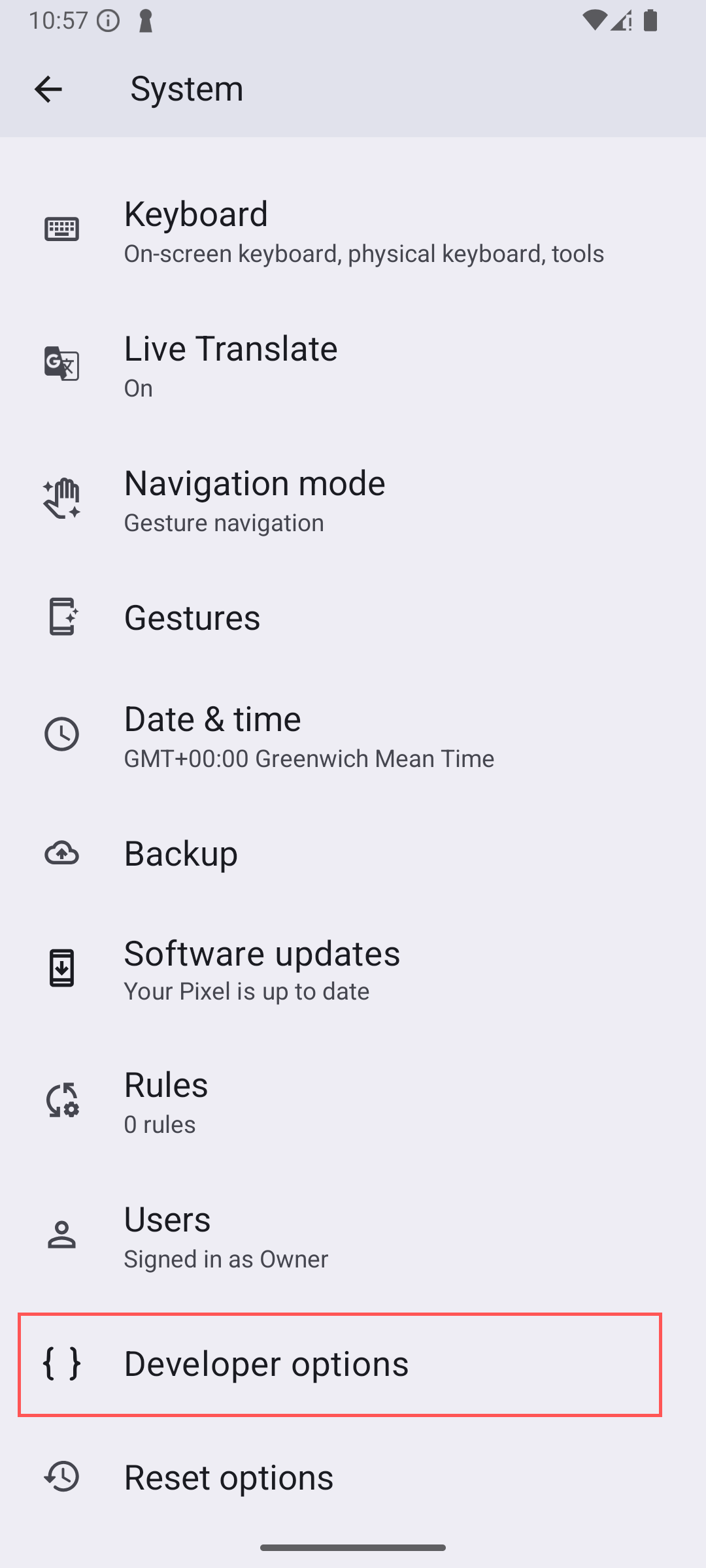
Open Developer options in System settings. Scroll to Debugging and turn on USB debugging. Tap OK if Android asks you to confirm.
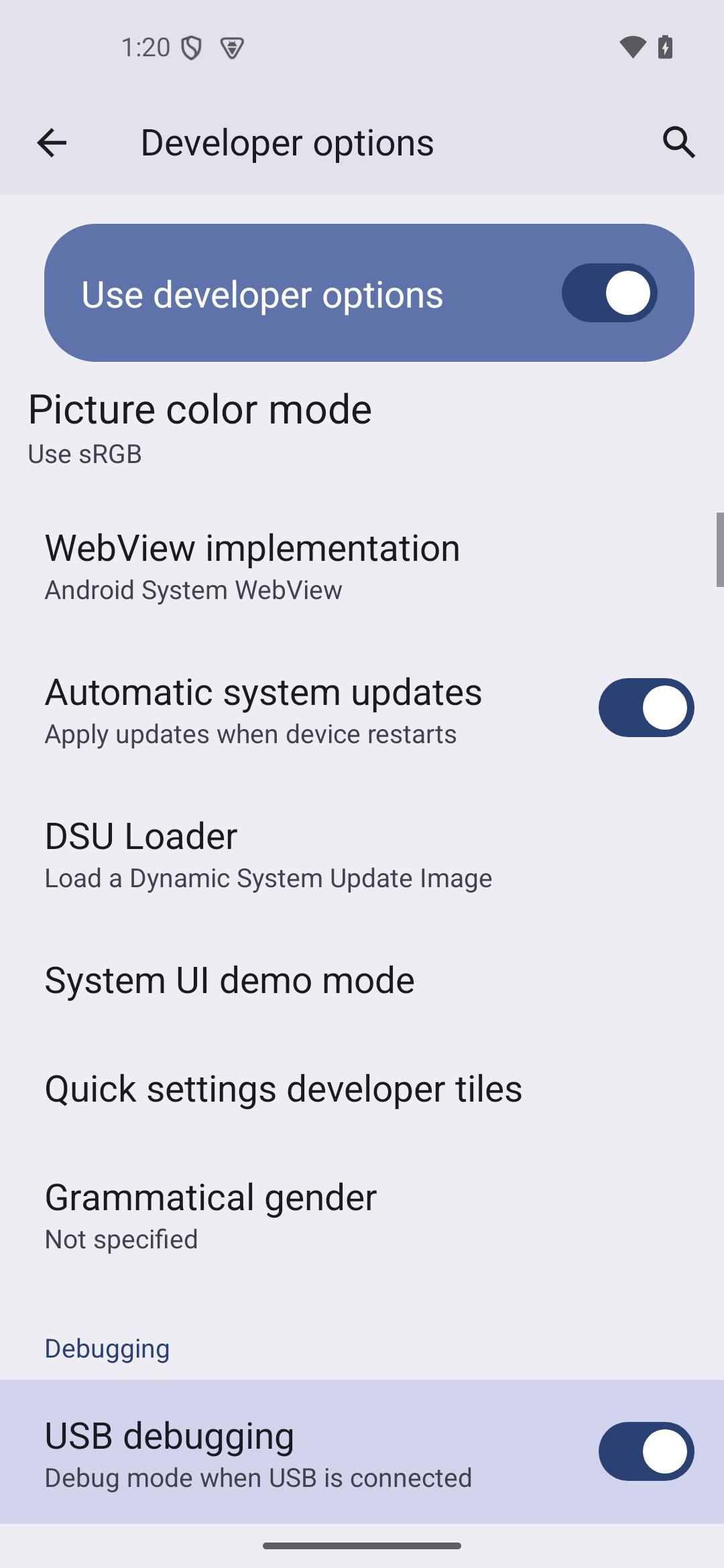
USB debugging is switched on in Developer options.
Connect and authorize the computer
Unlock the phone and connect it to the computer with a USB data cable. On the computer, launch Open Wireless Debugging or run
adb devicesif you already have ADB installed.When Allow USB debugging? appears on the phone, check that it’s for the computer you just connected, then tap Allow. The prompt includes the computer’s RSA fingerprint.
Verify the USB connection
In Open Wireless Debugging, find your phone under USB devices. A Ready status confirms the USB connection. You can then enable ADB port 5555 from your computer.
If you have Android Platform Tools installed, run
adb devices. If the command isn’t found, open a terminal in the Platform Tools folder. Run.\adb.exe devicesin Windows PowerShell or./adb deviceson macOS or Linux. Look for your phone’s serial number followed bydevice. The ADB command reference explains the device list.
Fix USB debugging problems
- The switch is missing or grayed out. Make sure Developer options is enabled, then check the settings for your device’s brand or system.
- No authorization prompt appears. Unlock the phone, open the desktop app, and reconnect the cable. A Ready or
devicestatus means the computer is already authorized. - ADB shows `unauthorized`. Check the phone and tap Allow. If ADB still shows
unauthorized, tap Revoke USB debugging authorizations in Developer options, then reconnect. This revokes USB debugging access for every computer. Allow the connection again when prompted. - The computer doesn’t detect the phone. Try another USB data cable or connect directly to a different USB port. If it still doesn’t appear, check USB drivers and permissions.