Connect another phone or tablet
First, turn on debugging on the Android phone or tablet you want to connect. On your own phone, connect to it over Wi-Fi in adb toolbox. Once the other device shows Connected, open its gear menu and choose Select this device.
If the other device has Wireless debugging, connect with a pairing code. If the switch is missing or you want to use a computer, see Turn on wireless debugging from a computer.
Before you start
- Connect both devices to the same Wi-Fi network. Guest networks may block connections between devices.
- On the other device, open Settings → About phone or About tablet to check the Android version. Check whether it has Wireless debugging.
Settings can look different depending on your Android version. Use the IP address, ports, and pairing code shown on the device you’re connecting to.
Turn on Wireless debugging on Android 11 or later
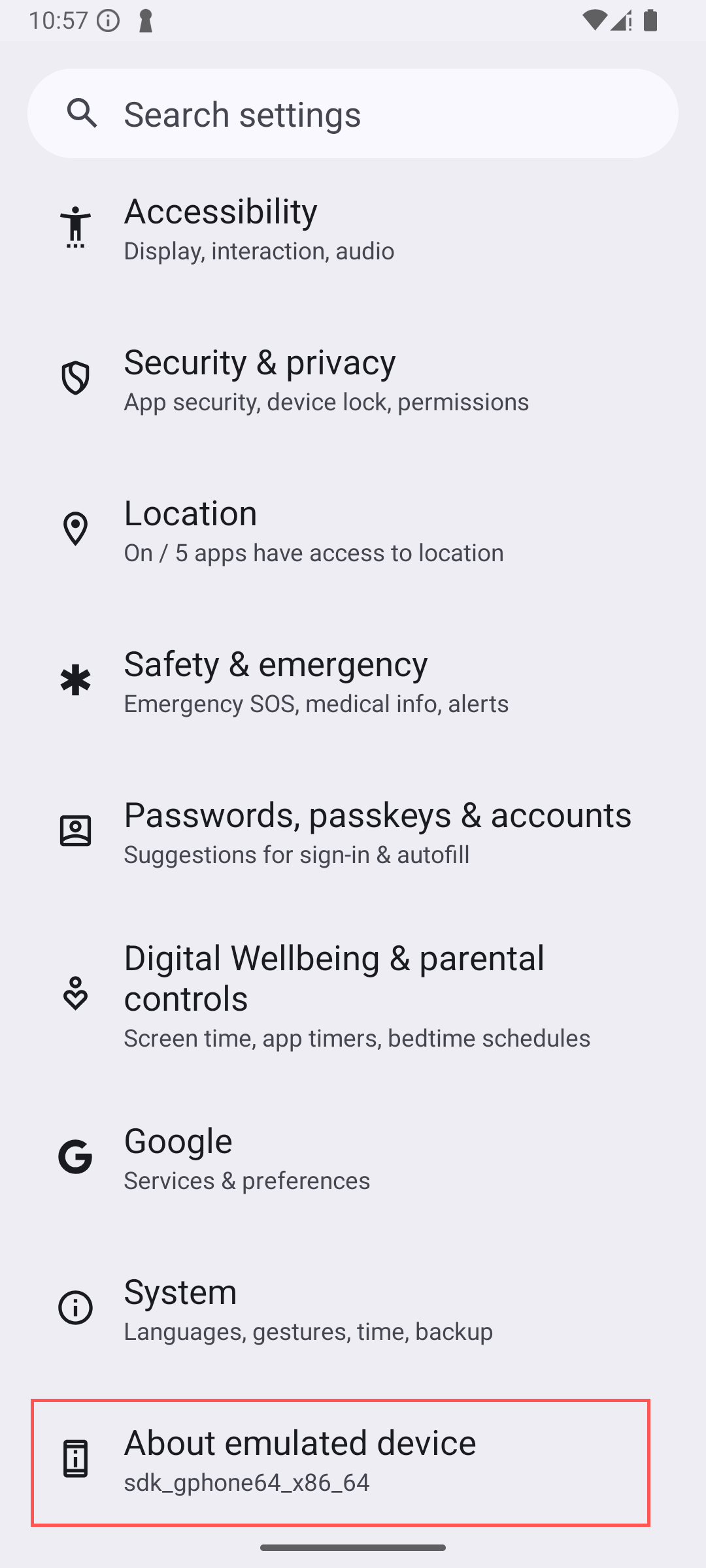
On the other phone or tablet, open Settings, then About phone or About tablet.
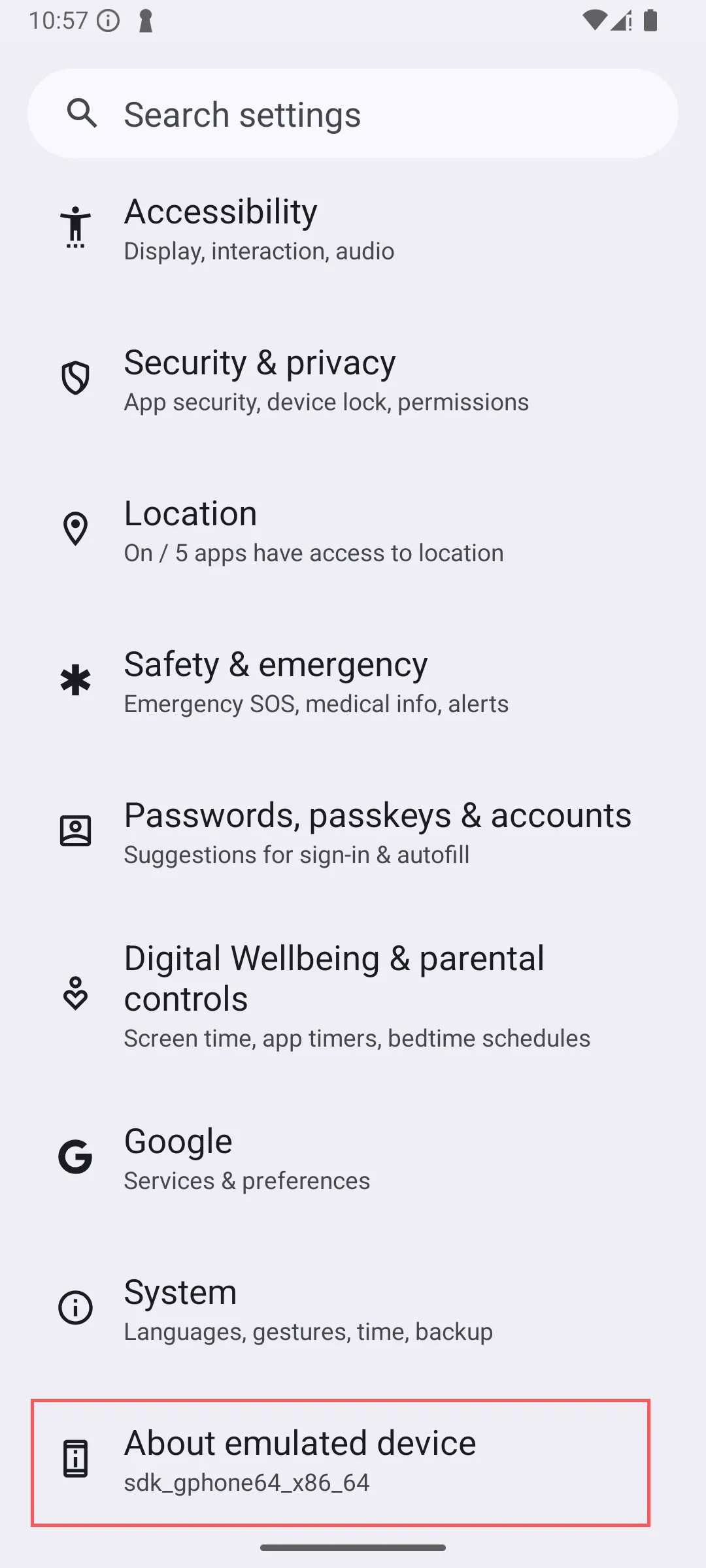
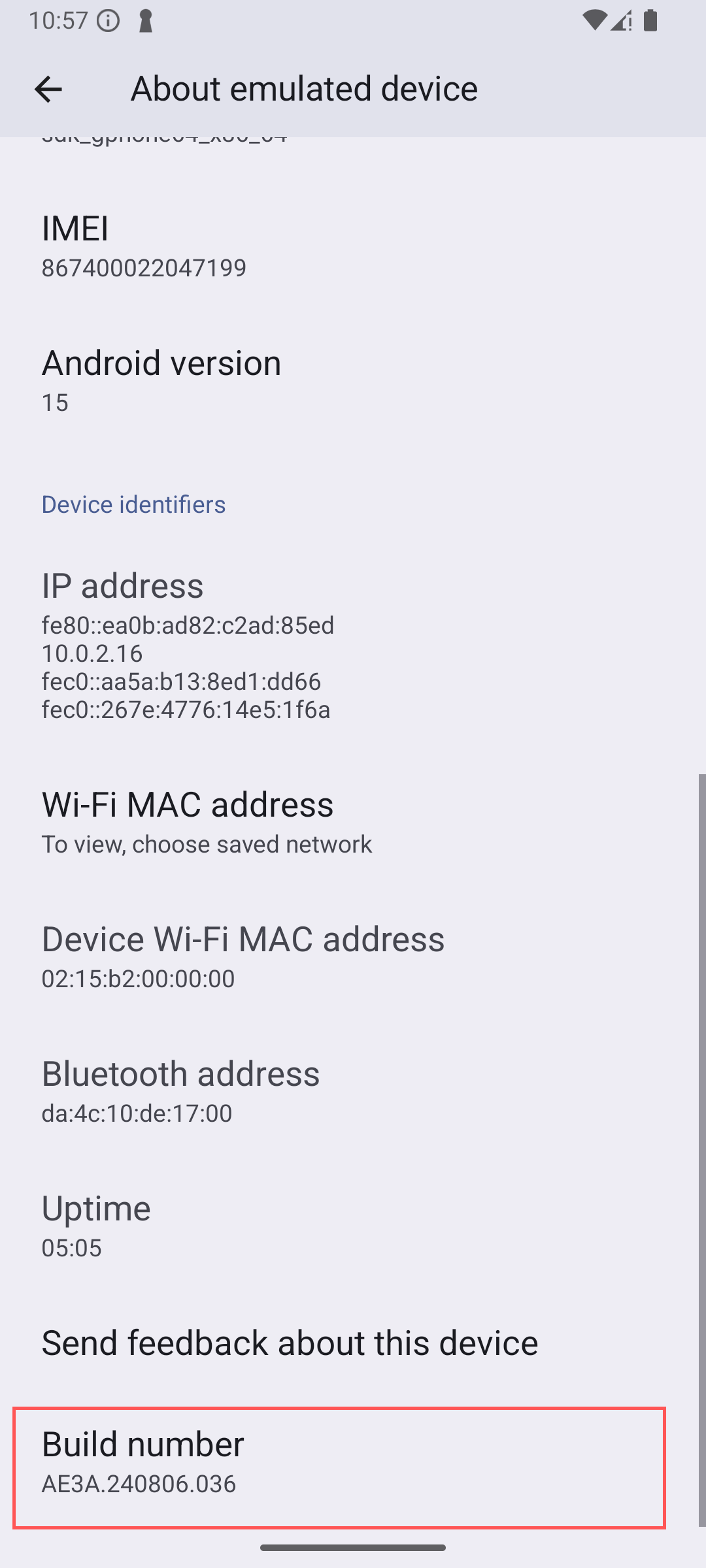
On the phone you want to connect, open About phone. Tap Build number repeatedly until Android enables Developer options.
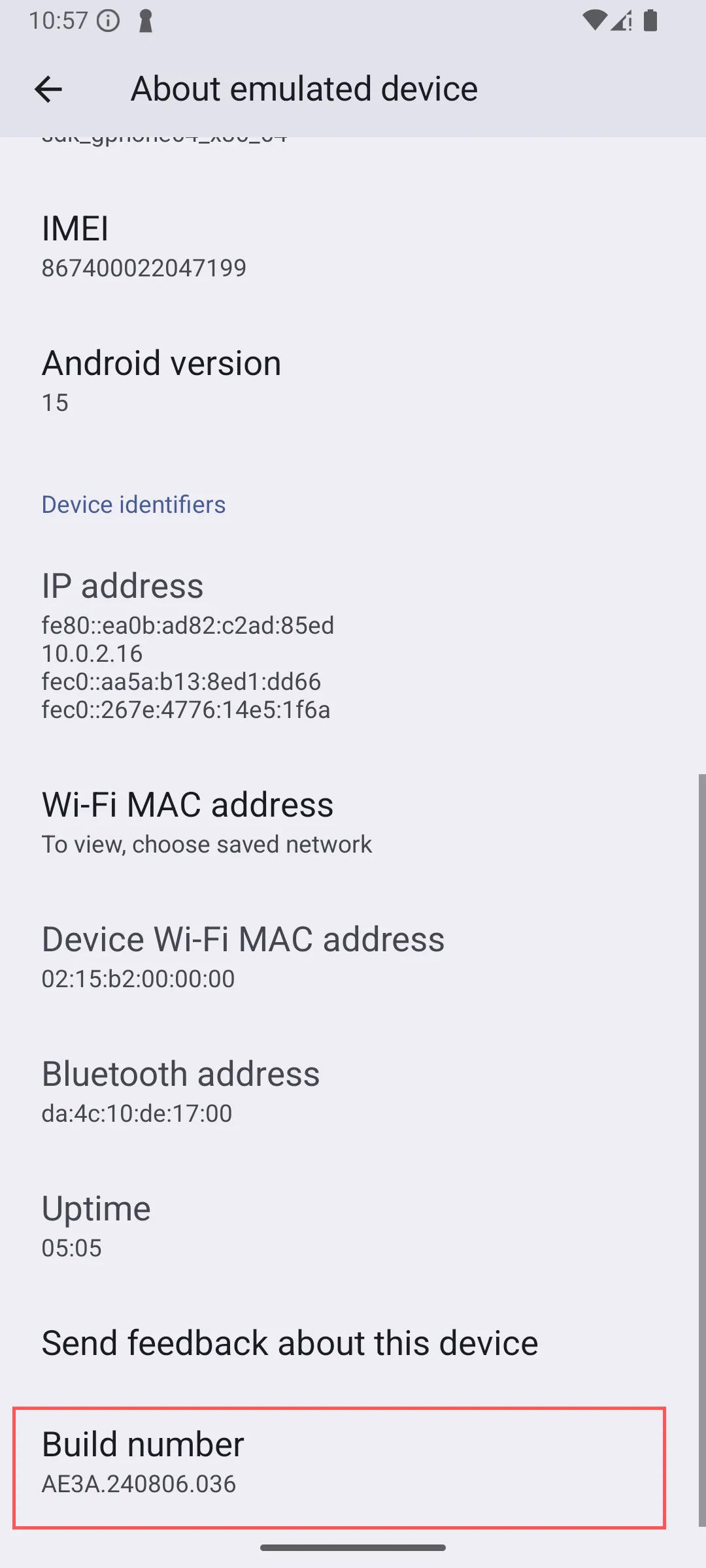
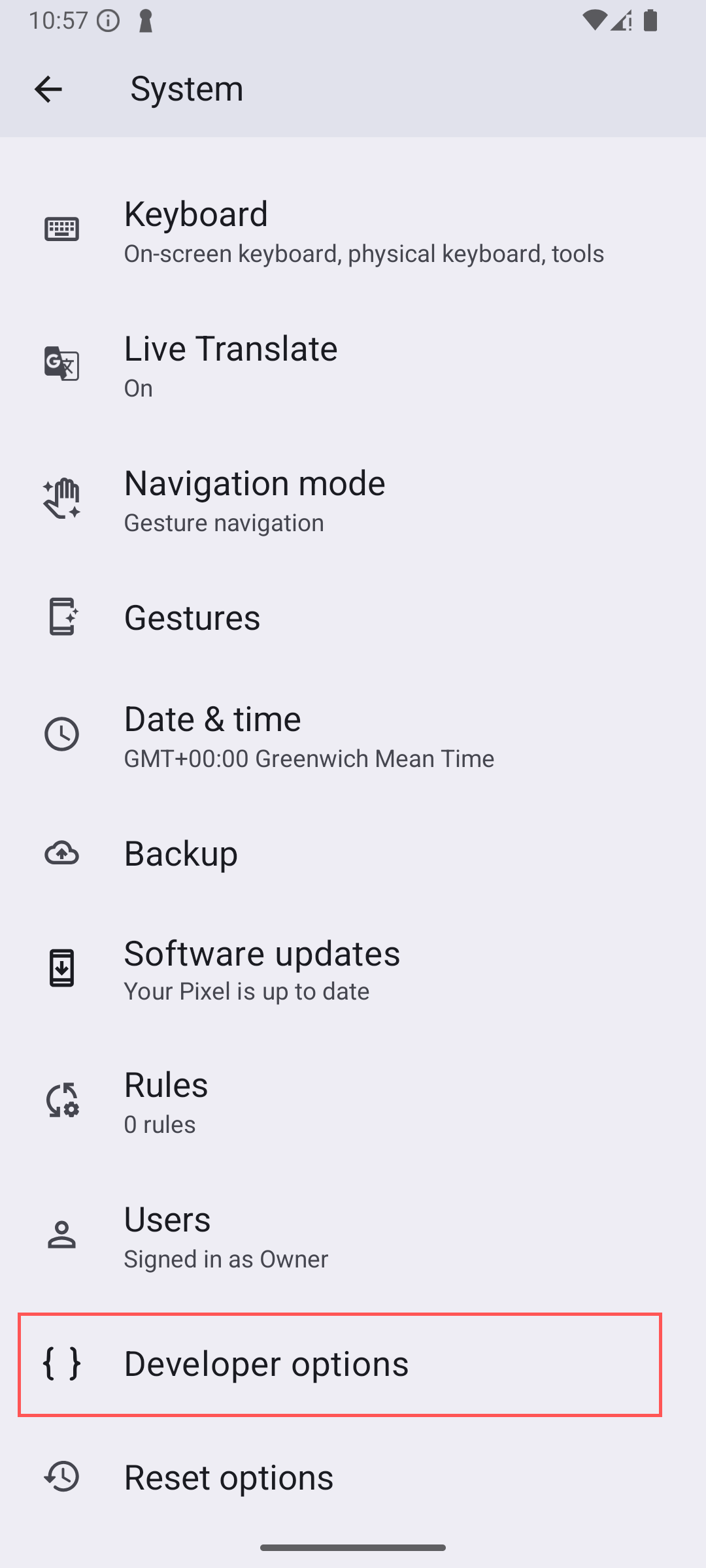
Tap Build number several times. Go back to Settings and open Developer options. If you don’t see it, search Settings for it.
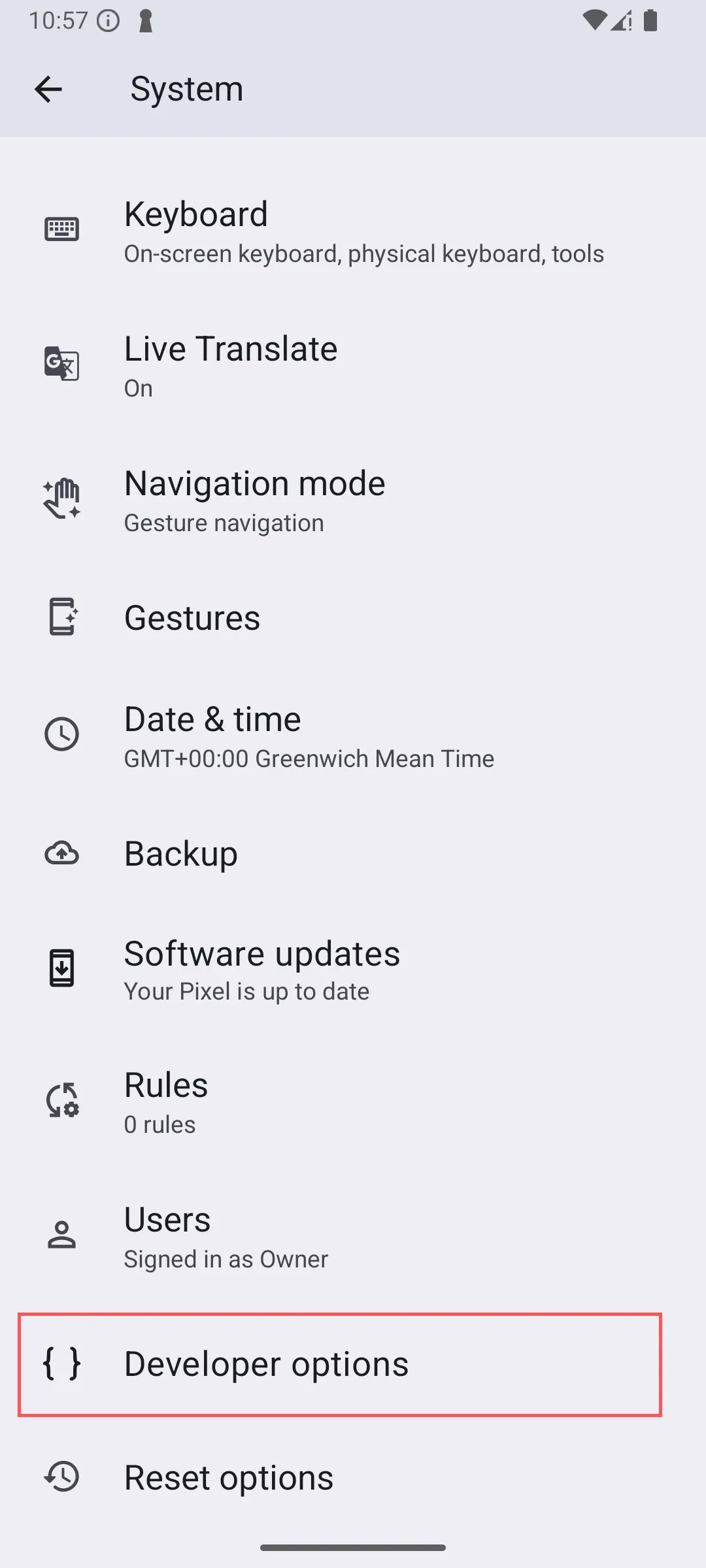
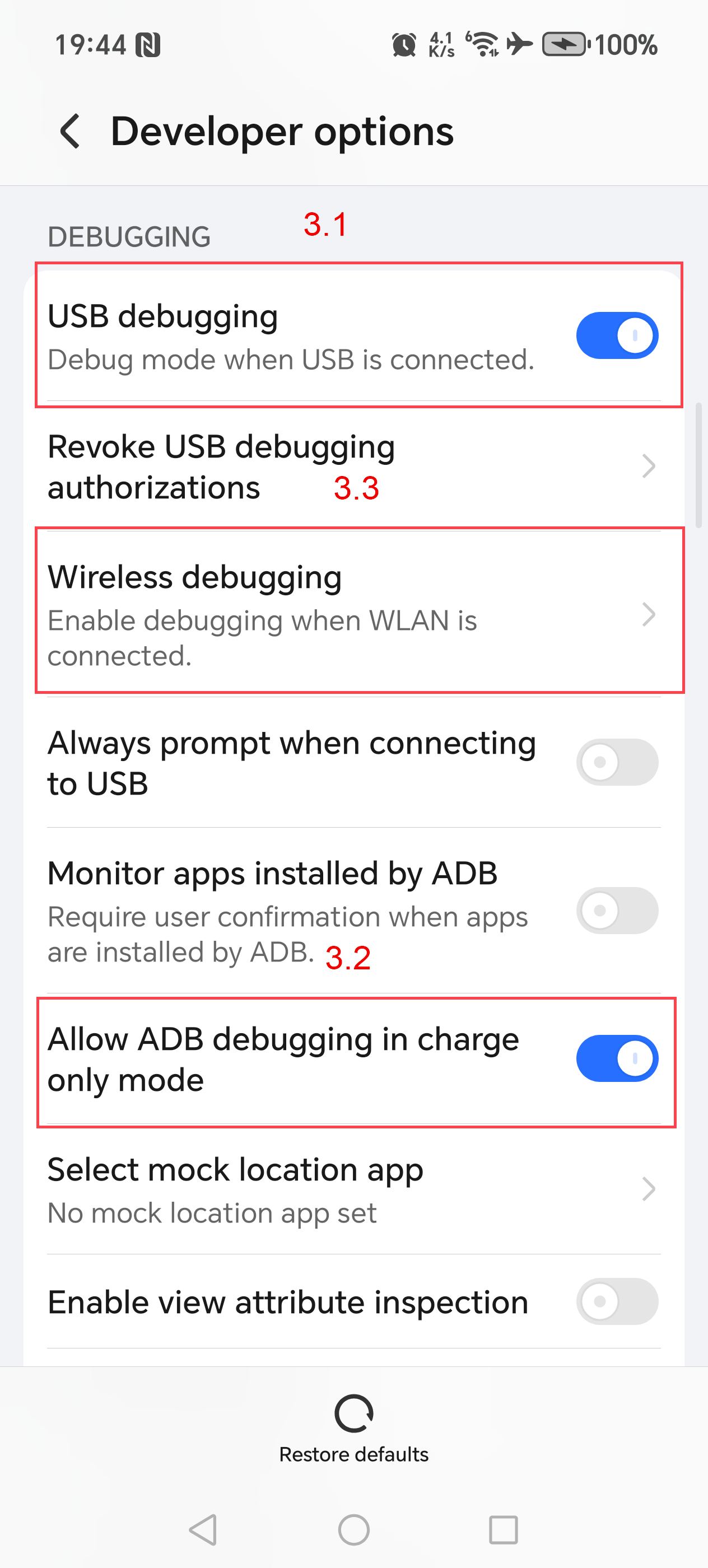
Open Developer options. Open Wireless debugging. Turn on USB debugging as well if the phone asks you to.
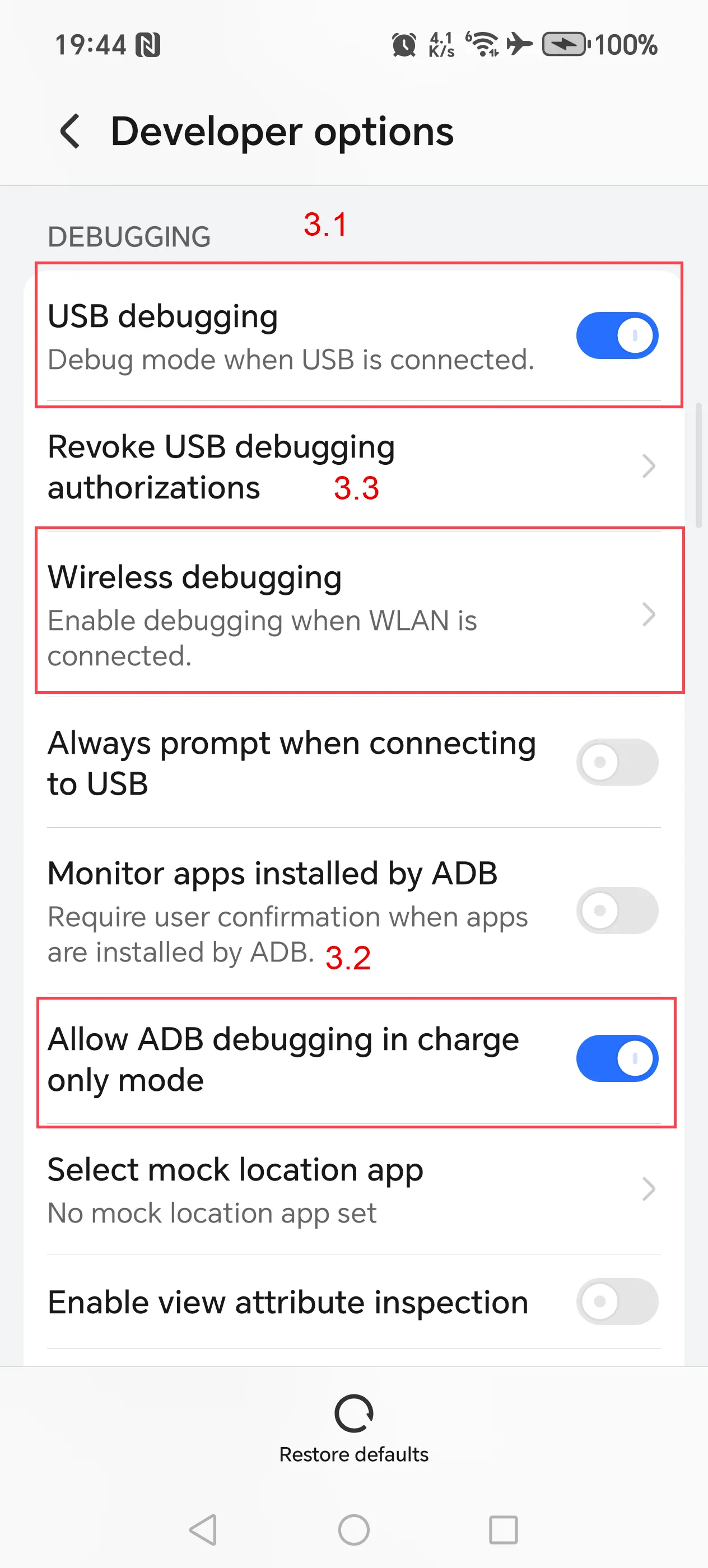
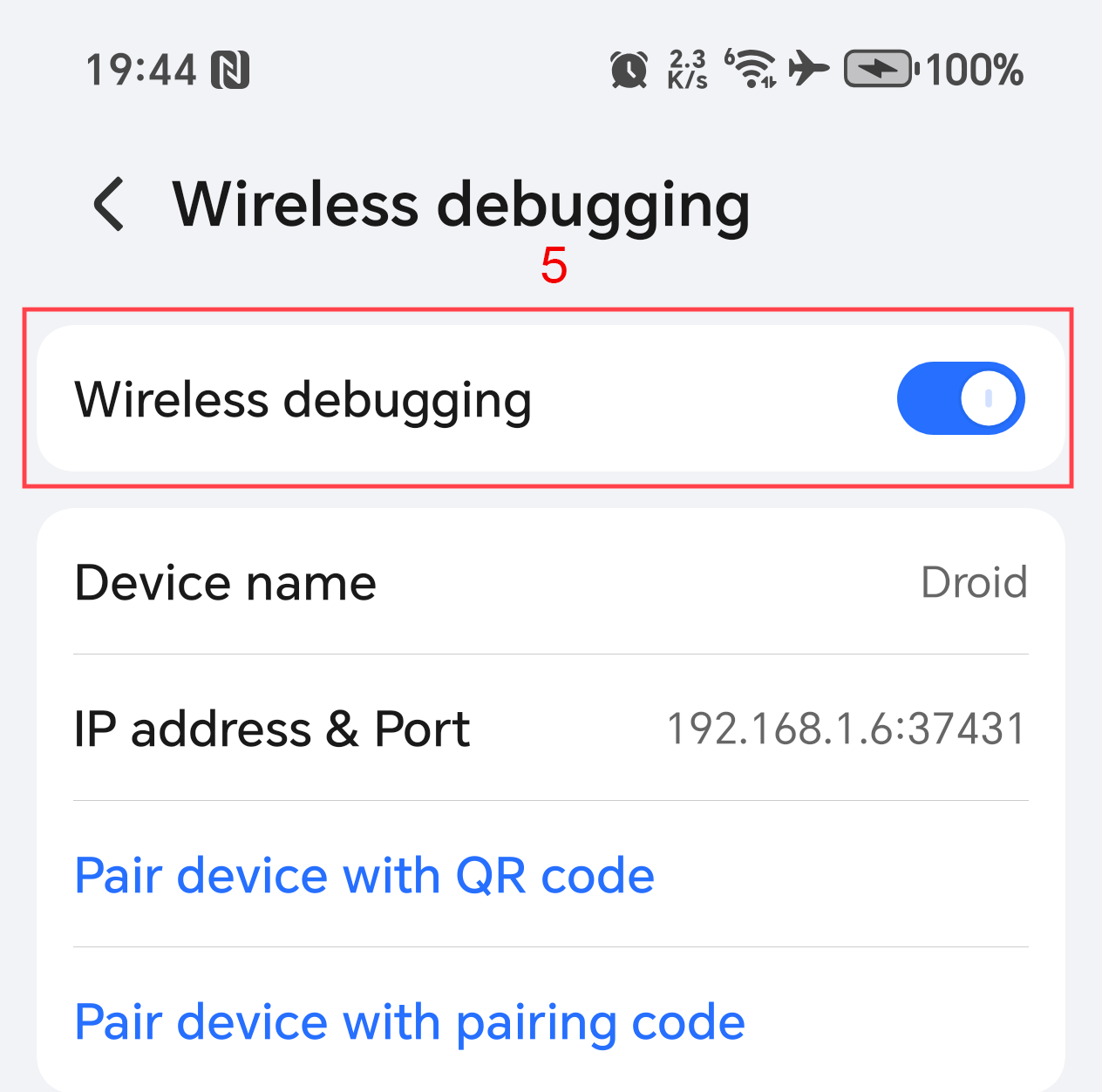
USB debugging and Wireless debugging are both in Developer options. Turn on Wireless debugging. Note the IP address and connection port on its main screen.
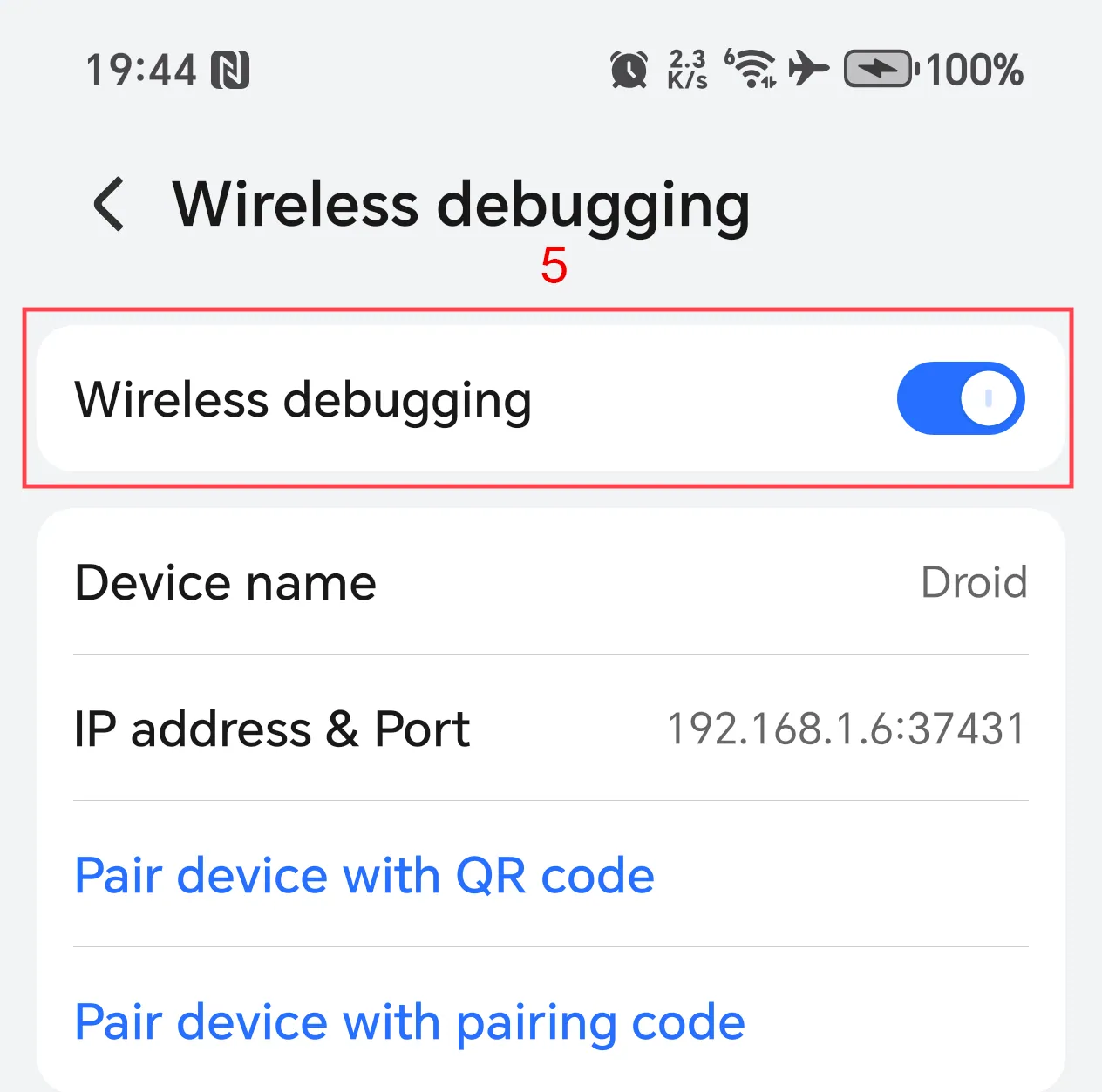
Use the IP address and connection port shown under IP address & Port.
Enter the pairing details and connect
Pair a new device or pair it again
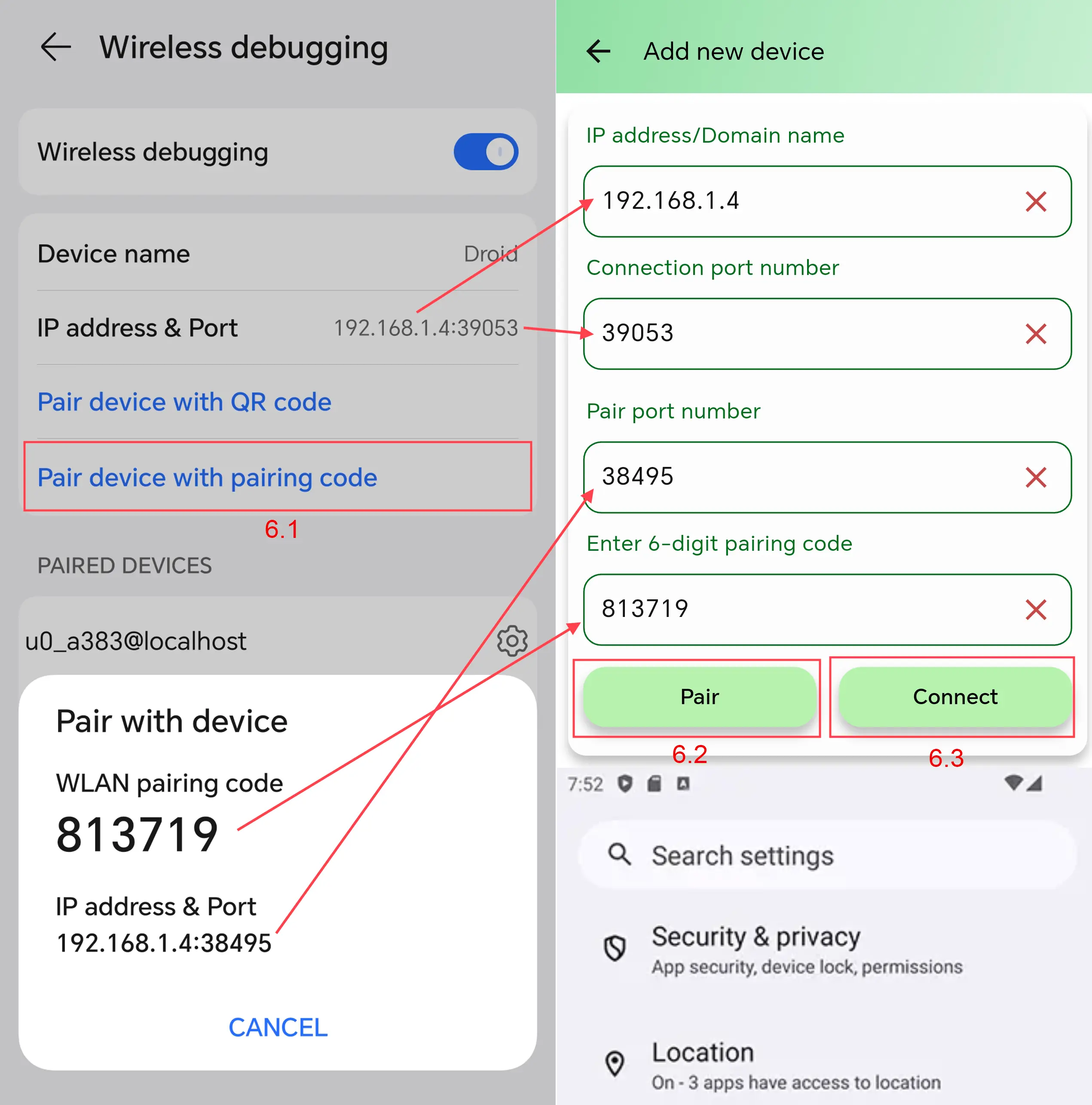
On the other phone or tablet, tap Pair device with pairing code. Note the pairing port and code, and leave the dialog open.
On your own phone, open adb toolbox, go to Devices, and tap Add new device.
Choose Remote connection and Universal method, then tap Continue.
Turn on Pairing code and turn off Enable TCP/IP 5555 (recommended). Use the connection port you just noted.
In adb toolbox on your phone, enter the other device’s IP address and Connection port from its Wireless debugging screen. Then enter the Pairing port and six-digit code from the pairing dialog. Keep the dialog open on the other device while you fill in the form on your phone.
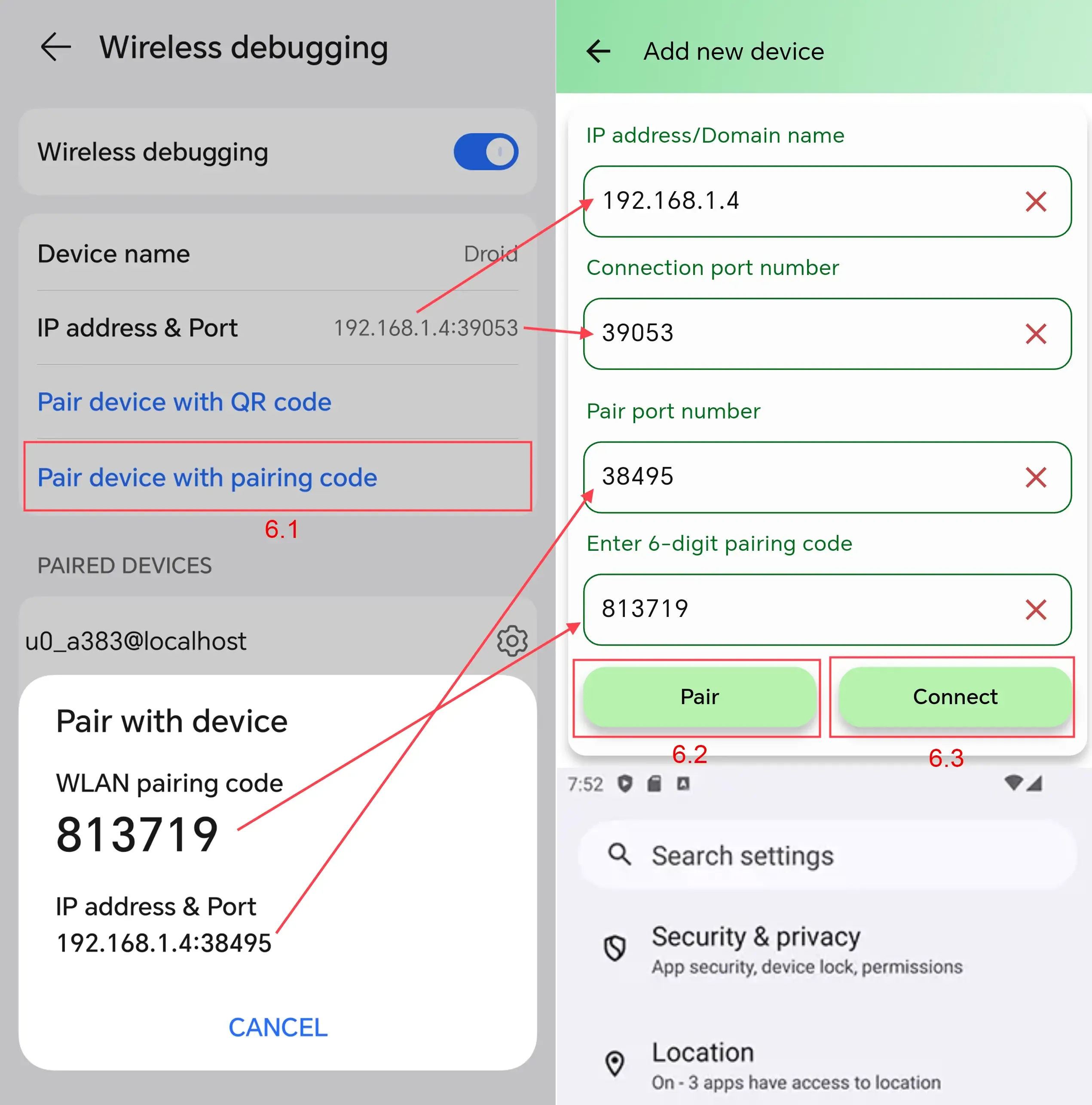
Use the connection port from the main Wireless debugging screen and the pairing port from the pairing dialog. On your own phone, tap Pair and wait for Device paired. You can now connect. Then tap Connect on the same screen.
If pairing fails, reopen the pairing dialog to get a new code.
Return to Devices and check that the other device shows Connected. If it won’t connect after pairing, see how to reconnect a paired device.
Reconnect a device that’s already paired
On the other device’s main Wireless debugging screen, check its current IP address and connection port.
In adb toolbox, choose Add new device → Remote connection → Universal method → Continue.
Keep Pairing code on and turn off Enable TCP/IP 5555 (recommended). Enter the IP address and connection port. You don’t need to enter a new pairing code.
Tap Connect. If you see
unauthorized, follow the ADB authorization steps before pairing again.
- If either device changed Wi-Fi networks or the other device restarted, reconnect with the current address and port.
- If the device shows as unauthorized, see how to authorize it.
Turn on wireless debugging from a computer (Android 5.0 or later)
With a USB data cable, set up wireless debugging from a computer, then connect in adb toolbox. This also works on ADB-capable phones running Android 11 or later. The computer app includes ADB, and you can complete the setup without running commands.
Confirm the connection
- In Devices, find the phone or tablet you just connected.
- Tap the gear next to its name, then tap Select this device. Wait for Device selected before opening a tool.
- Open Terminal. Under Device list, tap the device’s name, or switch to its tab if it’s already open. Run
pwd. If it prints a folder path, even just/, the device is responding. - If the command returns nothing, see what to do when ADB commands won’t run.
- To watch a video from the other device, find it in Device files and play it in your browser without downloading it first.
If you can’t connect
The device won’t connect after turning Wireless debugging back on
- Check the connection port on the main Wireless debugging screen again. It may have changed.
- Enter the current connection port in adb toolbox and tap Connect. If your pairing is still valid, you don’t need to pair again.
The wireless connection set up by the computer stops working after a phone restart
- Reconnect the phone to the computer with a USB data cable.
- On the computer, reopen Open Wireless Debugging. Allow debugging on the phone, then select the phone in the computer app and click Enable wireless debugging.